AI Translation: Setup
With LiveVoice AI Translation, you can translate live spoken audio into AI-generated voice, translated captions, or both in over 70 languages.
For a standard setup, create one Audio Input channel for the language spoken by the speaker and one AI Translation channel for each language your listeners need. For example, an English source channel can be translated into German and Spanish channels.
If more than one language is spoken in the original audio, you can select multiple source languages. For better accuracy, only select the languages you actually need.
You can find the complete list of supported languages here.
What you should know first
AI Translation is a pay-as-you go service that you can book online additionally to your LiveVoice account plan (day plan or subscription). It is billed by minute and invoiced afterwards. You find the pricing here.
Before you pay, you can try out the AI Translation up to 20 minutes for free. Once you have used up the free minutes, you will only be able to use it if you add a payment method, or already have an active subscription or day plan (as this means you already provided a payment method). Minutes will then be billed to this payment method.
Setting expectation right
As there are very different expectations how good AI already is, we want to make clear: You will still get the best live translation from human interpreters. Also, the speed will be faster with human interpretation, because AI will need to wait until a sentence is finished before it can actually start translating. This can lead to longer pauses when speakers use very long sentences for example. We recommend you try it out and hear for yourself, if AI or human interpreters are the right choice for your occasion. LiveVoice offers both.
More: Find out about the differences between AI Translation vs. Human interpreters in this blog article here.
AI Translation Setup
Step 1: Create event and channels
Use AI Quick Setup
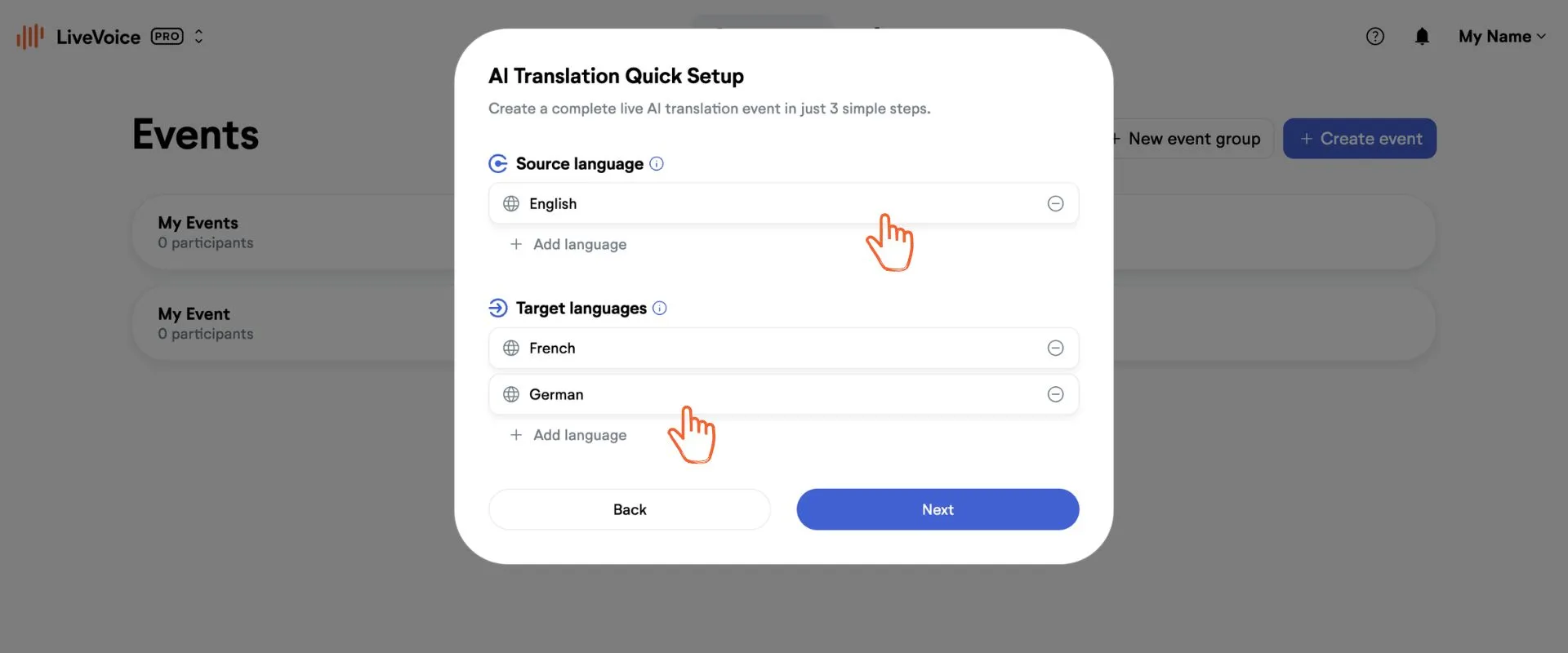
a. Go to "Create event" and choose the "AI Quick Setup" option to get started.
b. Define the source channel and the language spoken on this channel. It is also possible to define multiple input languages, which the AI will translate into your selected target language. *
c. Select the languages you want the input translated into and click "Next".
* Note, the more accurate you make these settings, the better the translation will be. Therefore, do not add languages you do not really need. In certain cases you might also choose a language but set it on "ignore" if for a specific AI Translation channel you do not want to use this language to be translated.
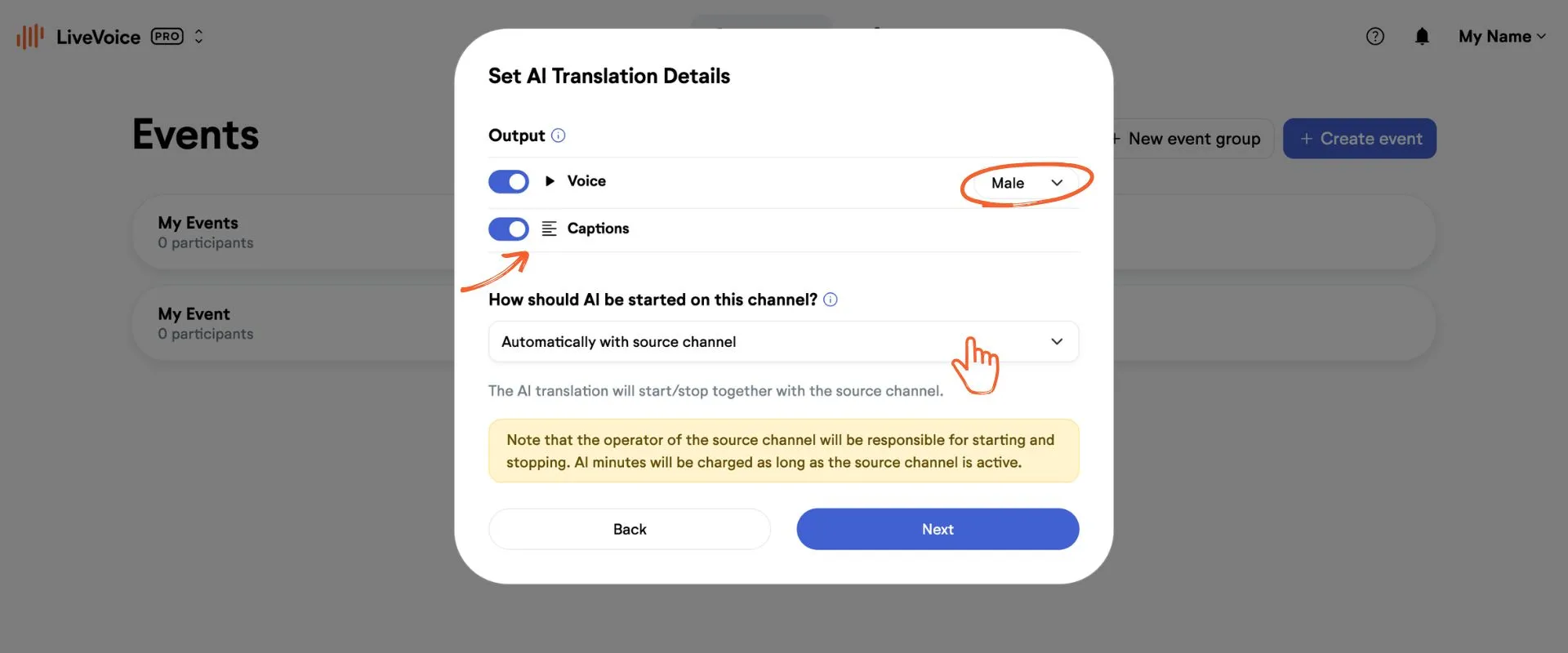
d. Now you can choose if you want to provide voice translation and translated captions to your participants, or only one of them. By default both are activated, as this is the best user experience and will not cost more than using just one of them. Costs are the same no matter which output option you choose.
When using voice, you can select between a male and a female voice.
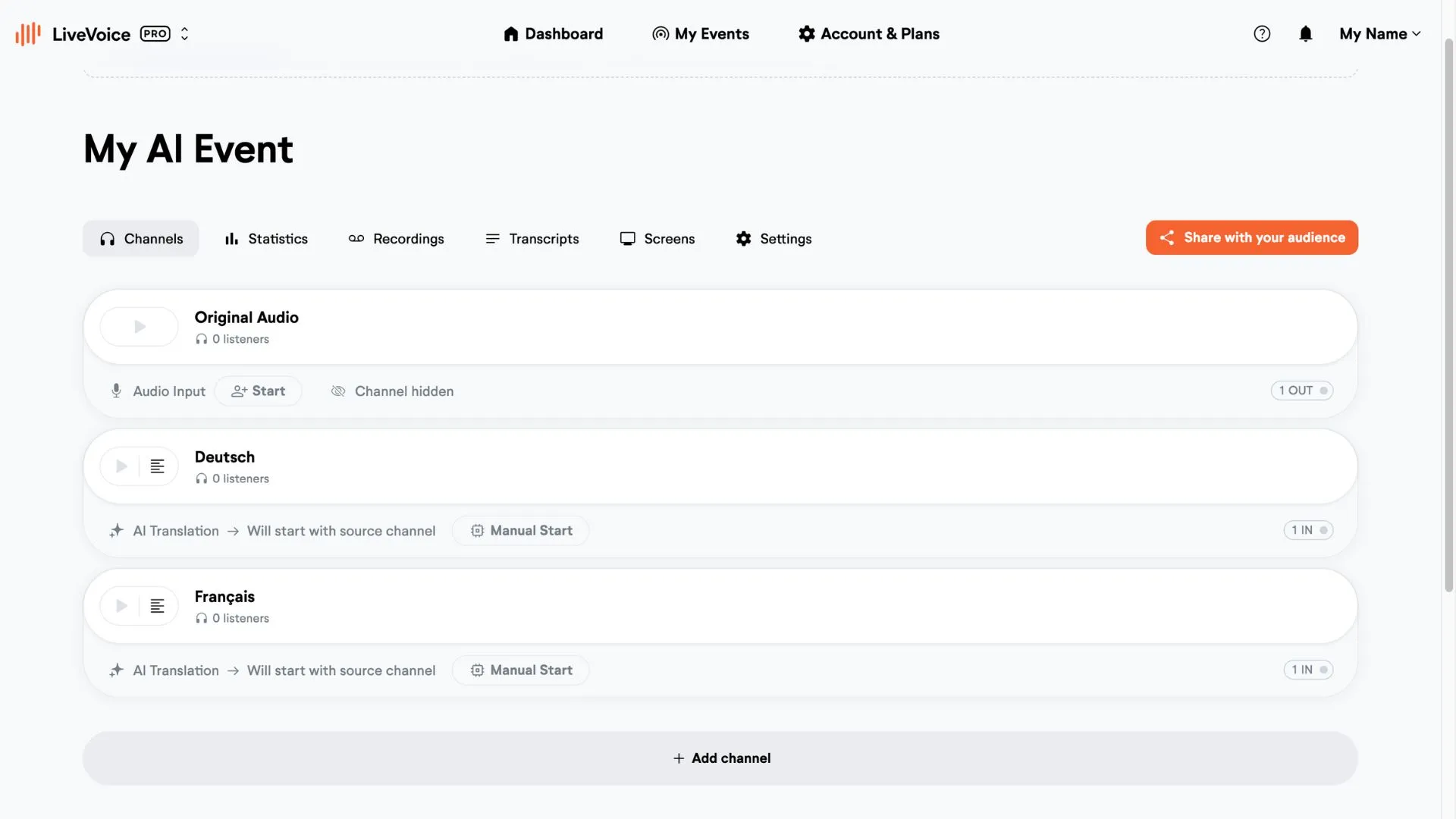
e. Next, you can define how AI translation should start and stop for this channel.
- Automatic with source channel: All AI translation channels will be turned on/off together with the source channel, no extra steps needed. We recommend using this option for most use cases.
- Scheduled: Set specific times for the AI translation to start and stop.
- Manually only: Turn AI translation on or off as admin for each channel individually.
f. Save. You will be asked to check the box that you have understood AI features are billed by minute, in addition to your account plan.
This is how a setup could look like:
Optional: Enable and set up AI Translation channels manually
If you already have an event set up and want to add AI translation to a channel, you’ll need:
- One channel for the original audio input (often called the “Floor” channel)
- At least one translation channel
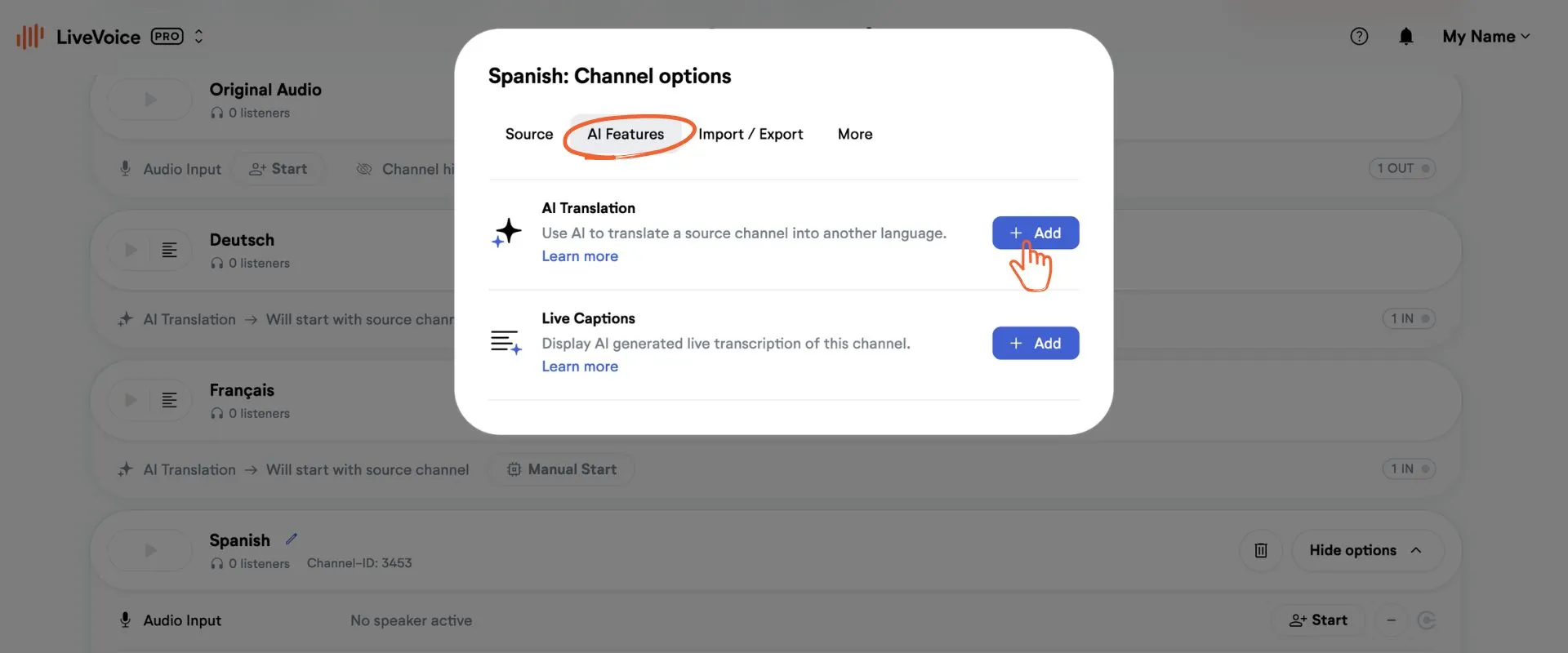
a. Create a new channel or if you want to add AI translation to an existing channel, go to "Show options" and choose "+ Add feature".
b. Under "AI Features", add the AI Translation feature. You will be guided through the necessary steps.
Step 2: Start Original Audio Input channel
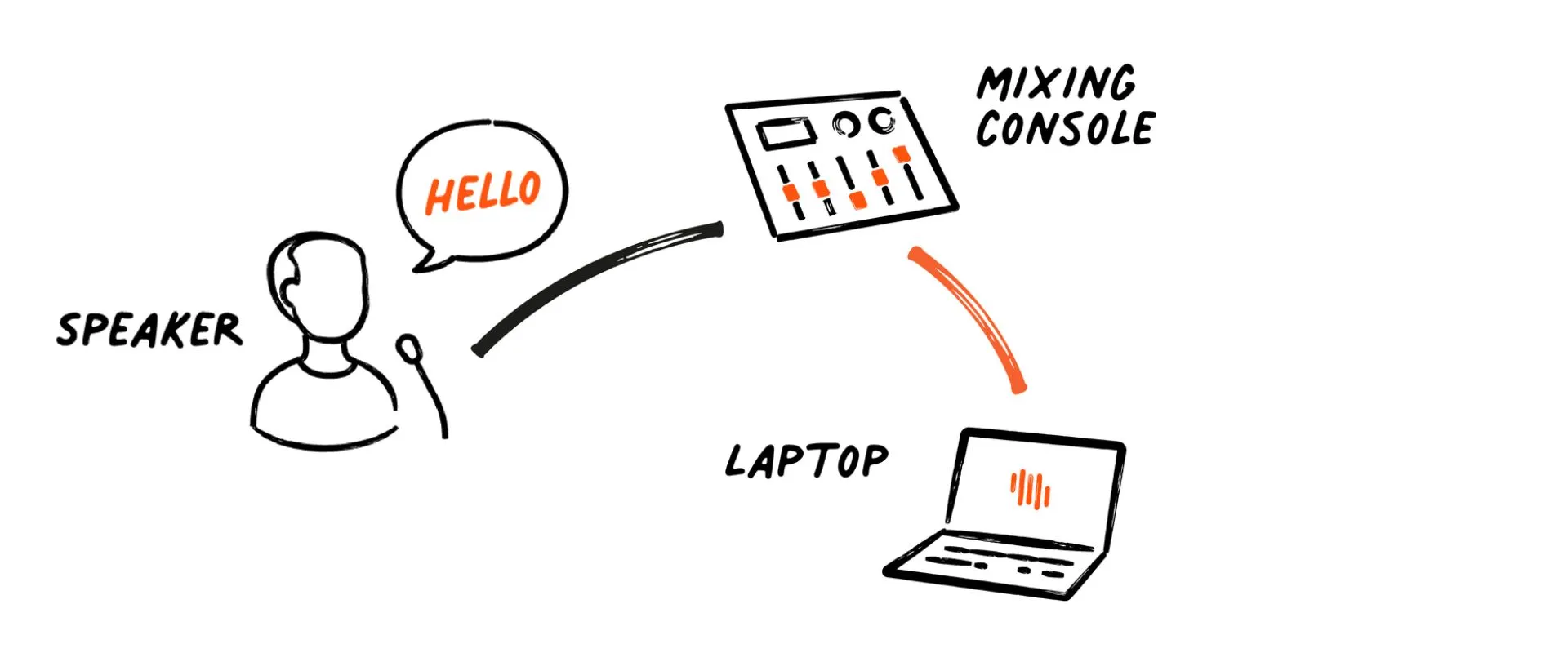
a. Connect audio: Connect audio mixing console to a laptop or PC (audio cable or USB, depending on your equipment).
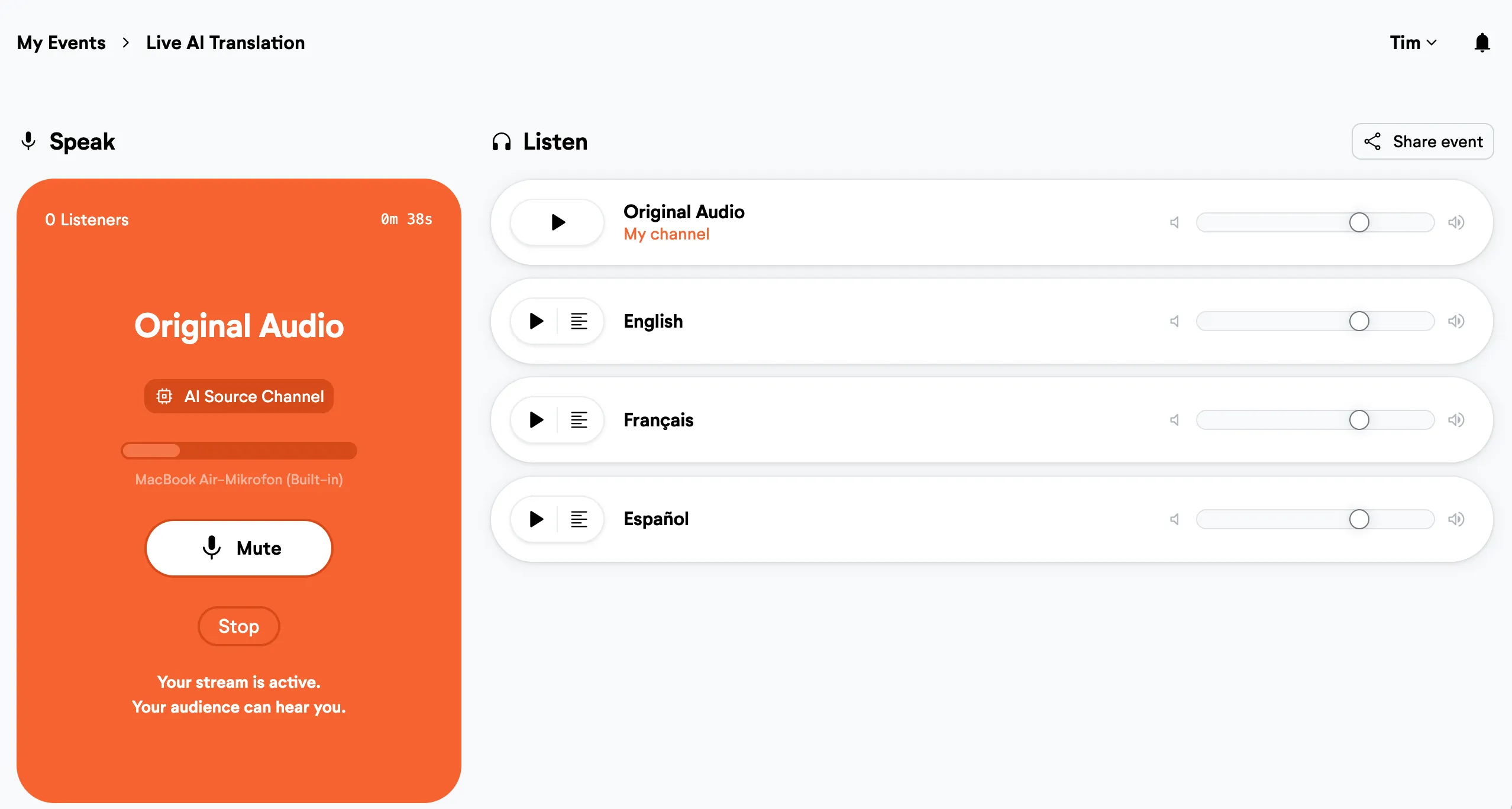
b. Open LiveVoice: Open LiveVoice on the computer browser (open www.livevoice.io and enter the speaker code, or simply follow the sharing link you get in the admin panel; we recommend Chrome as browser)
c. Start Streaming: Click “Start” in the LiveVoice Lobby. The interface will turn orange, and you will see the mic level working as you speak.
Step 3: Starting the AI Translation
Option 1: If you've chosen Automatic with source channel you do not have to do anything else. AI translation channels will start and stop automatically whenever the Original Audio (source) channel is started and stopped.
☝️ Note that the operator of the source channel is now responsible for any AI minutes used and thus also for related costs. With VAD (Voice Activity Detection) AI will be paused after a certain time (default is 60 minutes) to prevent unnecessary costs, but the responsibility for stopping AI is still with the customer/operator.
Option 2: If you've chosen Scheduled AI translation will start and stop automatically according to your set times.
☝️ Note that AI will start independently from starting the source channel. If you do not start the source channel you will not get any translated output, but AI is running anyways and will use minutes.
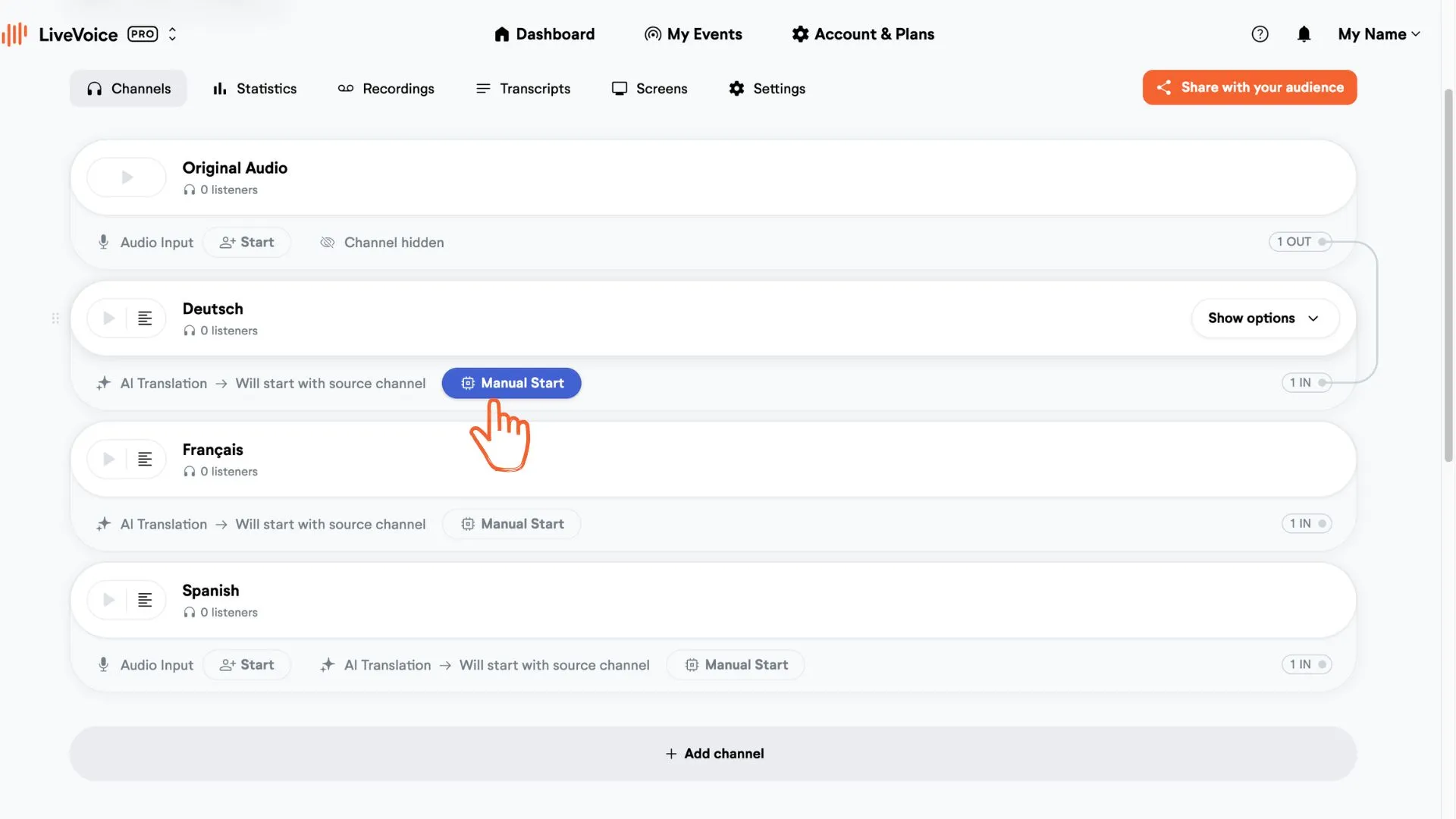
Option 3: If you've chosen Manually only you need to turn on/off each channel individually either in the admin account or the operator view. Click the “Manual Start” button at each channel you want translation to work.
☝️ Note that when using the manually only option, you need to turn off AI translation when you are done by clicking manual stop. Closing the web browser or computer will not stop it. You will be billed by minute for each channel running. As a safety net VAD (Voice Activity Detection) is turned on by default, pausing the AI after 60 minutes if no voice has been detected on the source channel.
Glossary:
For SMART and PRO customers there is the option to create glossaries. This allows you to enhance the AI recognition of special words like company names, and make sure that the AI translates certain words exactly the way you want. Learn more about glossaries here.
Billing notes:
Costs depend on the time you are using the feature. It will be billed by minute and per language. If your event lasts 3 hours and you use AI Voice Translation for 2 languages, you'll be billed for 6 hours of AI usage (2 languages × 3 hours).
Once a week you will get the invoice for all used minutes within that week. If you have used minutes worth more than 250€ on a given day, you will be billed right away at the end of that day.