Create events & channels
Setting up events and channels is a breeze. Access your LiveVoice admin account in your web browser and follow these steps.
An event is the main space where you organize the audio, interpretation, translation, or captioning setup for your audience. Within each event, you can create different channels depending on the languages and services your speakers, interpreters, and listeners need.
For a standard translation setup, you usually need one channel for the original audio and one additional channel for each translated language. The translation can be provided by a human interpreter or by AI Translation.
For example, if the original audio is in English and listeners need German and Spanish, you can create one English Audio Input channel and separate German and Spanish translation channels. You can also create events with only original audio, several interpreters, live captions, or a combination of these options.
Step 1: Create a new event
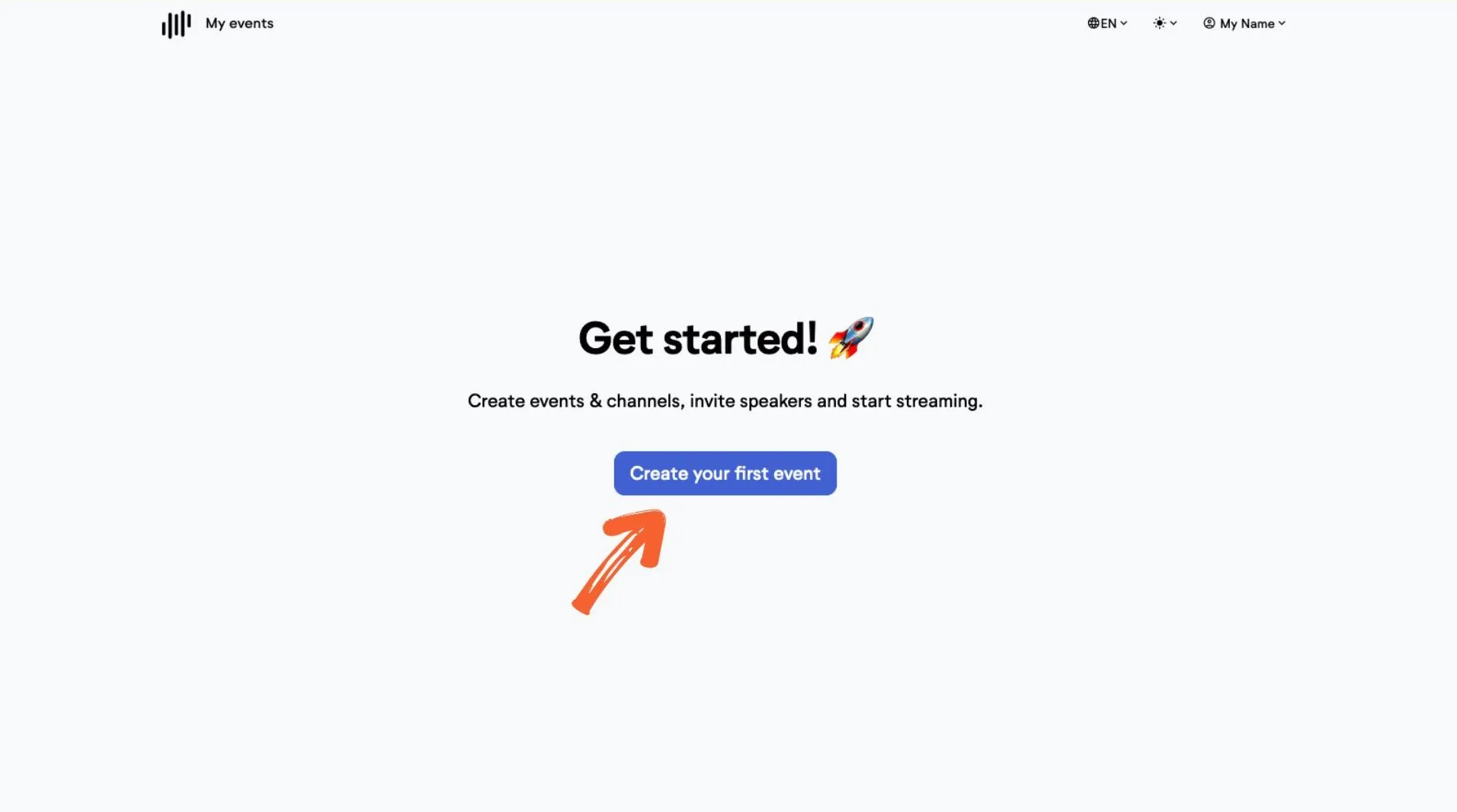
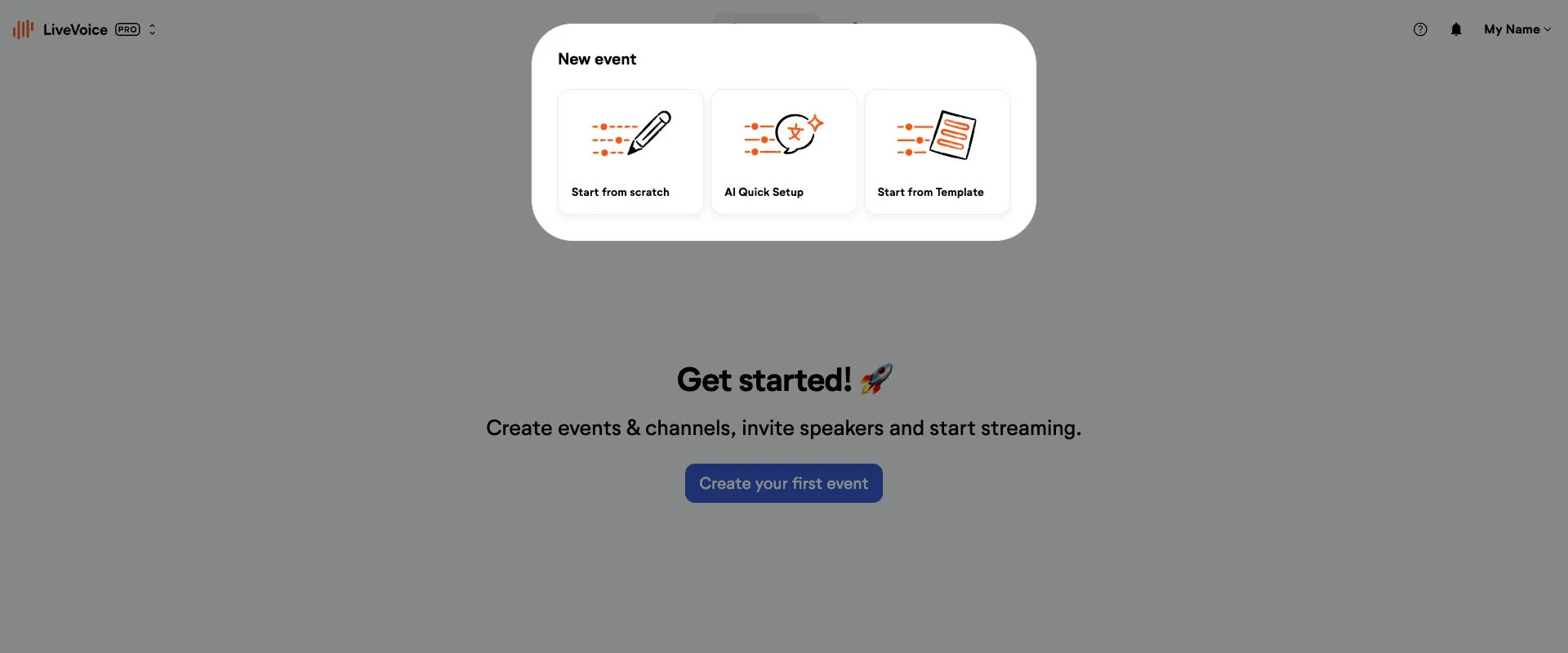
Option 1: Start from scratch
Set up your event manually without any default settings.
Option 2: AI Quick Setup
Use a guided setup to get AI translation running in just three steps. Learn more about how to set up AI translation here.
Option 3: Start from Template
Choose from pre-built templates to quickly set up your channels for common use cases, such as Translation On Site, Remote Translation, or Guided Tours. You can edit the event after creating it anytime.
Step 2: Create channels
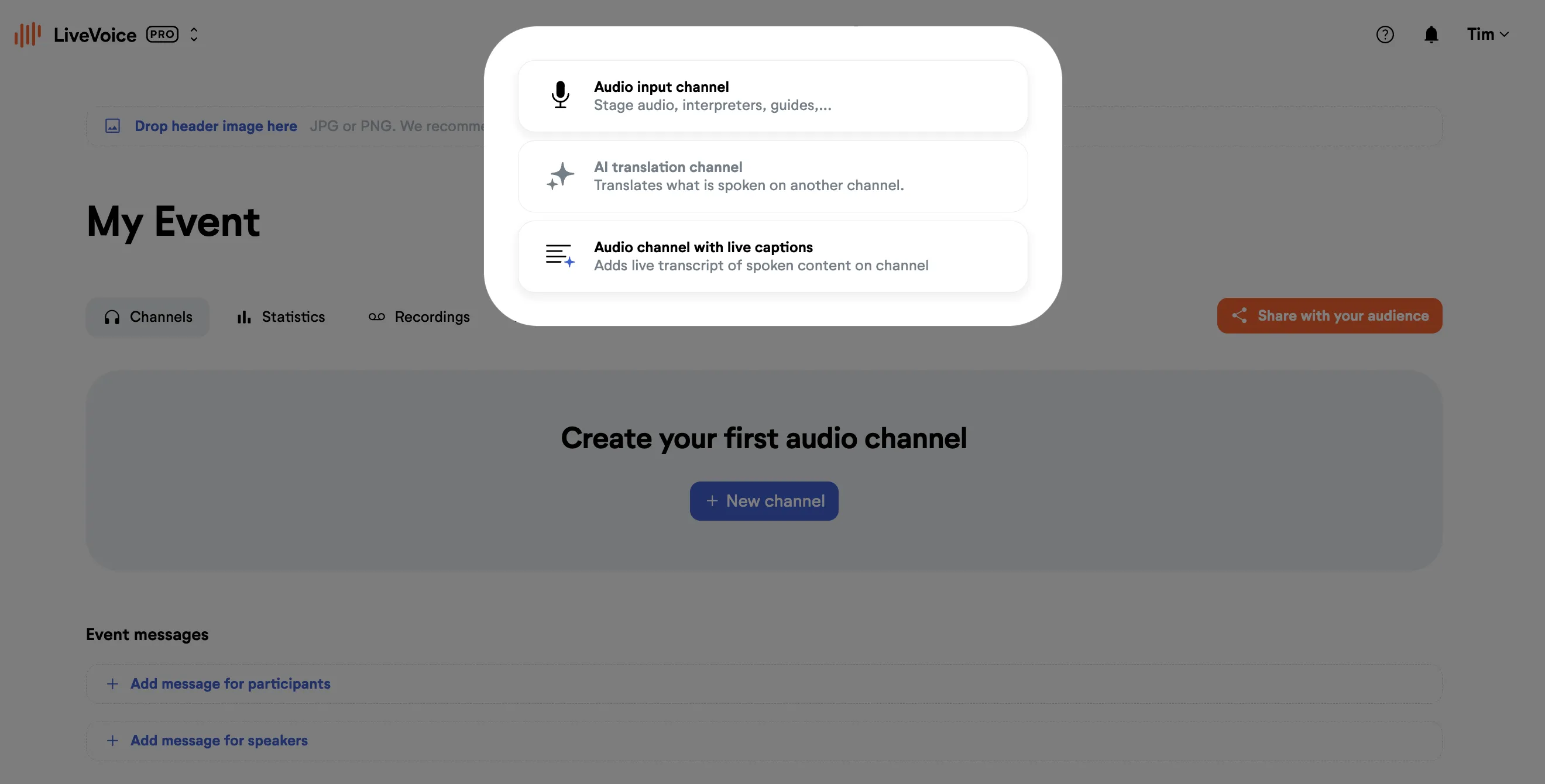
You can choose from 3 options:
- Audio Input: For Original Audio from stage, Interpreters, Tour Guides etc.
- AI Translation: For Voice and/or Text translation channels
- Audio Input with Live Captions: To provide a live transcript of the channel audio
Before you can add an AI Translation channel, you will need to create at least one audio channel. This is why at first the AI Translation channel option is greyed out.
Step 3: Edit channels or add more features
Once you have created a channel, you can edit the features of it anytime by clicking "Show options", then adding features or editing/removing them.
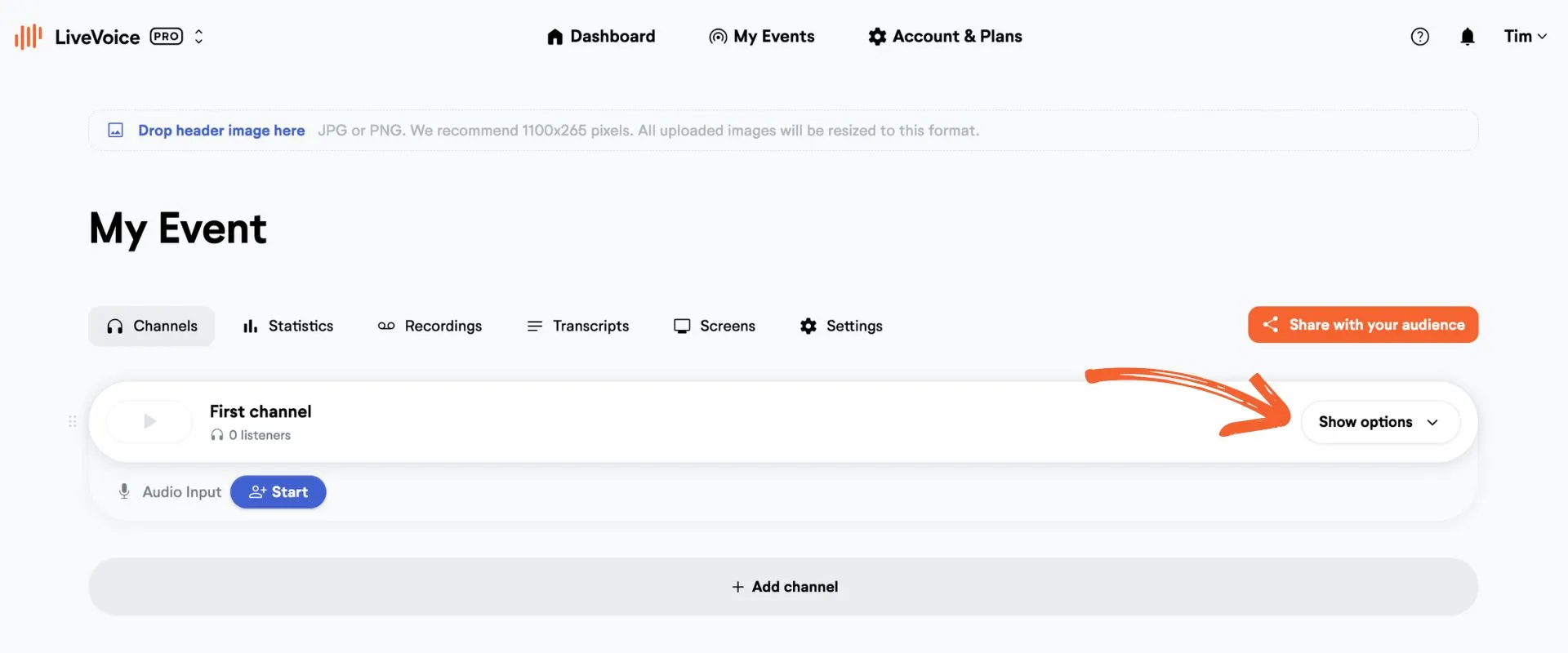
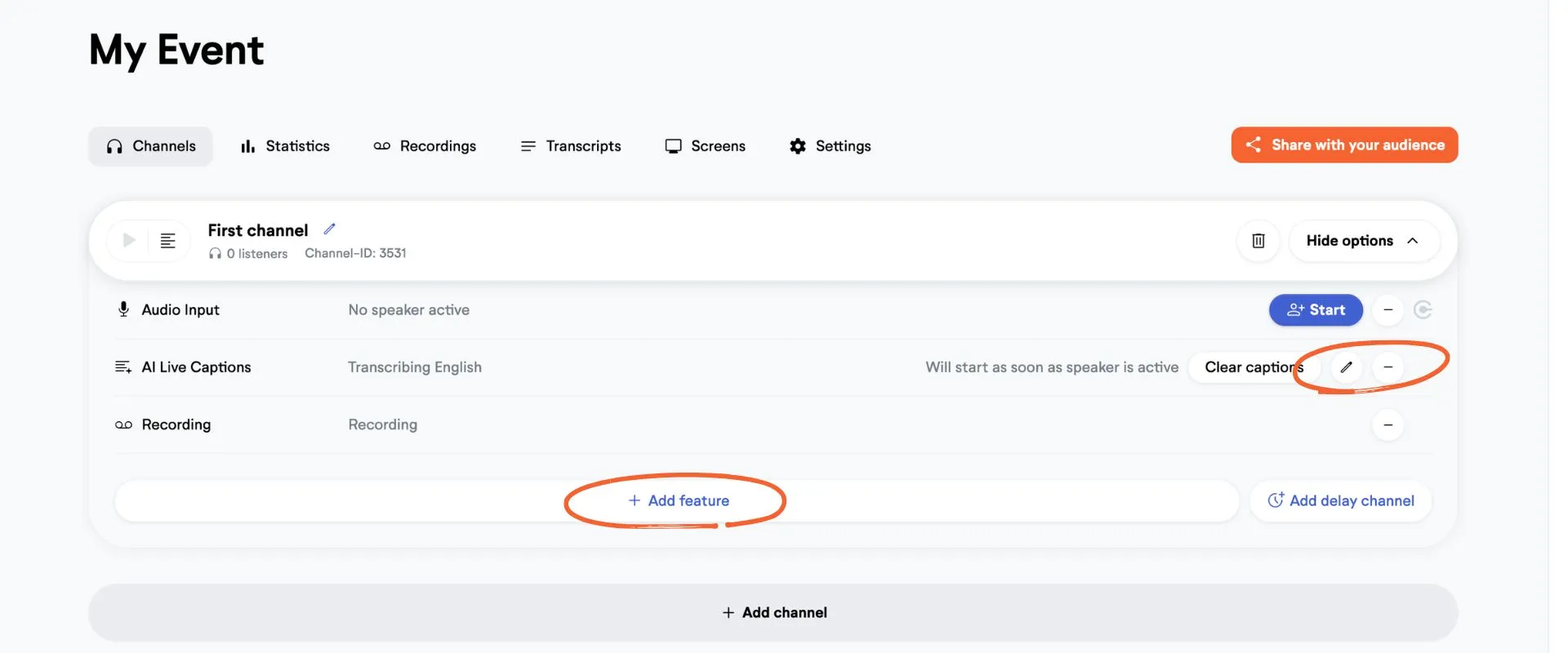
Add more channels to your event as you need. Each event can have an unlimited number of channels.