How to: Live video for interpreters
With LiveVoice PRO you can provide a real time video and audio feed to interpreters directly within LiveVoice. In fact, you can make any channel to a video channel in order to stream not only audio, but also video to other speakers (like interpreters).
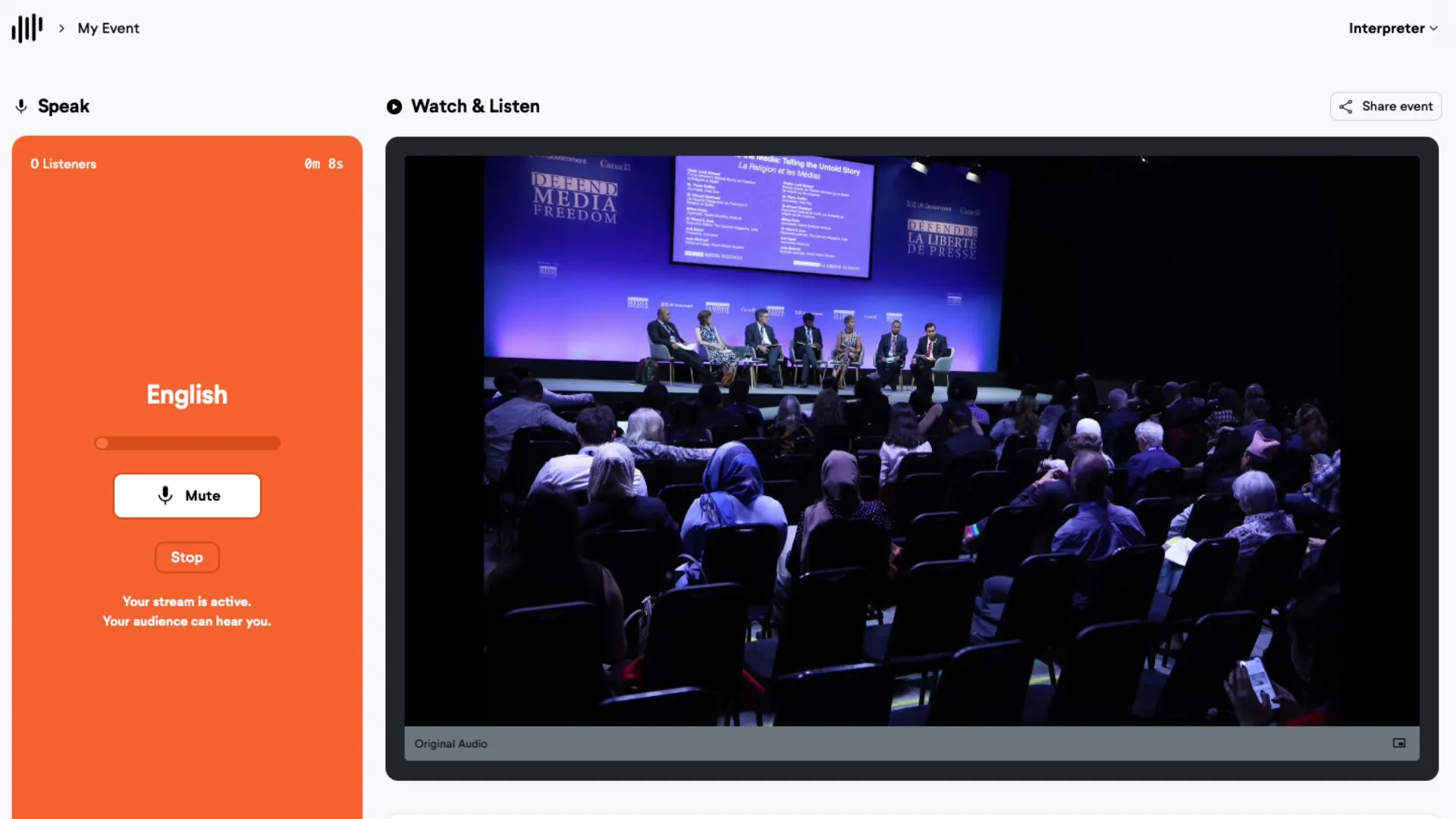
Here is how it works:
Step 1: Open video option for the channel
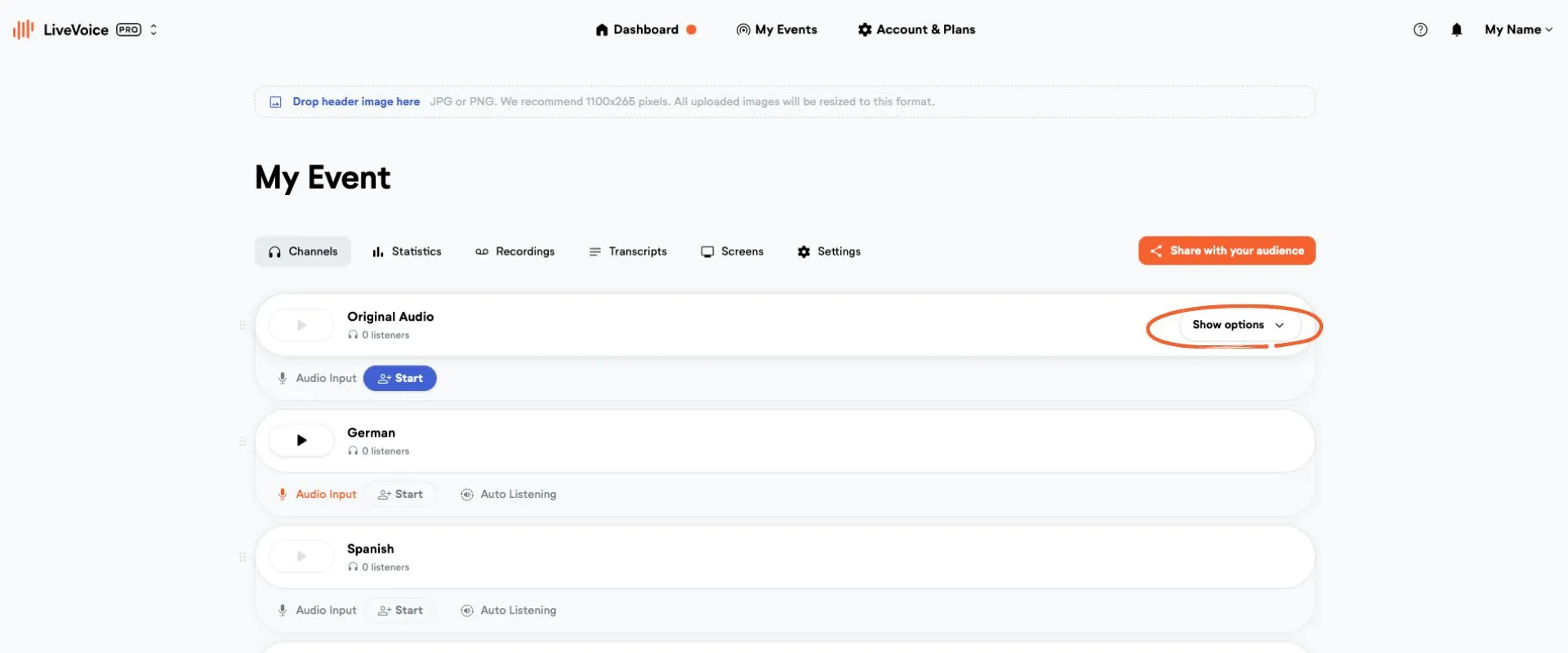
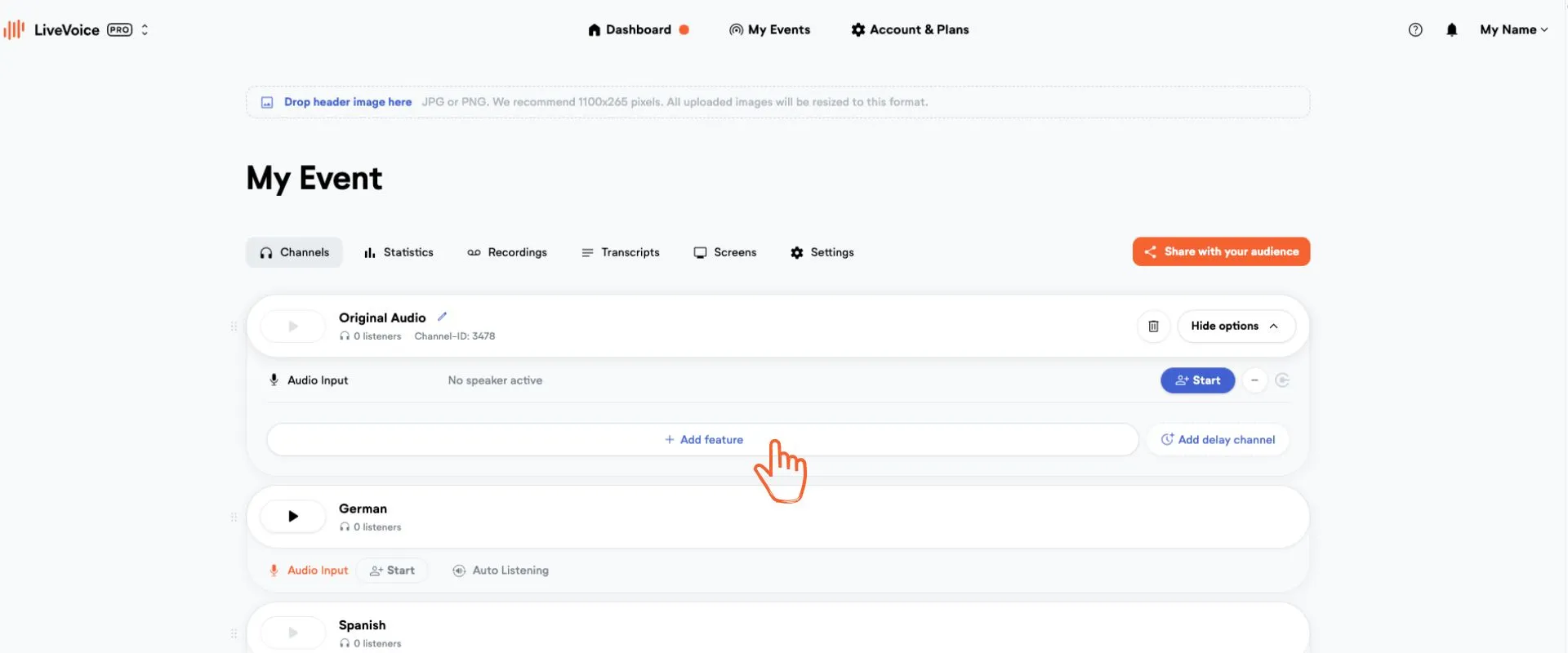
Go to “Show options” and click on "+ Add feature" of the channel you want to make a video channel.
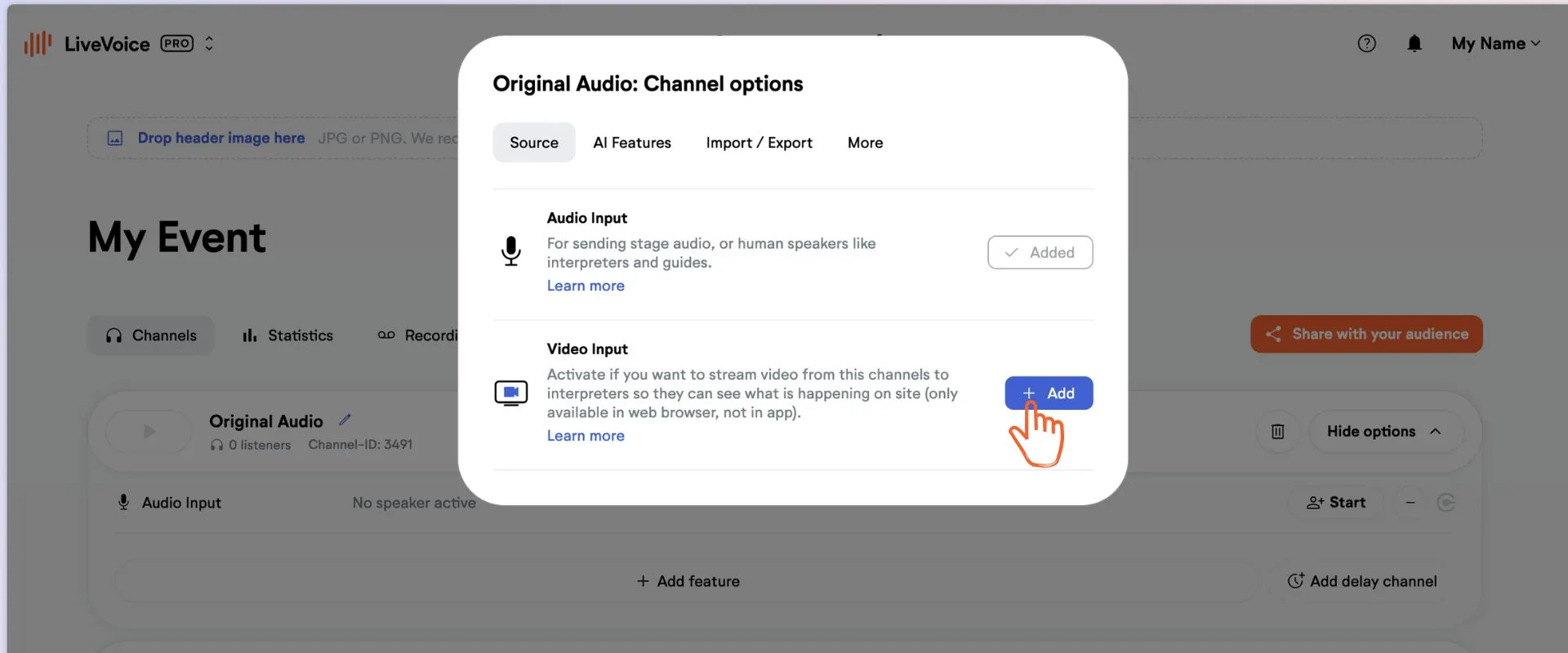
Step 2: Activate video option for the channel
Under the tab "Source" activate the "Video Input".
Step 3: Open video channel in web browser
Share the speaker link of the video channel with your AV technician. You find the speaker link as admin under "Start". With this link or the code, the AV technician can join on the computer that is used to send the video from the location.
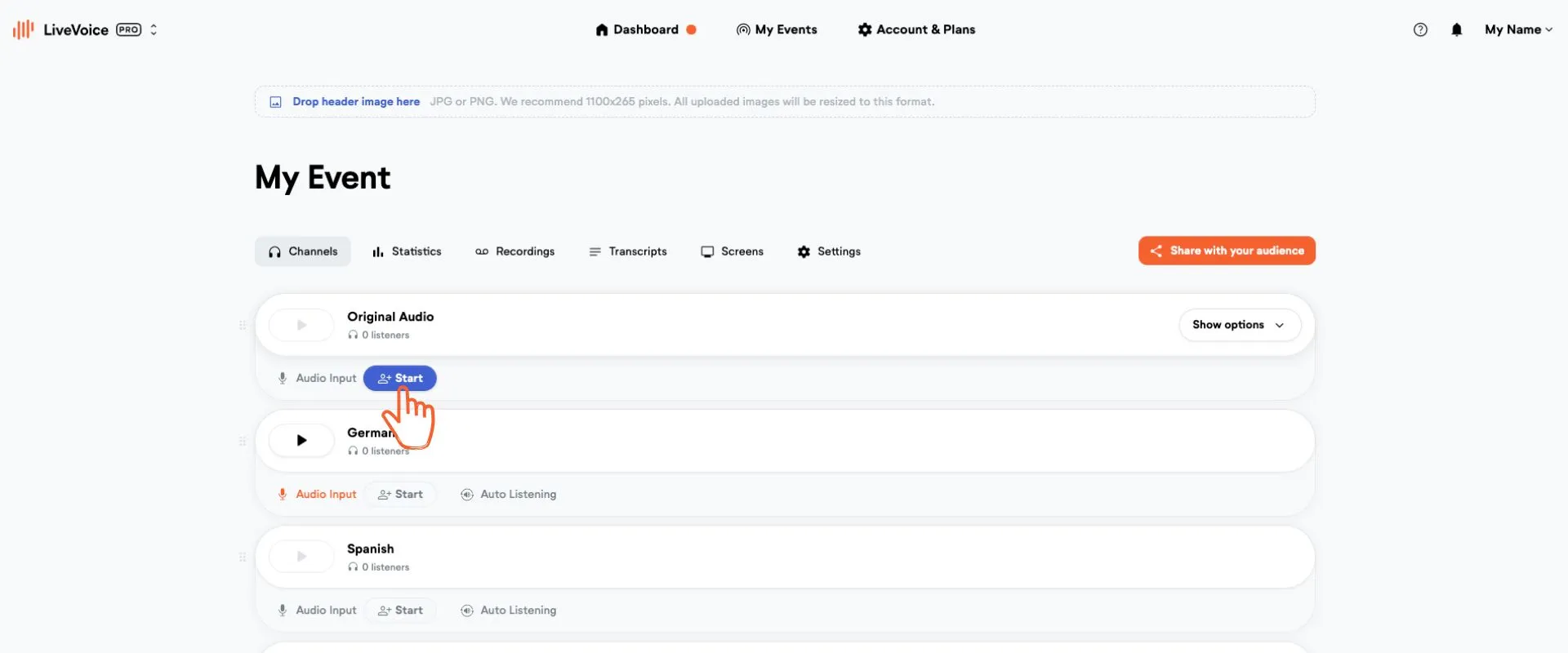
Step 4: Start streaming with video channel
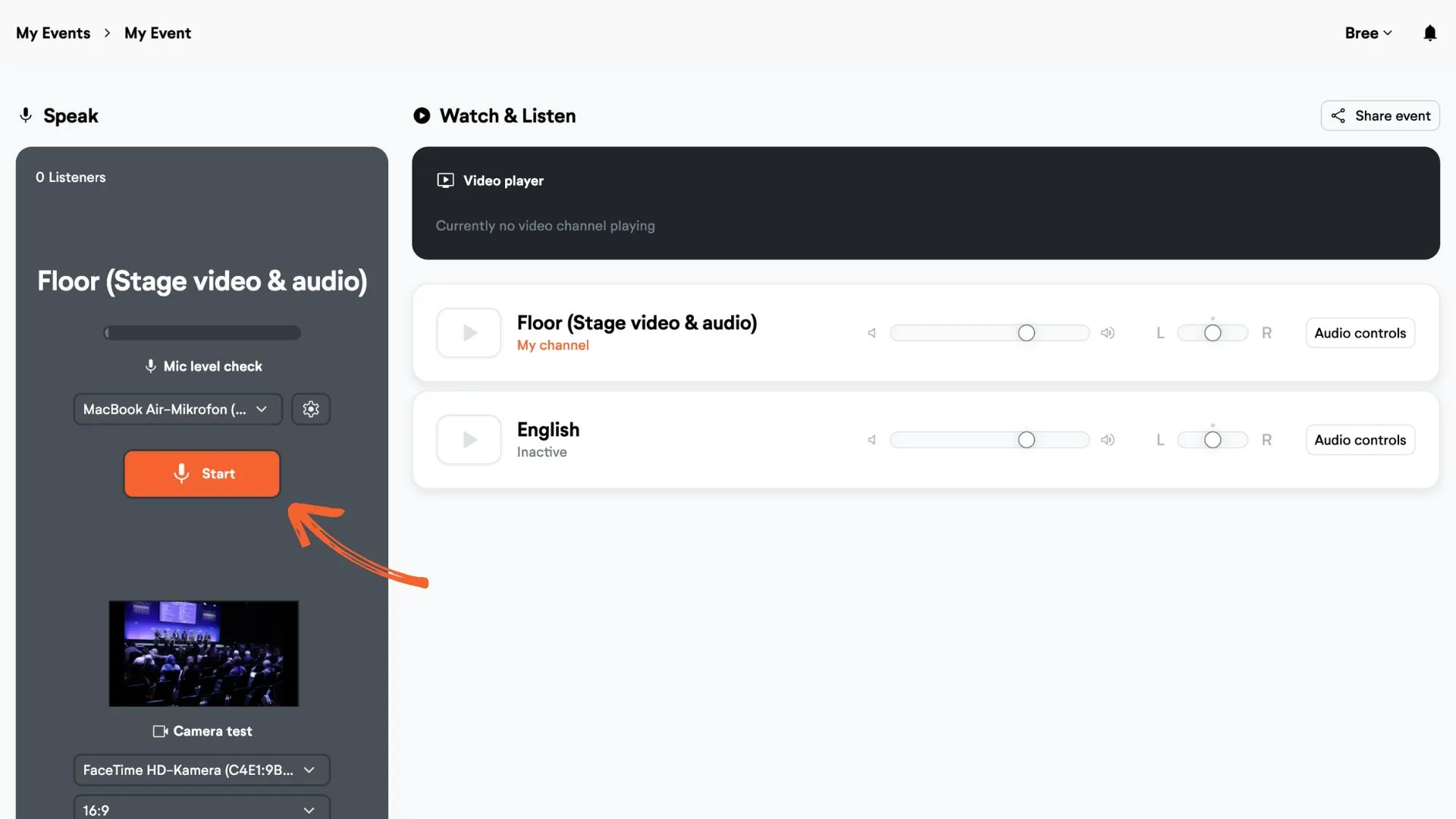
On the computer used on site, choose the right video and audio input. The video preview will be displayed in the bottom left corner.
Then hit “Start”. When the interface turns orange you are live.
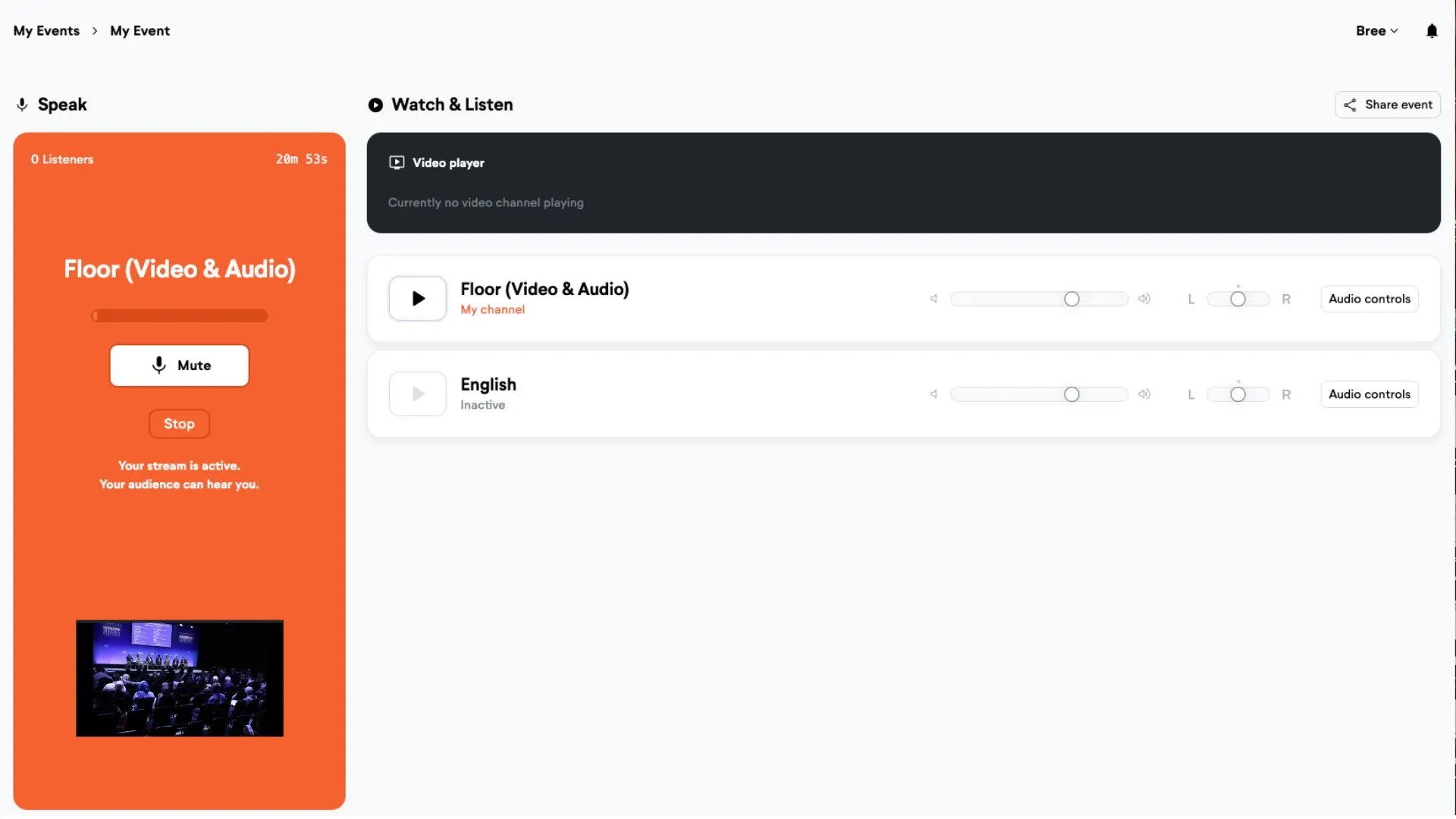
Interpreters can now watch and listen
When interpreters log in to their speaker interface, they can now click play on the “Listen in & watch” button. The video will be displayed on the top of their page.