Subtitles on Screens: Full Screen & Lower Thirds
PLUS feature
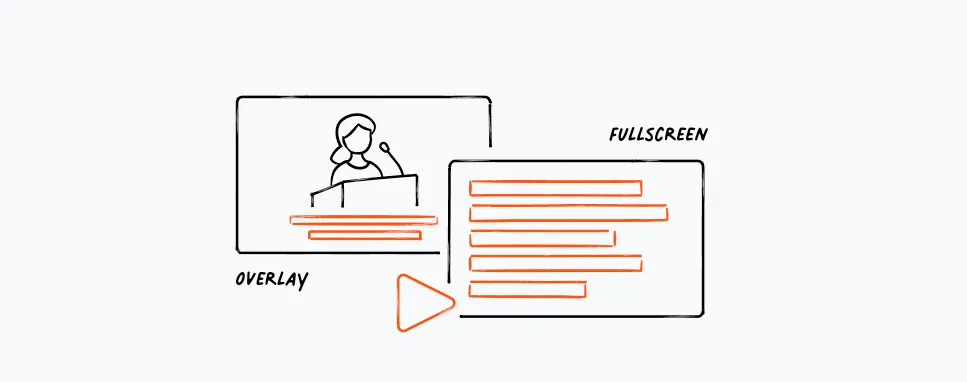
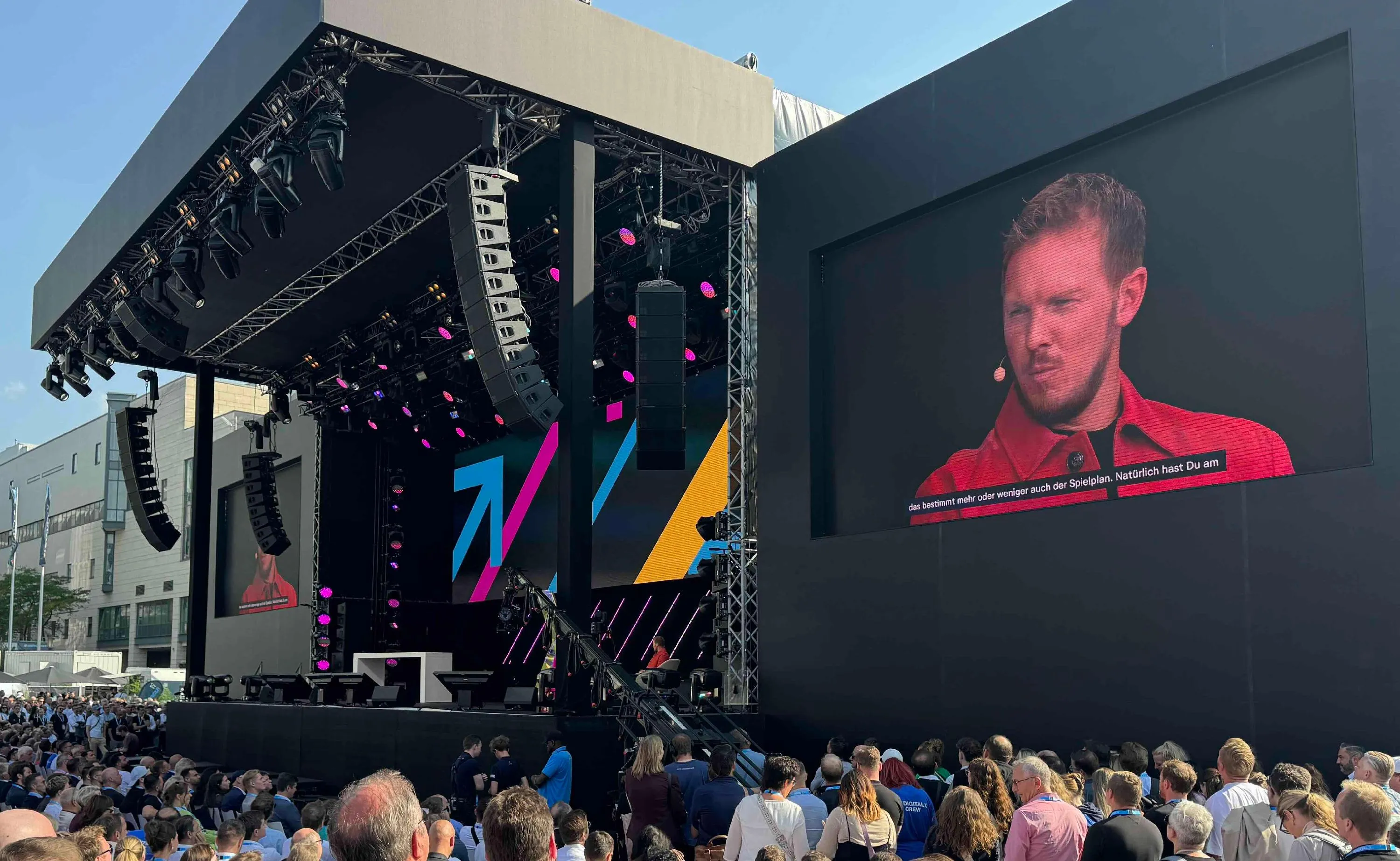
With this feature you are able to show original or translated subtitles Full Screen or Lower Thirds at your venue or in a video stream.
This is a PLUS feature that is only available upon request. To use it and receive pricing get in contact with us.
Option 1: Full Screen
Simply open the full screen URL on a laptop, connect it to a screen and you are ready to go.

Option 2: Lower Thirds (Overlay)
Using a green screen page that you can configure according to your needs and a video mixing software like vmix you have all you need to get this done.
Setup
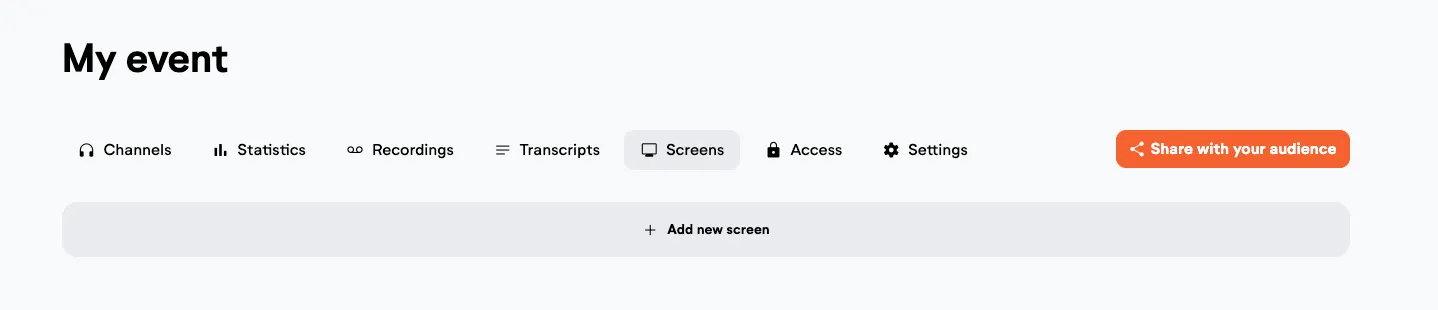
1: Add screen.
Once this PLUS feature is granted to you, you will find the option "add new screen" in your event under the "Screens" tab. Add a new screen.
2: Create screen.
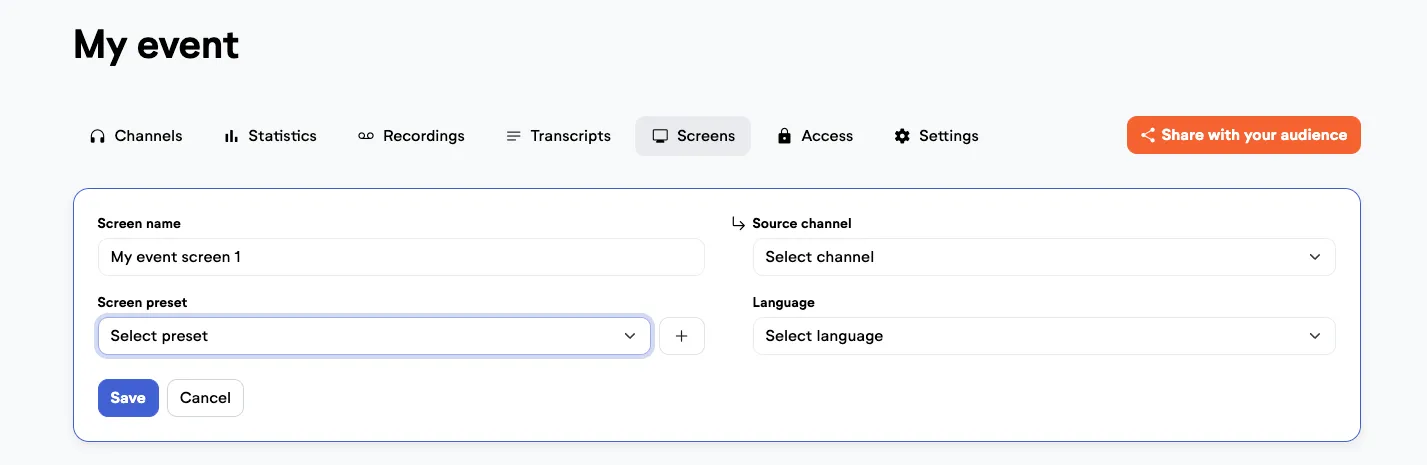
Give the screen a name, choose a preset (Full Screen or Lower Thirds) and the source channel from which you want to shot the subtitles, as well as the desired language. Depending on how you set up your channels you will find language options for:
- Translation: To show one translated language.
- Original Subtitles: To show closed captions.
- Cross Translation: If you have two languages spoken on stage and always want to show the opposite translated language on screen.
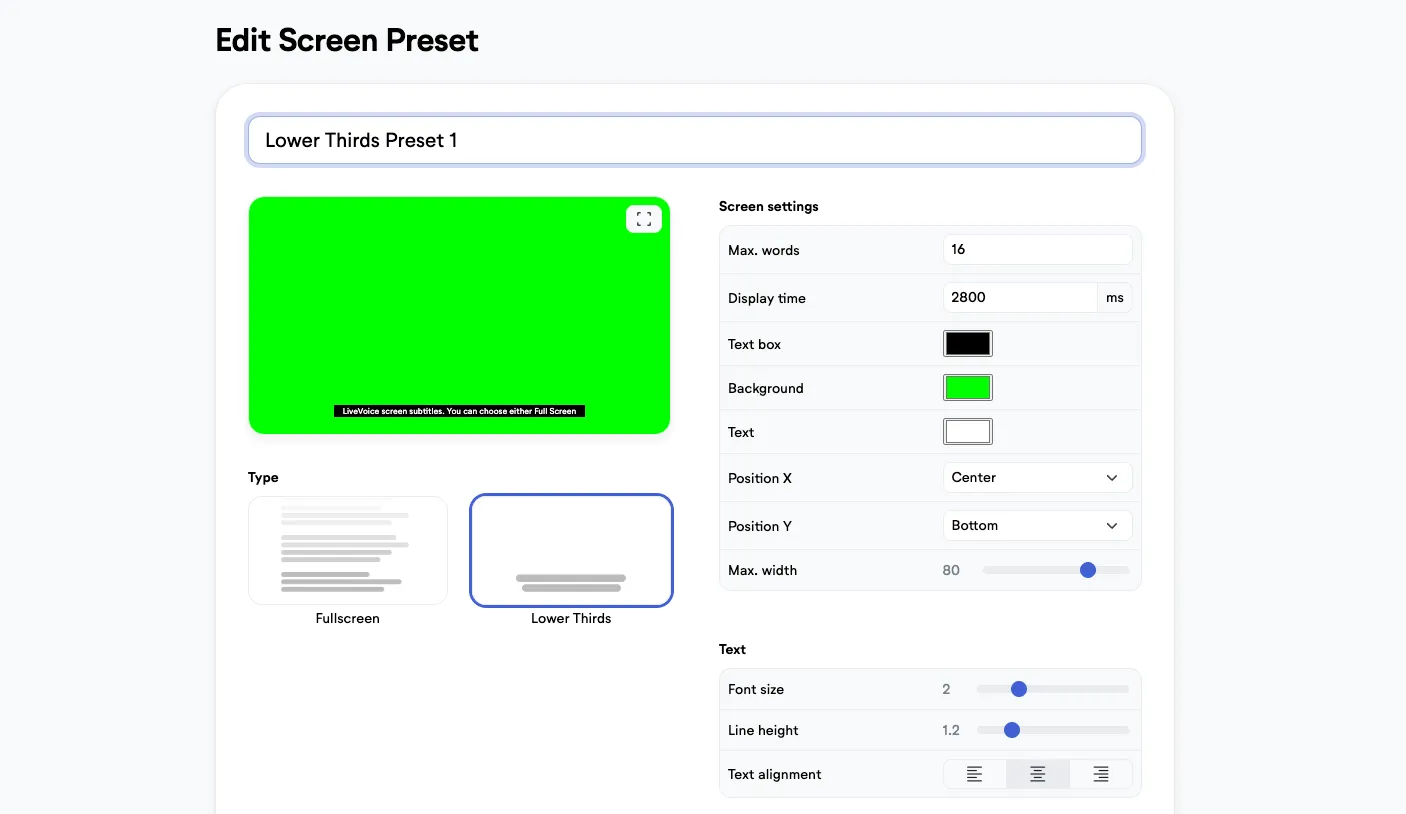
3: Adjust the preset.
You can either create a new preset or choose one from our prepared templates. First choose between the two options "Full Screen" and "Lower Thirds". Then you can set various parameters like color, font size, spacing, etc.
For Full Screen you will usually use black on white or vice versa.
For Lower Thirds you usually use a green background that can be later keyed out with your video mix program.
4: Share URL.
Once you are done you can copy the URL and open it in the browser of the computer that should show the subtitles. Anytime you change the preset, the settings will change on the screen once you refresh it.
If you are interested in this feature get in touch with us.
Advice: If you let the web browser with the overlay page run e.g. over night during your event and want to use it the next day, we recommend to refresh it once. As some browsers energy saving settings could prevent subtitles to be played out or send old subtitles that are still in the cue after "waking up", this will make save you get a clean start.