How to: Setup for guided tours
With LiveVoice tour guides and guests only need their smartphones. It works via mobile internet, so you can go wherever you want. Learn here how to prepare and set up a guided tour with LiveVoice.
Step 1: Create event
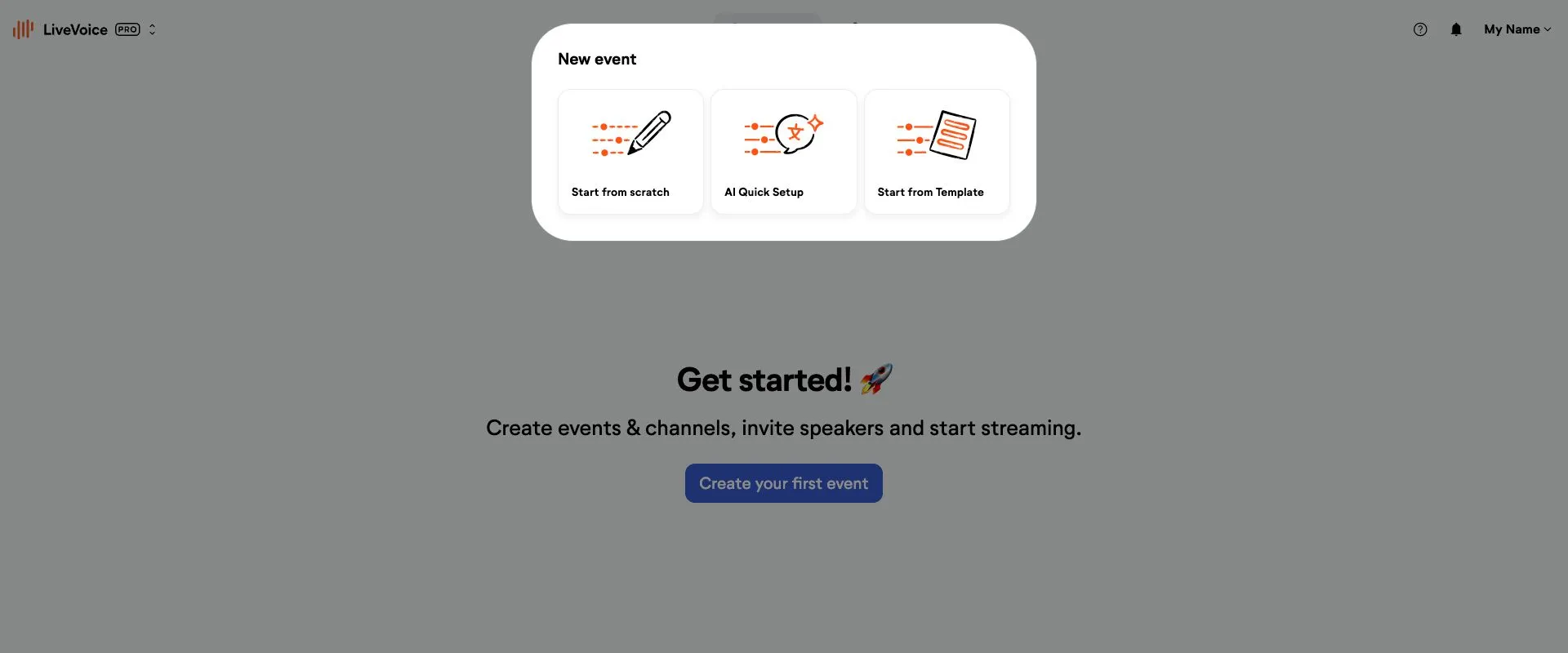
In LiveVoice you always start with creating an "event", no matter what occasion you are using it for. So in the case of guided tours, "event" can refer to "tour".
Either start from scratch, use the AI Quick Setup for AI translation or the template "Guided Tours" to start with default channels.
Step 2: Create and / or name your channels
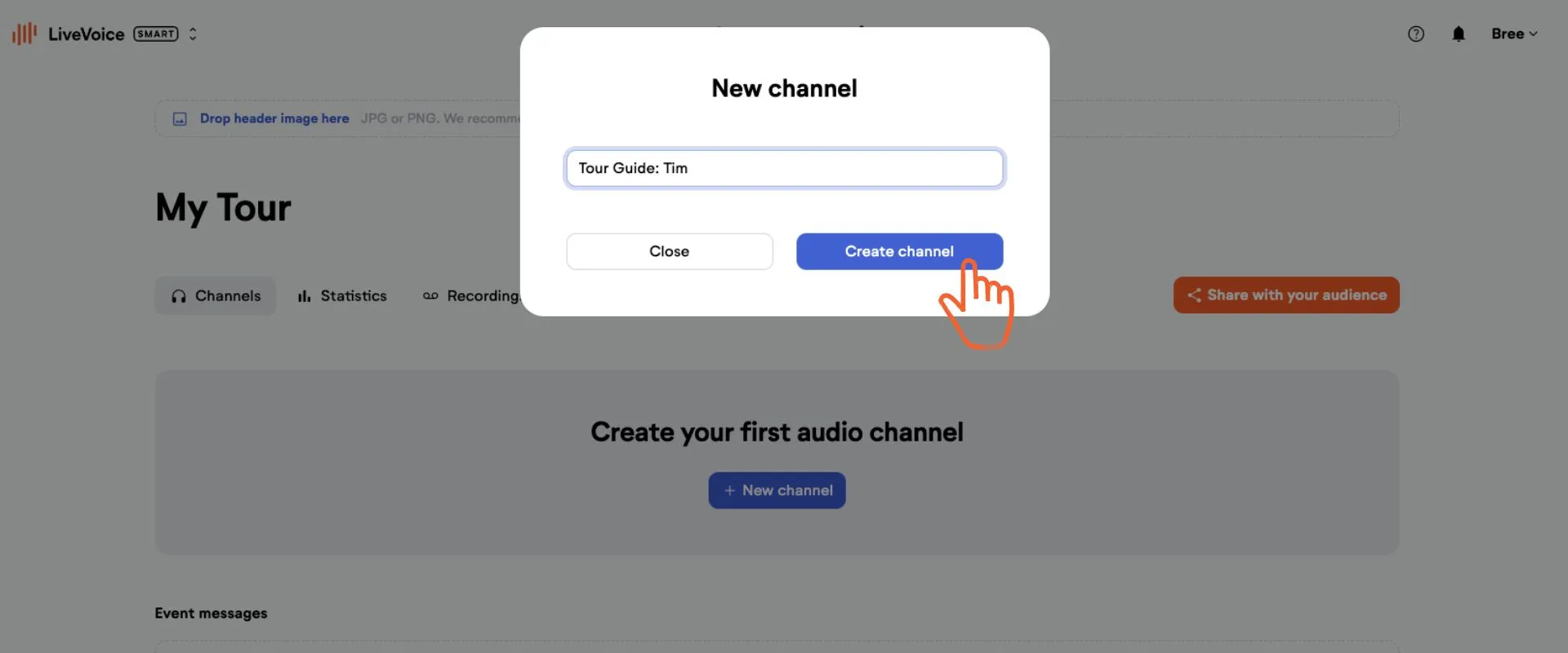
Create one or more channels if you started from scratch, or rename the existing ones if you used a template. Give the channel a customized name, for example you can name if after the guide.
Step 3: Share with guests and tour guide
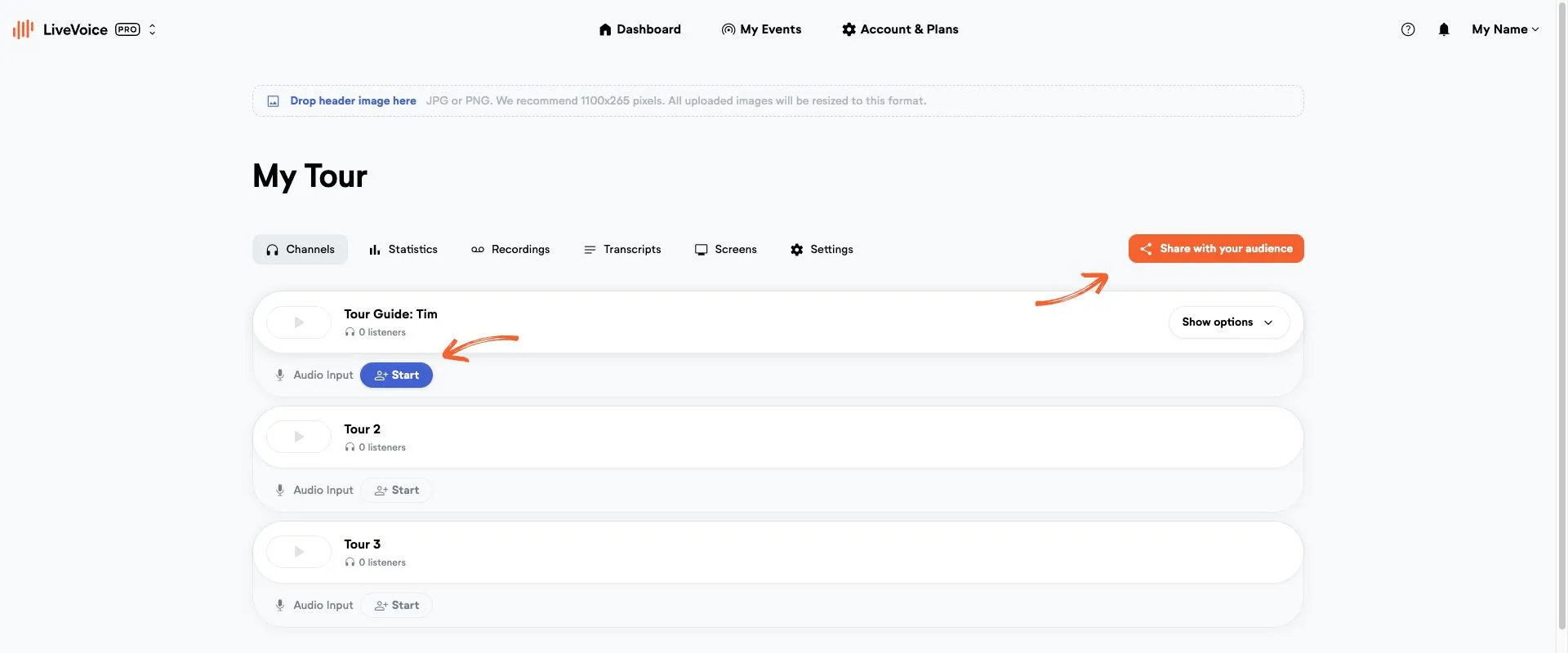
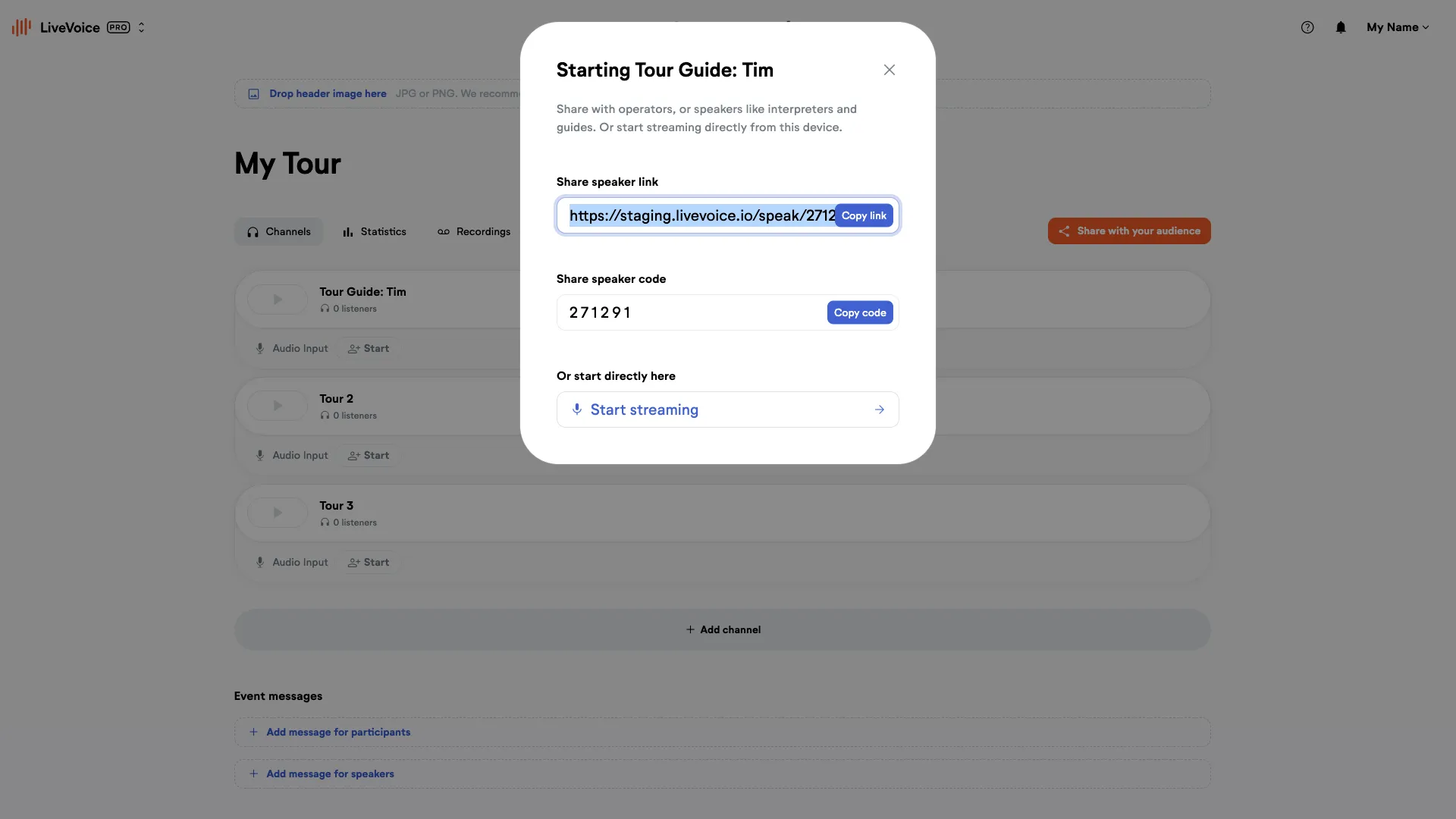
a) Click "Start" to get the invite options for the tour guide.
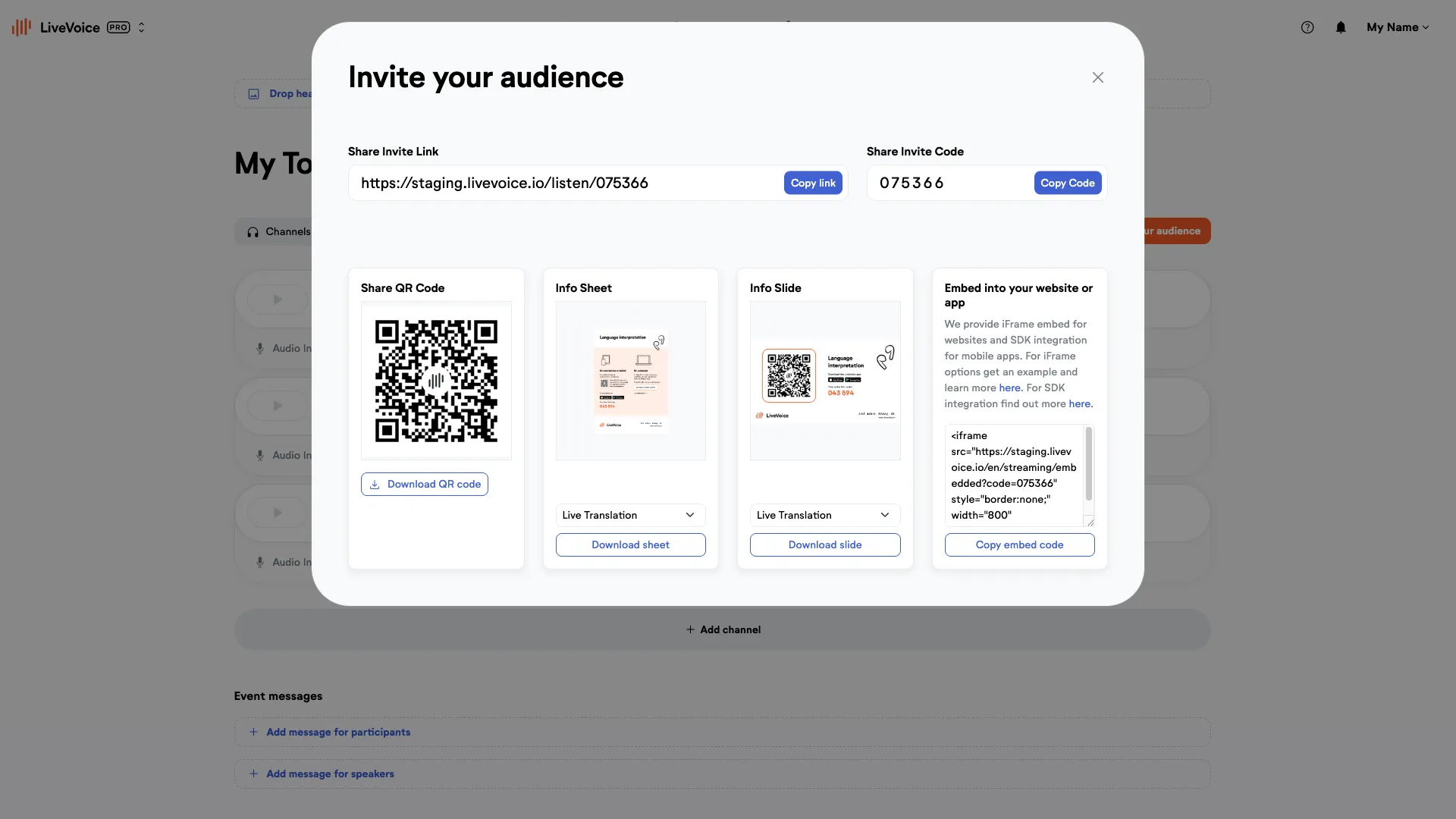
b) Click "Share with your audience" to get the invite options for the guests.
Next
👉 Learn here how it looks like for tour guides to use LiveVoice.
✨ Option: Add live AI translation
Easily add AI translation into different languages so you can provide your tour to people in different languages with only one guide. Learn more here.
💡 Good to know
If you want to provide several different tours, you can either create several channels or you can create several events with only one channel within. Either one works, it depends on your preferences and if you want to share the same QR code or different ones.