AI Glossaries
Glossaries are a way to train the AI and therefore further improve the results of AI transcription and AI translation for your specific event.
Per glossary a maximum of 500 terms can be entered. Note, that translation glossaries are not available for all languages and are set up individually for each event. Find the list here.
Types of glossaries
- 1.Understanding: Transcription Glossaries
Use this type of glossary to enhance the AI recognition of special words like company names. - 2.Translation: Translation Glossaries
Use this type of glossary so the AI translates certain words exactly the way you want.
How to set up a glossary
Step 1:
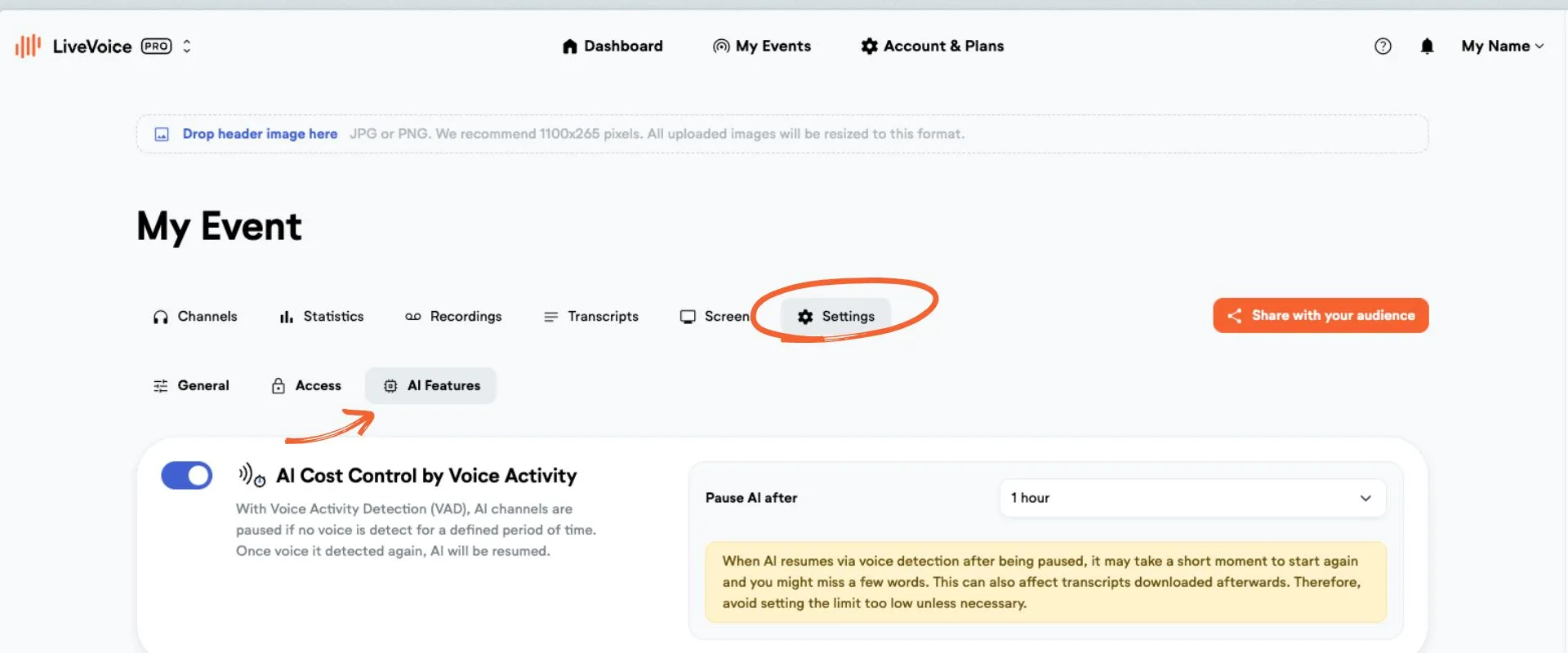
Go to the settings tab of your event and click on "AI Features".
Step 2:
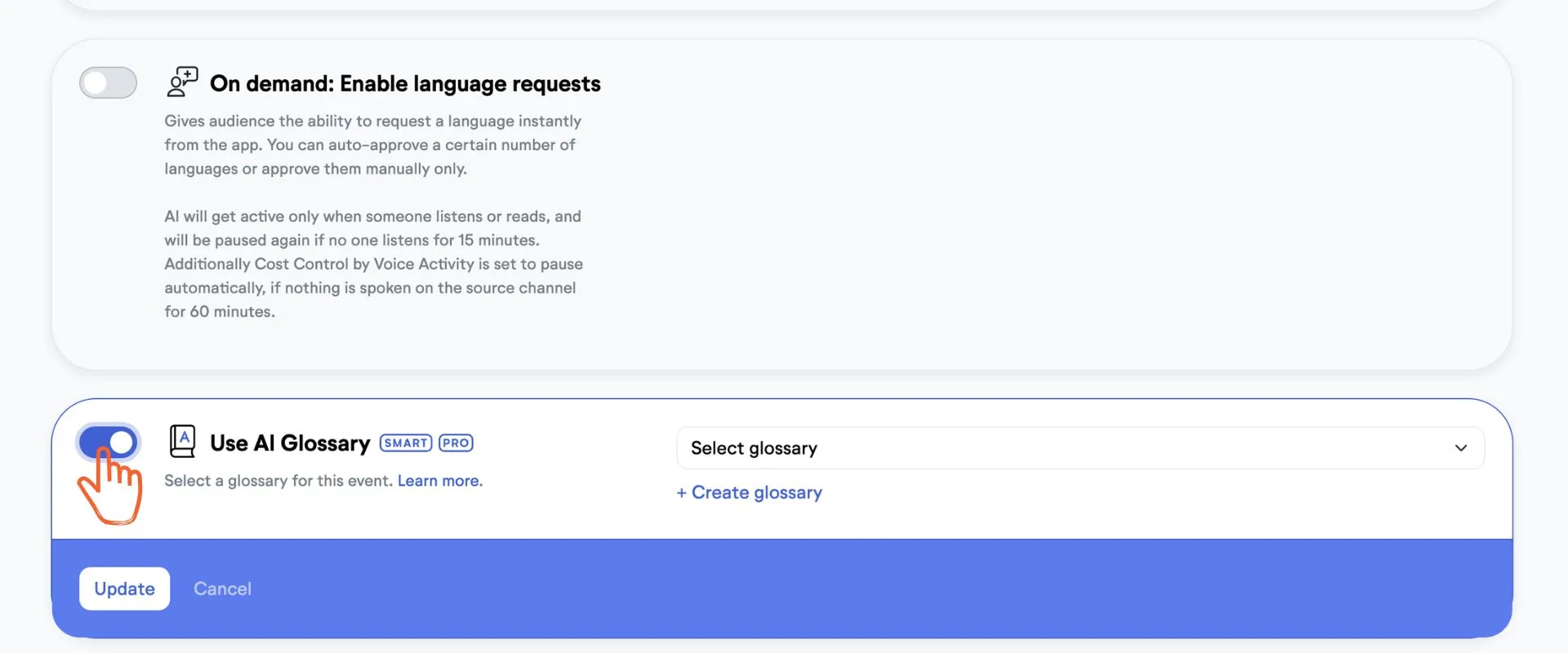
Scroll down and activate the "Use AI Glossary" toggle.
Step 3:
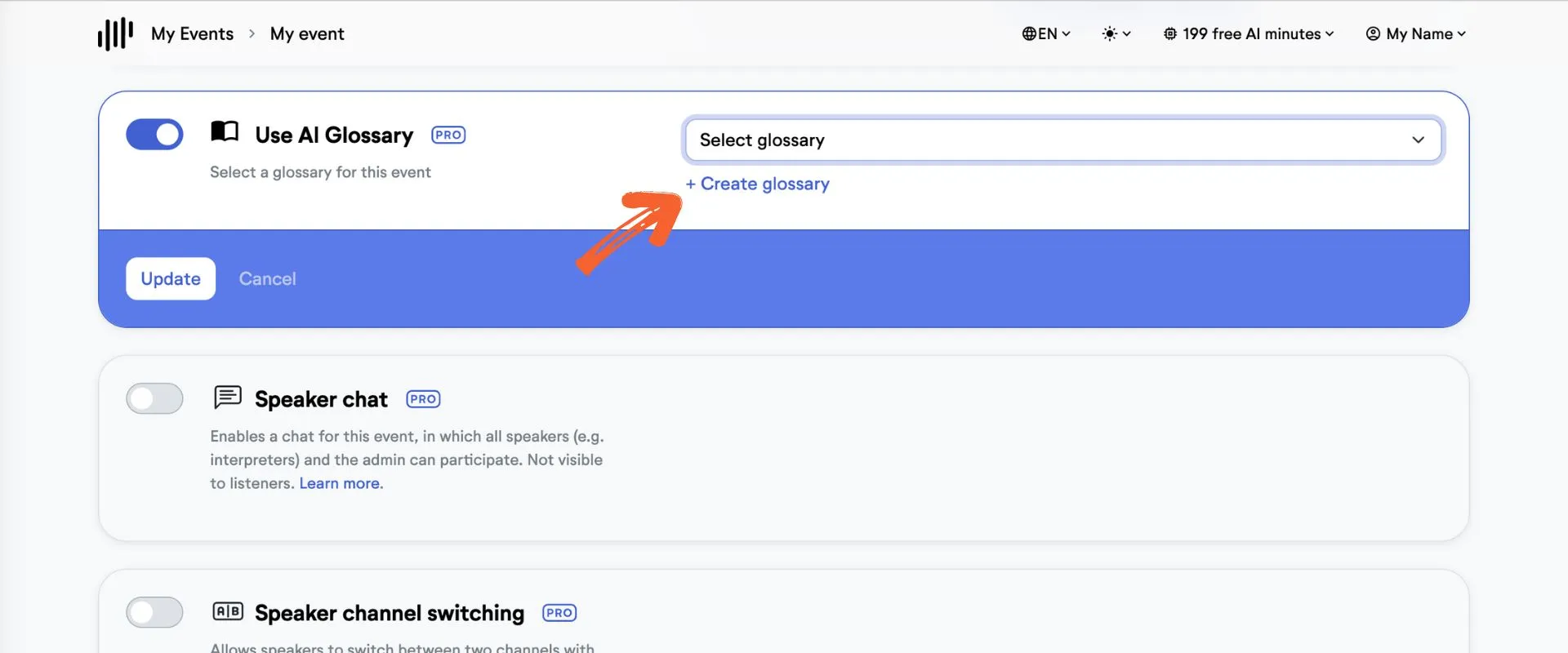
Choose "Create glossary" to create a new glossary.
Step 4:
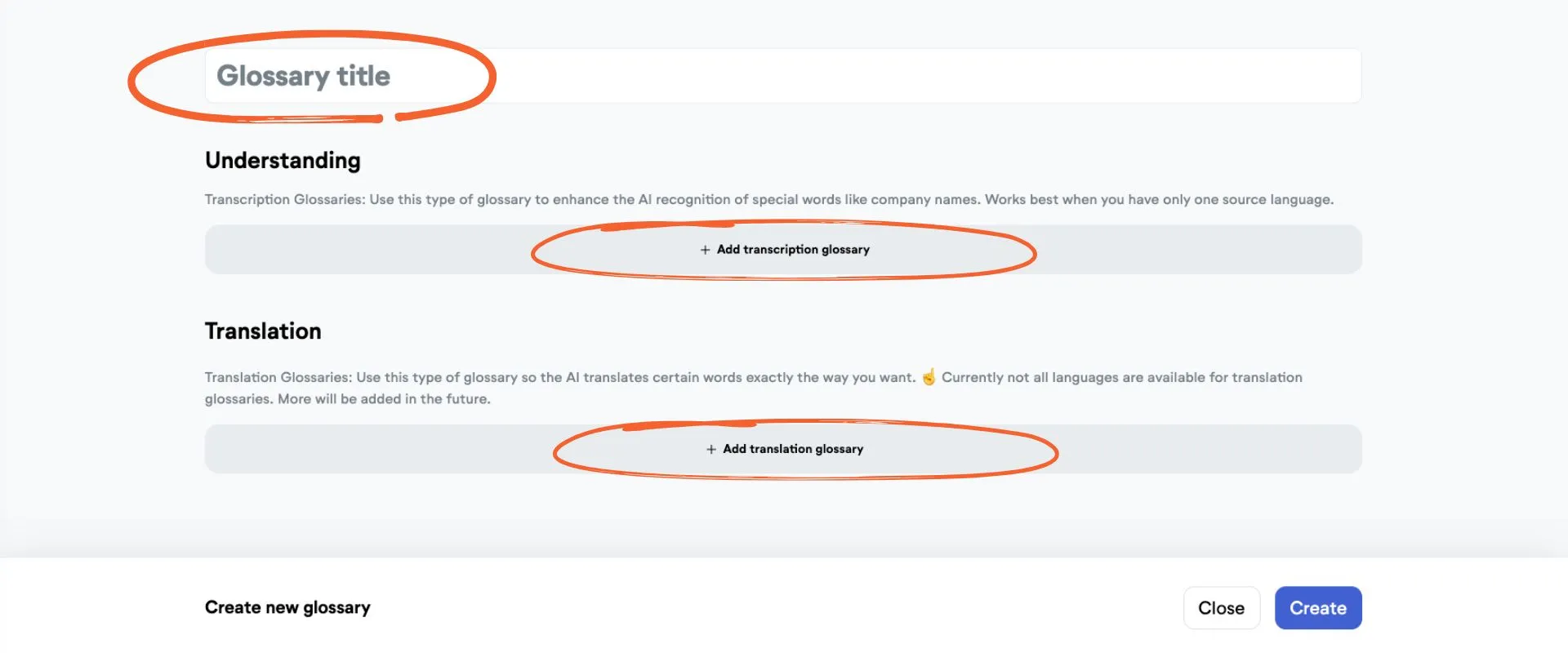
You will be sent to your account settings and can create the glossary.
- Give your glossary a name.
- Add the types of sub-glossaries you want. You can add several transcription and translation glossaries.
- You can either enter words one by one or copy and paste your entire list. For your list, please use the following format: source word >> translated word. Use a new line for each pair.
💡 If you copy and paste two columns from Excel, Numbers, or Google Sheets, the format will be applied automatically. - Click save.
Step 5:
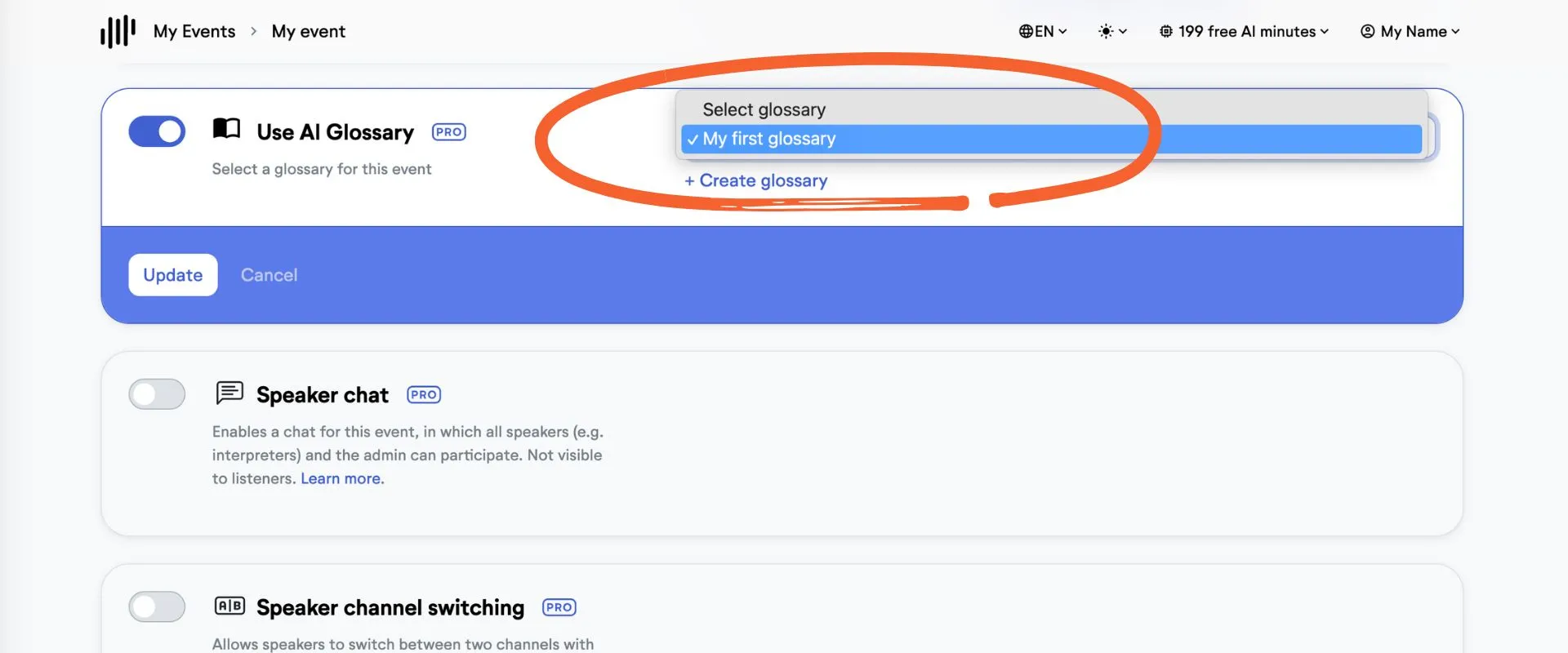
Go back to your event to the event settings.
There you select the glossary you want to use for this event.
Hit "Update" and you are ready to go. 🚀
💡 Good to know
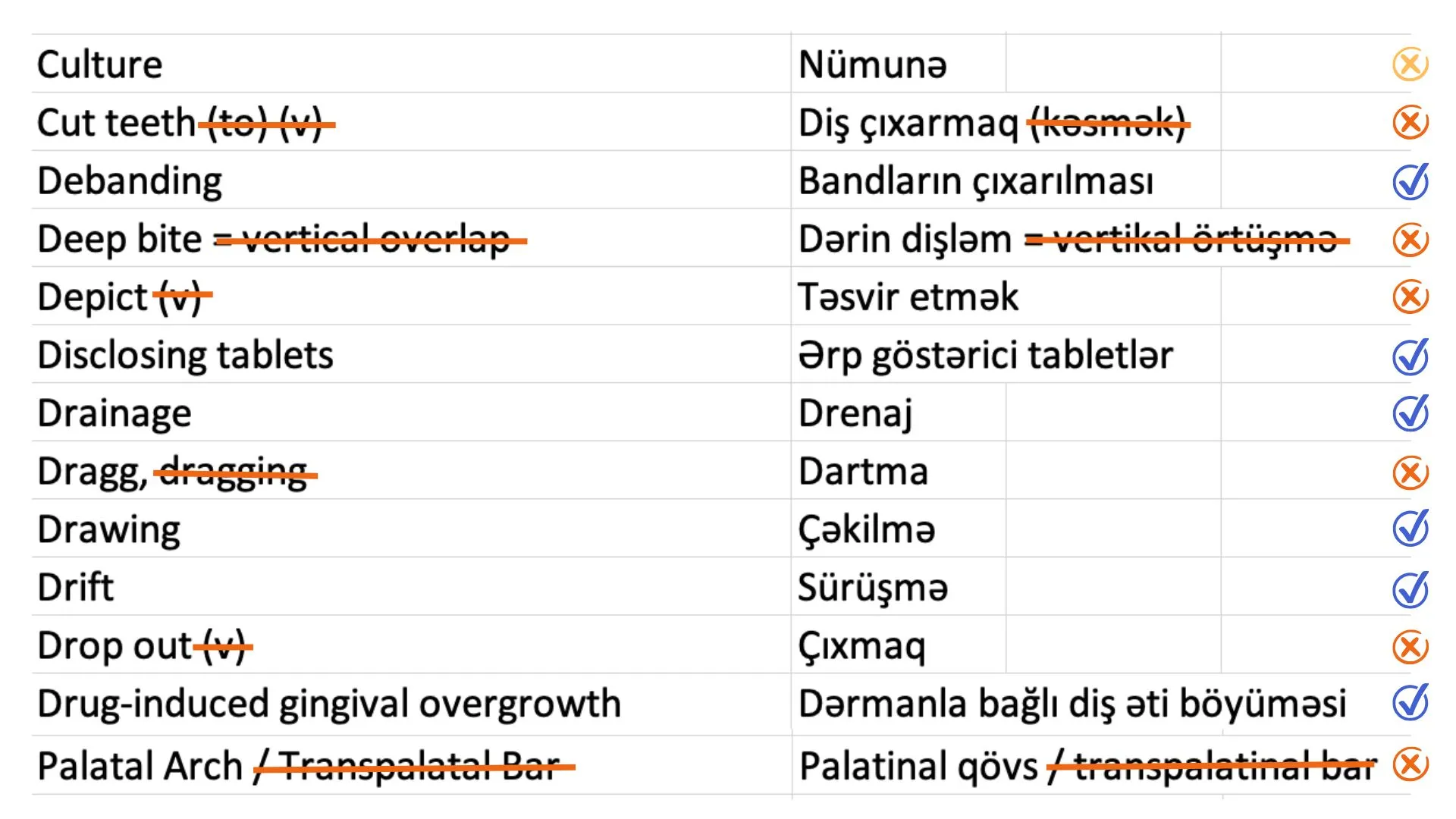
When preparing your translation glossary in an excel list, make sure that every term has exactly one other term in the other language.
- Do not use special characters like brackets, dashes and so on.
- Do not put alternatives in the same row, like in the example dragg, dragging. Instead, use one row per term.
- Do not enter words in the glossary that are not actually special terms, as the AI will know them anyways (like "Culture" in this example).