Quick Setup for AI Translation
Create an AI Translation event in 3 quick steps. Go to "Create event" and choose the "AI Quick Setup" option.
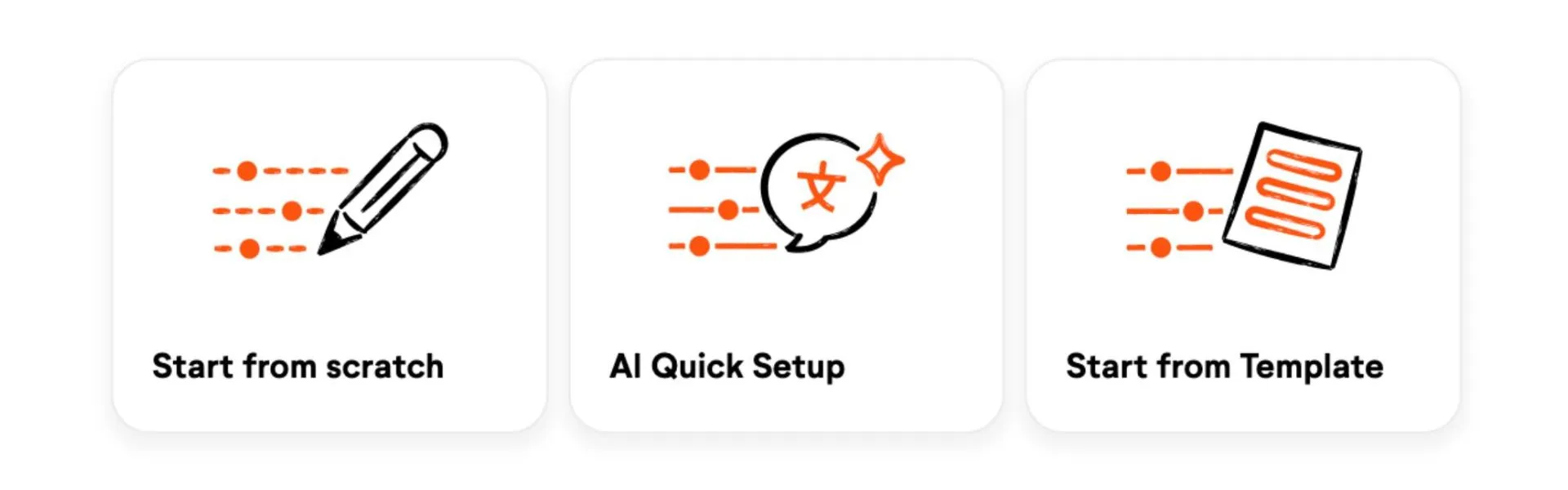
Step 1:
- Define the source channel and the language spoken on this channel. It is also possible to define multiple input languages, which the AI will translate into your selected target language. *
- Select the languages you want the input translated into and click "Next".
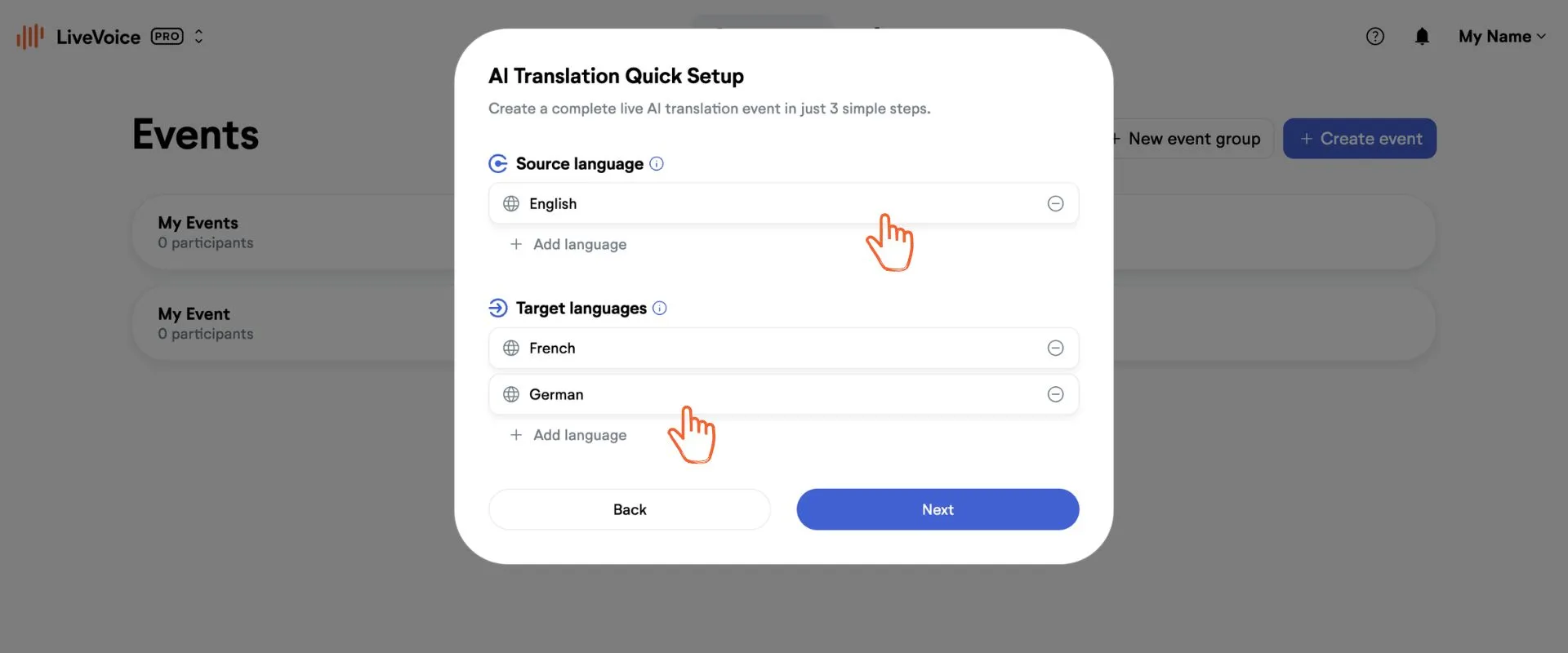
* Note, the more accurate you make these settings, the better the translation will be. Therefore, do not add languages you do not really need. In certain cases you might also choose a language but set it on "ignore" if for a specific AI Translation channel you do not want to use this language to be translated.
Step 2:
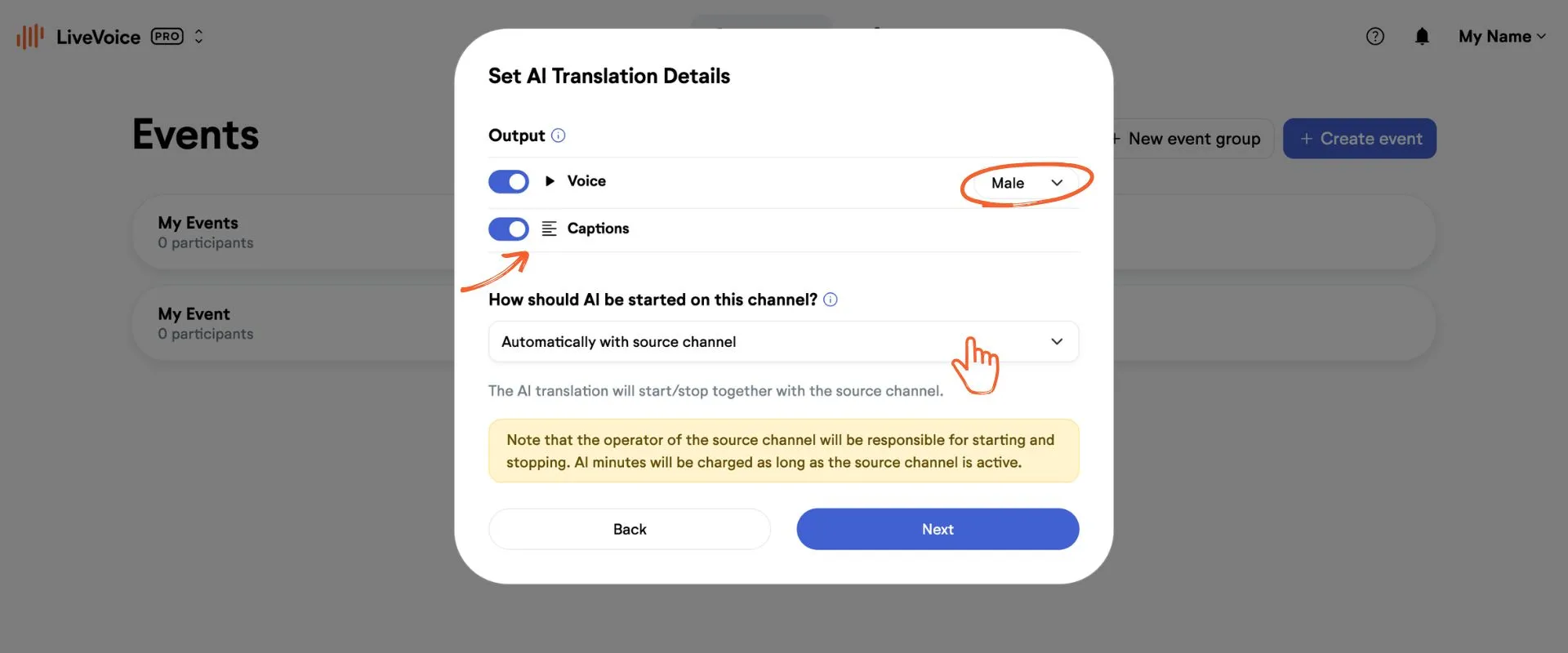
- Choose if you want to show voice translation and translated captions to your participants, or only one of them. By default both are activated, as this is the best user experience and will not cost more than using just one of them. Costs are the same no matter which output option you choose. When using voice, you can select between a male and a female voice.
- Then you define how AI translation should start and stop for this channel.
Step 3:
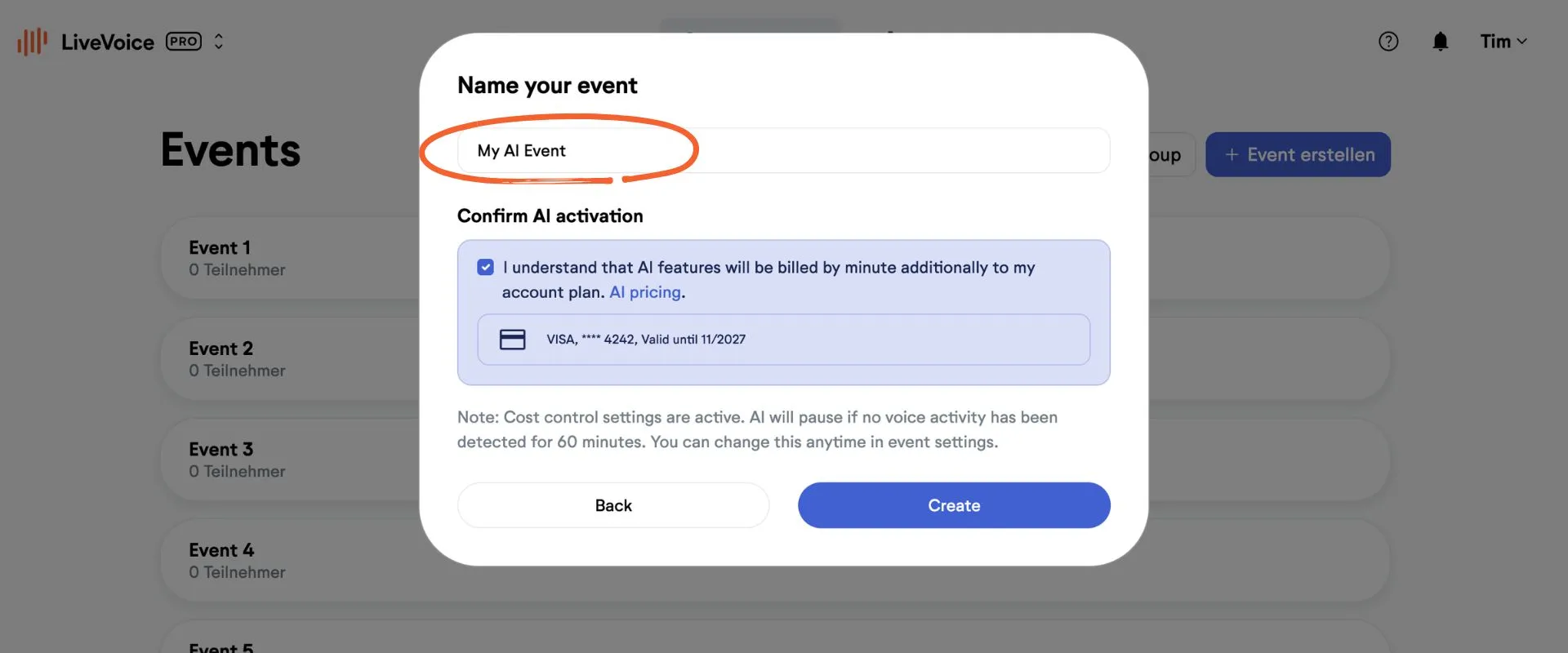
- Name your event
- Confirm the payment check box
- Click save
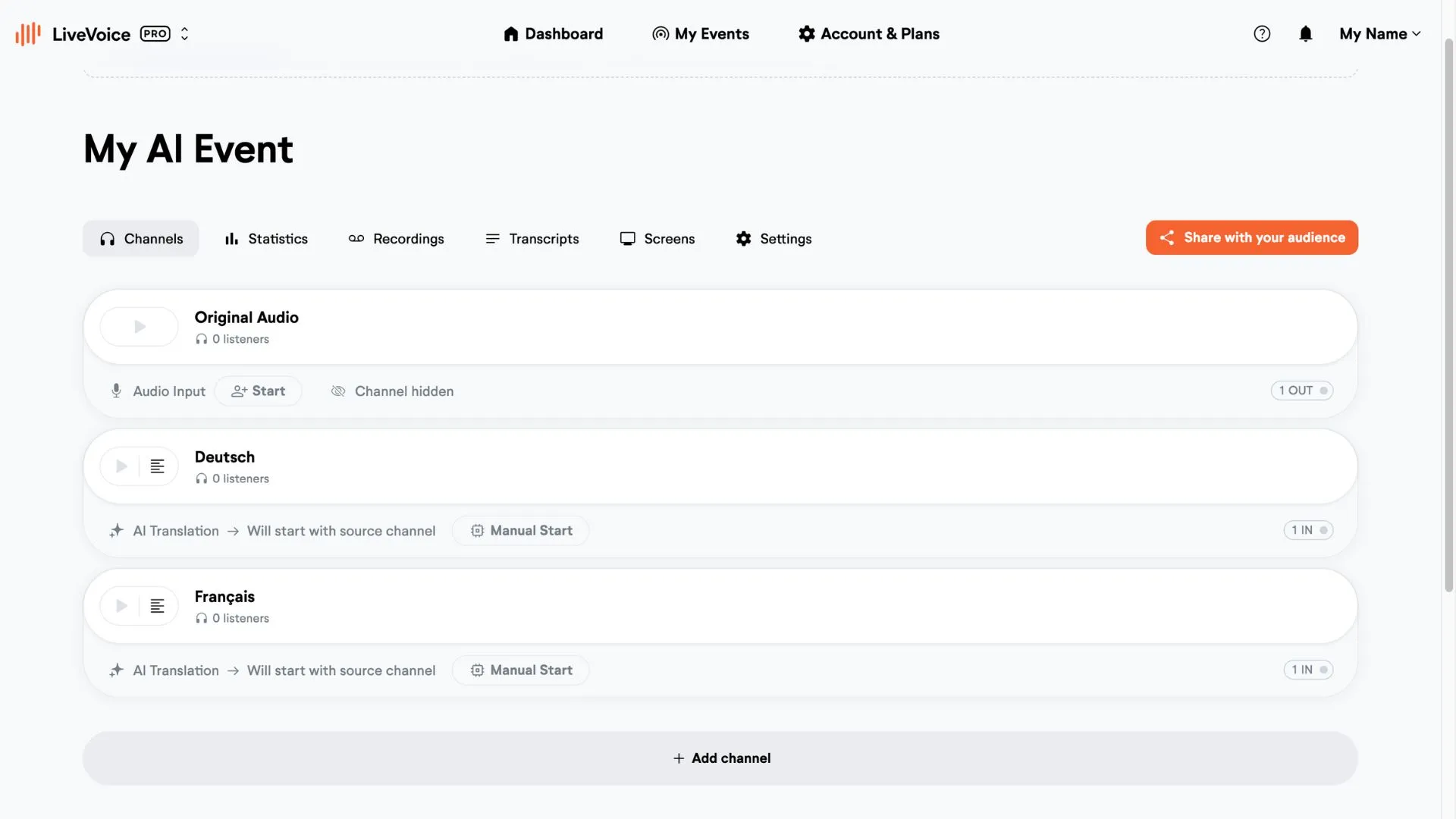
Your event will now be created automatically with all channels, ready to use. 🥳
💡 Billing notes:
Costs depend on the time you are using the feature. It will be billed by minute, additionally to your account plan. Once a week you will get the invoice for all used minutes within that week. If you have used minutes worth more than a certain threshold on a given day, you will be billed right away at the end of that day.