How to send Microsoft Teams audio directly to LiveVoice using the Import Bot [BETA]
Available in: PRO
The easiest way to get audio from Microsoft Teams to LiveVoice is by using the LiveVoice Import Bot. When started, the bot joins your meeting as a virtual participant and automatically sends the meeting audio to LiveVoice. Unlike the VB Audio Virtual Cable method, the Import Bot requires no additional audio routing software, no virtual audio device configuration, and no external hardware, making it the recommended solution for most users.
☝️ Note: This is currently a BETA feature. In some cases the bot will not be allowed by Teams. If you want to use it, make sure to test the bot ahead of time before your event with the exact same setup as you will use for your actual event.
To request access contact our support at service@livevoice.io
Setup
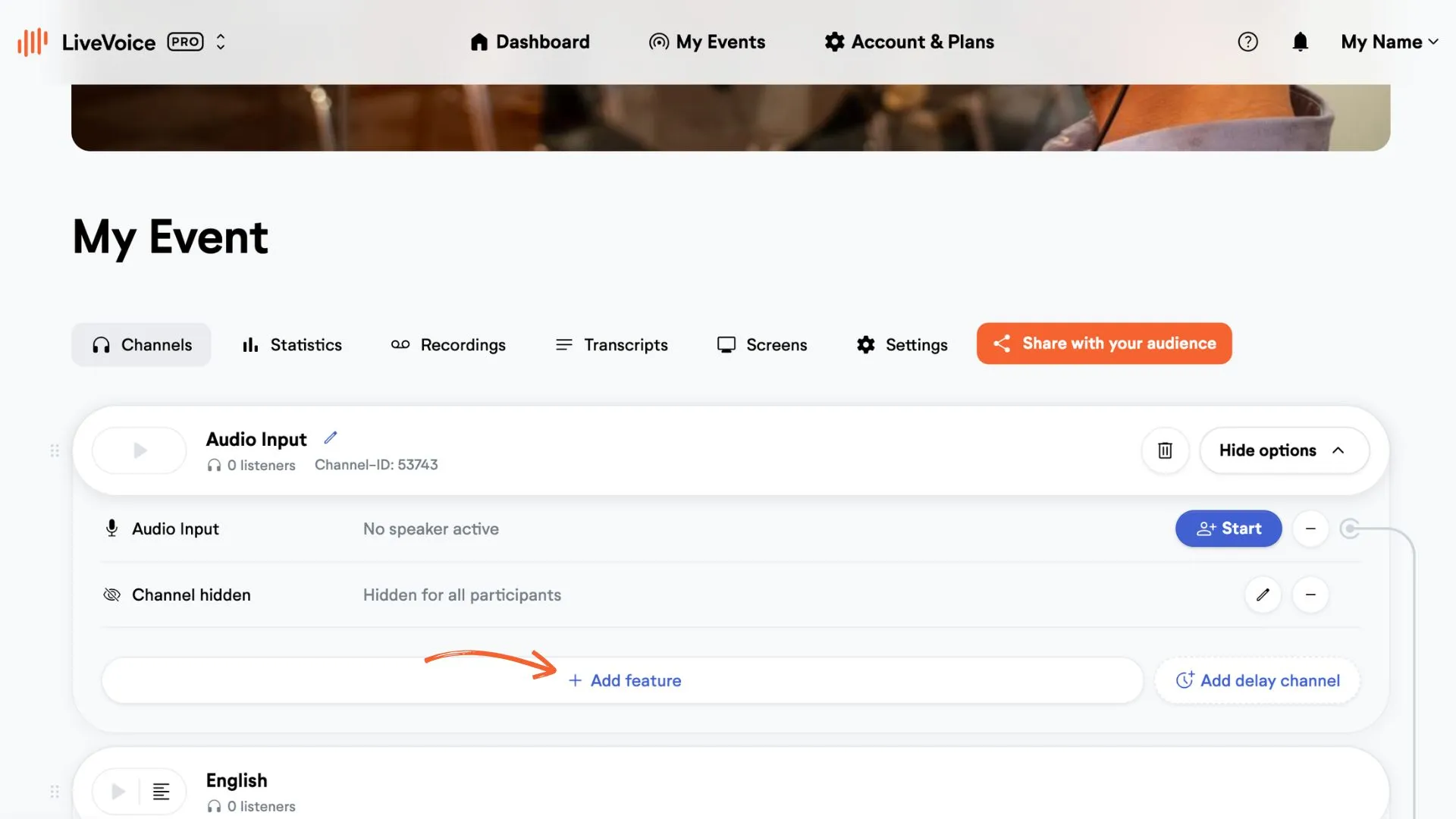
Step 1: Go to the Audio Input channel you have created and click "Add feature".
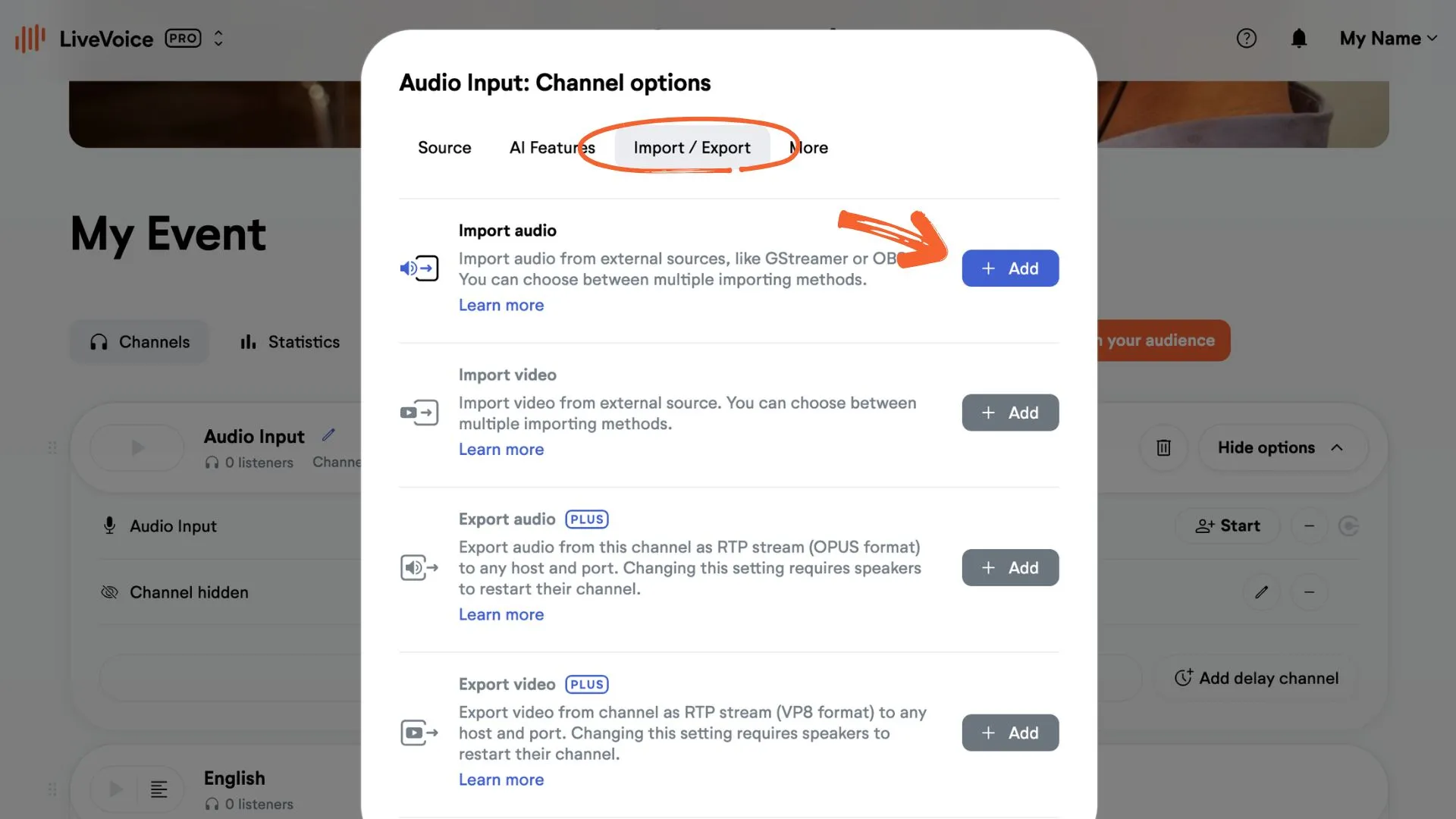
Step 2: Go to the Import/Export tab and click on "Add" at Import audio.
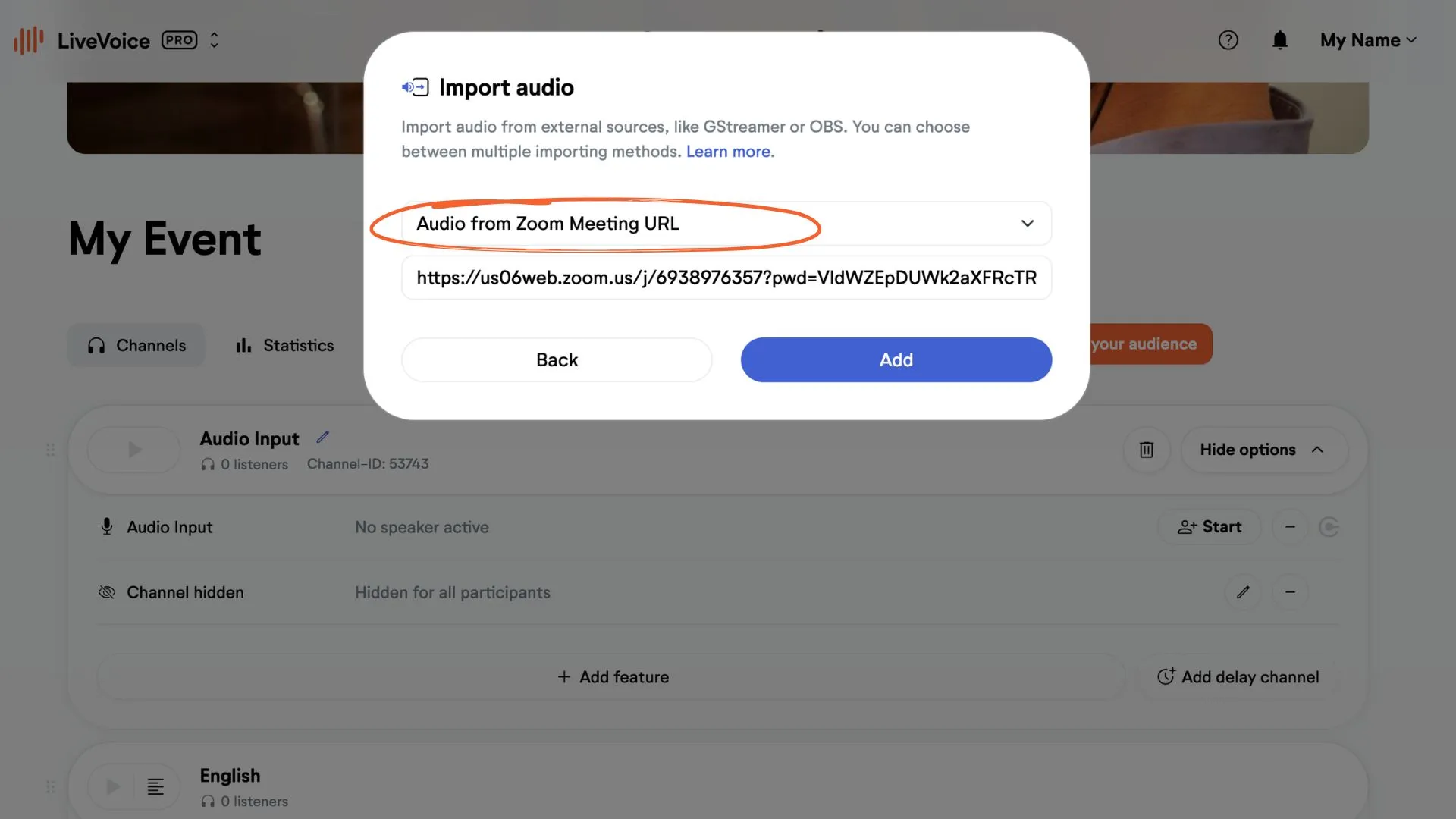
Step 3: Choose the Zoom or Teams option. Then paste the meeting URL of your Teams meeting.
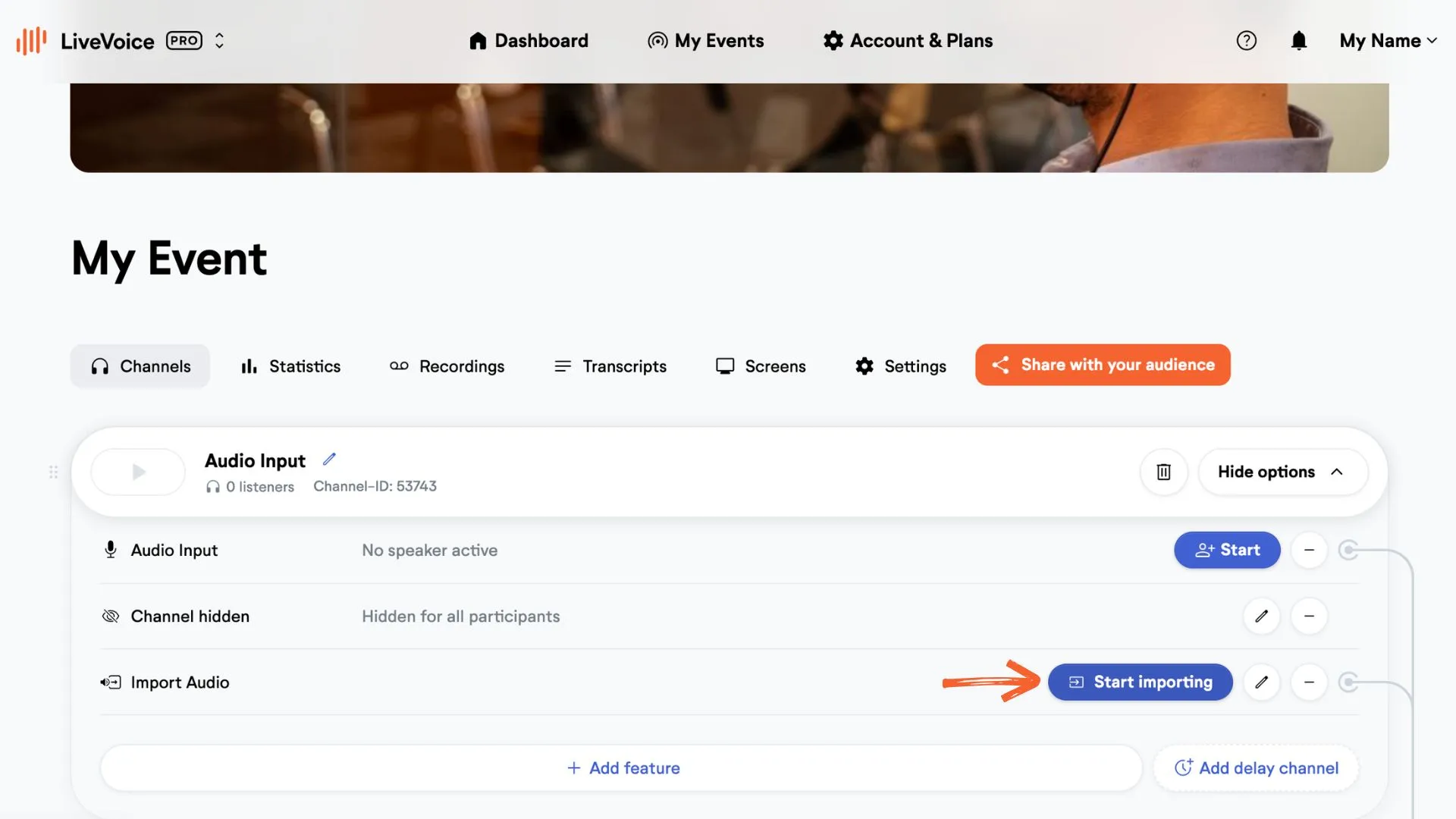
Step 4: You have now added the import bot to your channel. To start the bot click "Start importing". After a few seconds you will see the bot in your meeting, called "Tim Bree (LiveVoice)". The bot will now send all audio from your Teams meeting to LiveVoice, so it can be translated.