How to: Setup for silent conferencing
With our simple Bring-Your-Own-Device solution you can set up silent events and other use cases like overflow audiences with only a few steps. Here is what you need to do.
Step 1: Preparation
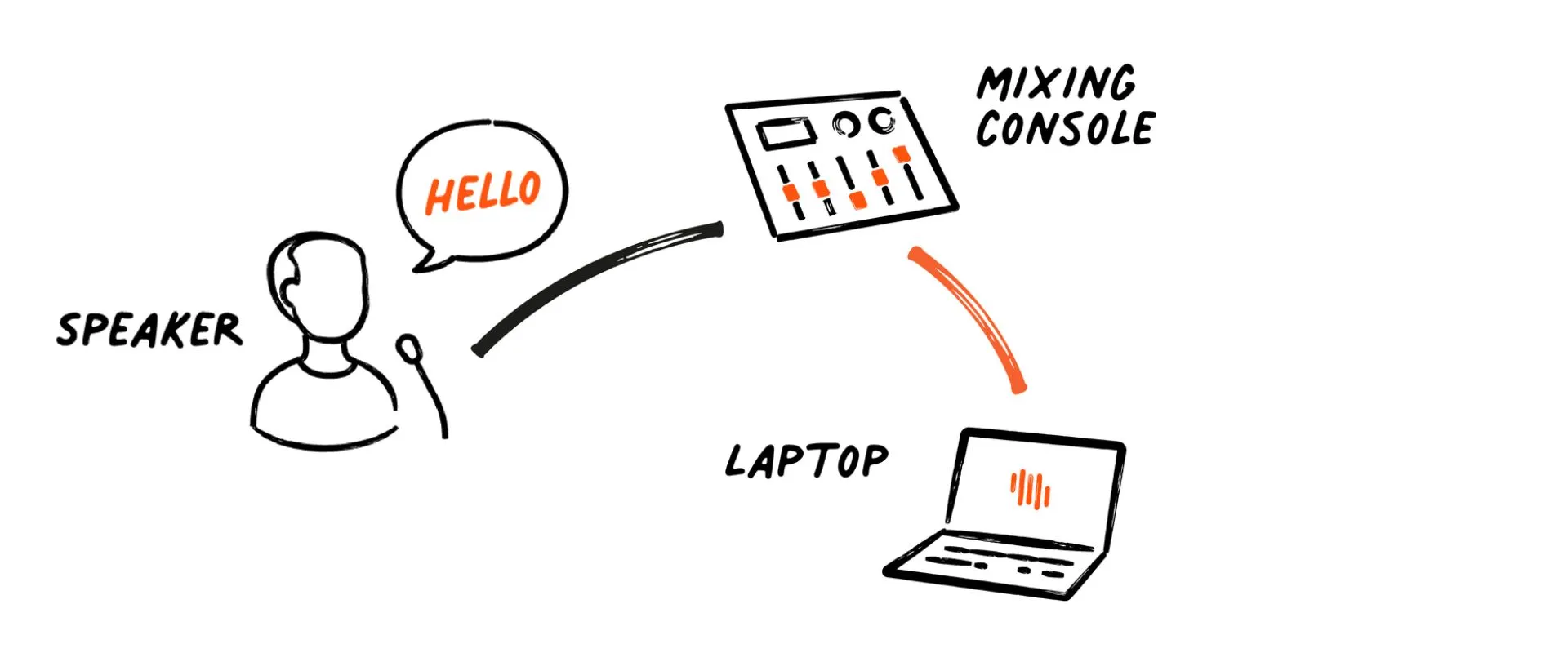
You will need a computer that will receive the audio from your sound mixer. This computer needs a web browser (we recommend Chrome) and an internet connection as it will stream the audio to the LiveVoice cloud.
Step 2: Create event
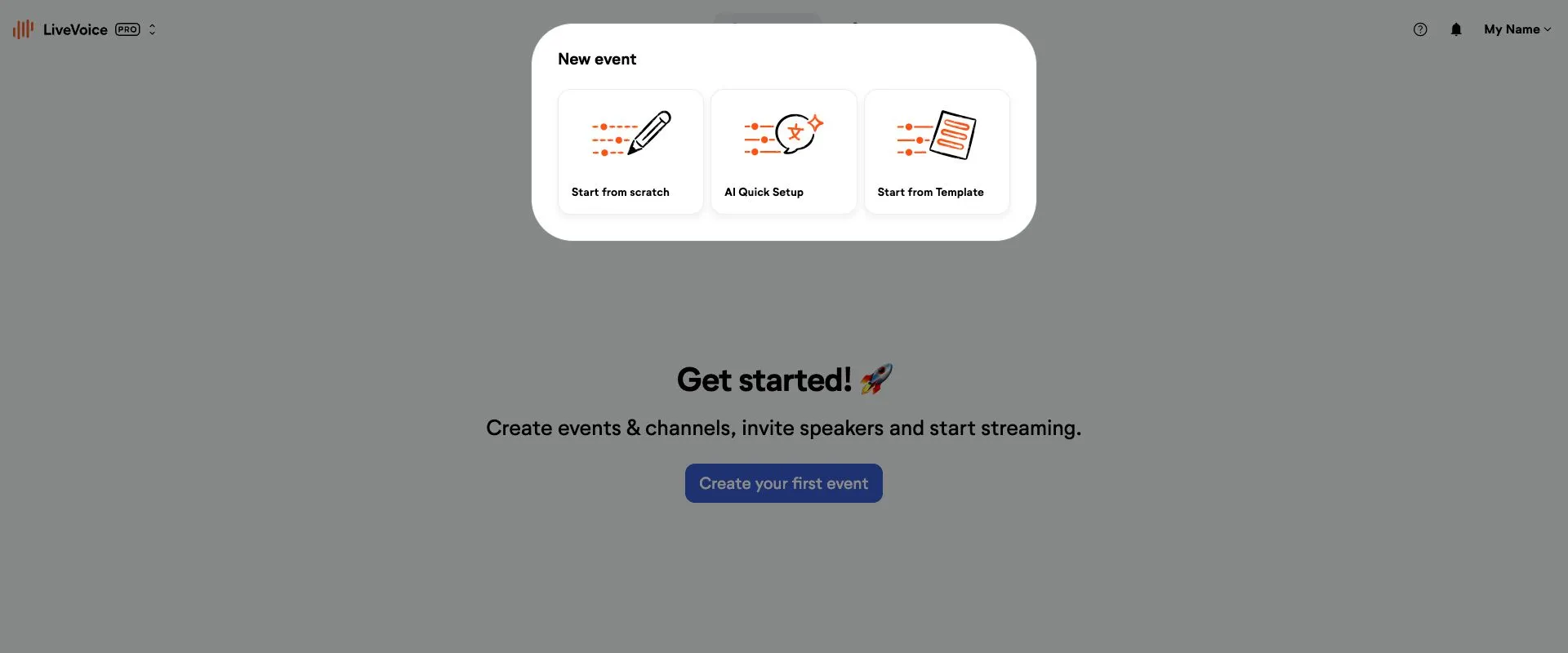
Go to your admin account and create an event:
Option 1: Start from scratch
Set up your channels manually without any default settings.
Option 2: Start from template
Choose from the pre-built template "Silent conference" to quickly set up your channels. You can later edit these channels the way you need it.
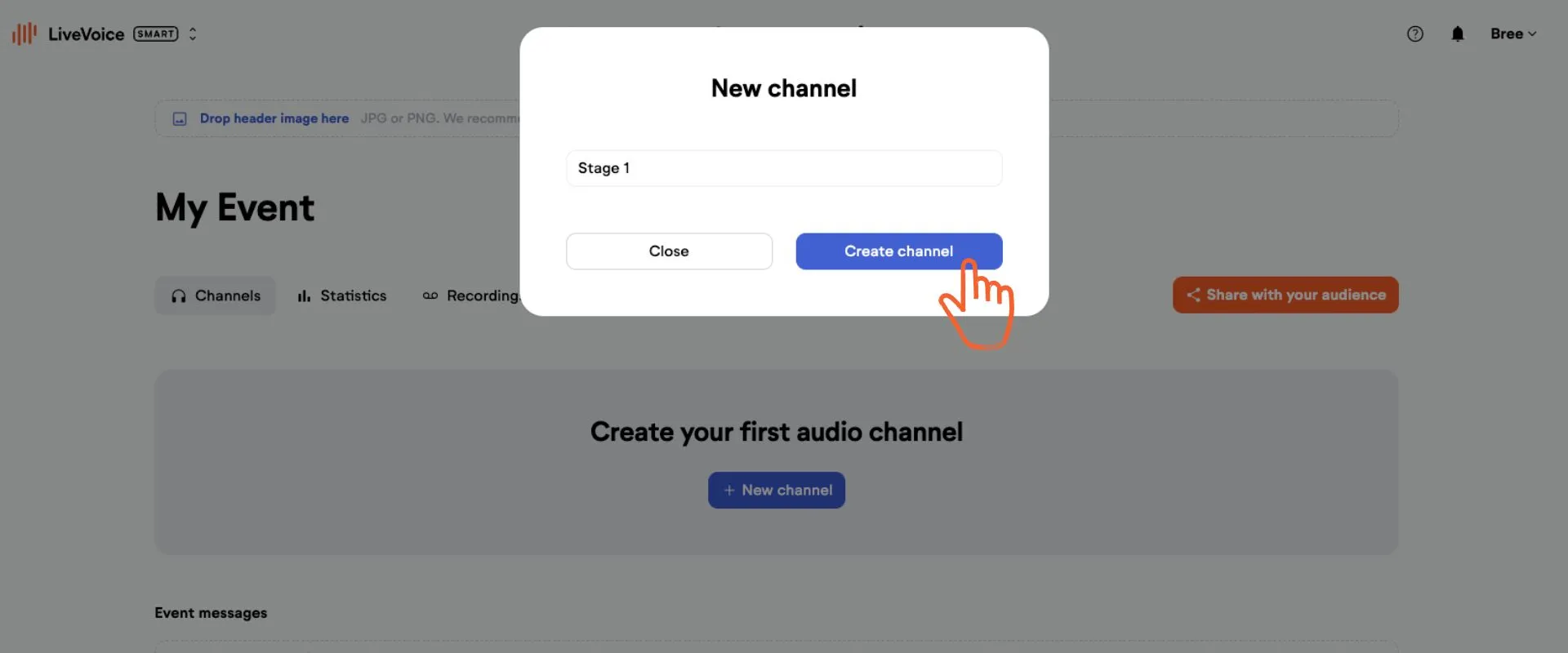
Step 3: Create and/or name your channels
Create one or more channels if you started from scratch, or rename the existing ones if you used a template. Choose clear names that reflect their purpose, such as the stage name.
Step 4: Share with the audience and AV technician
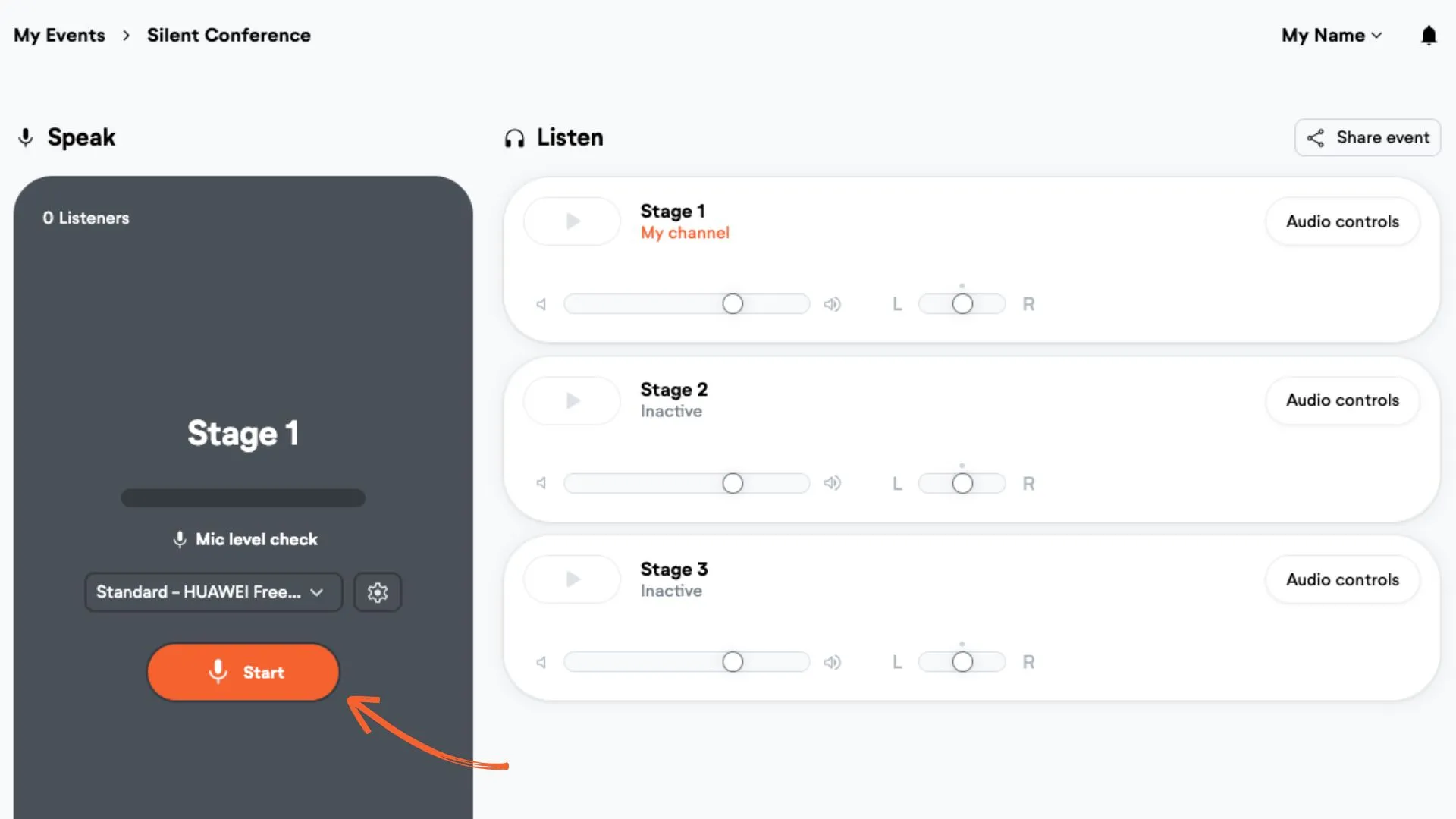
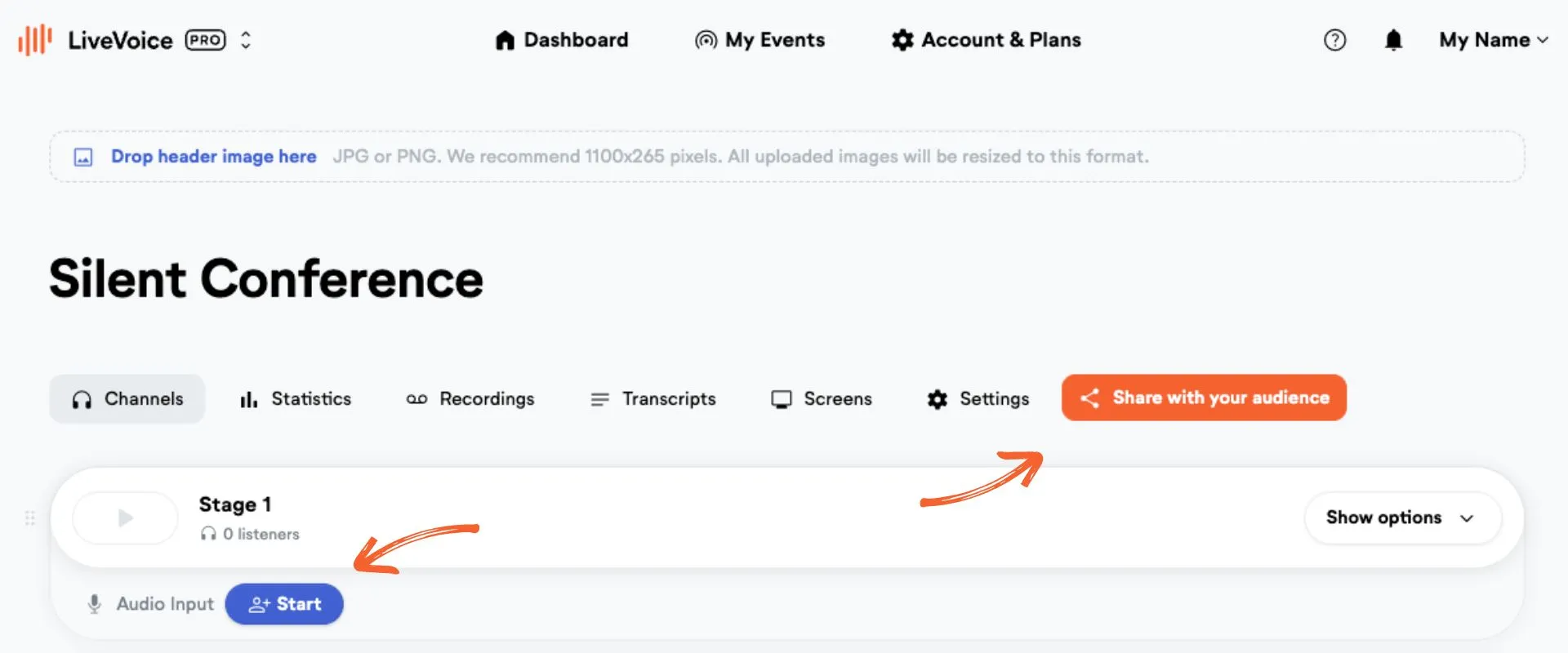
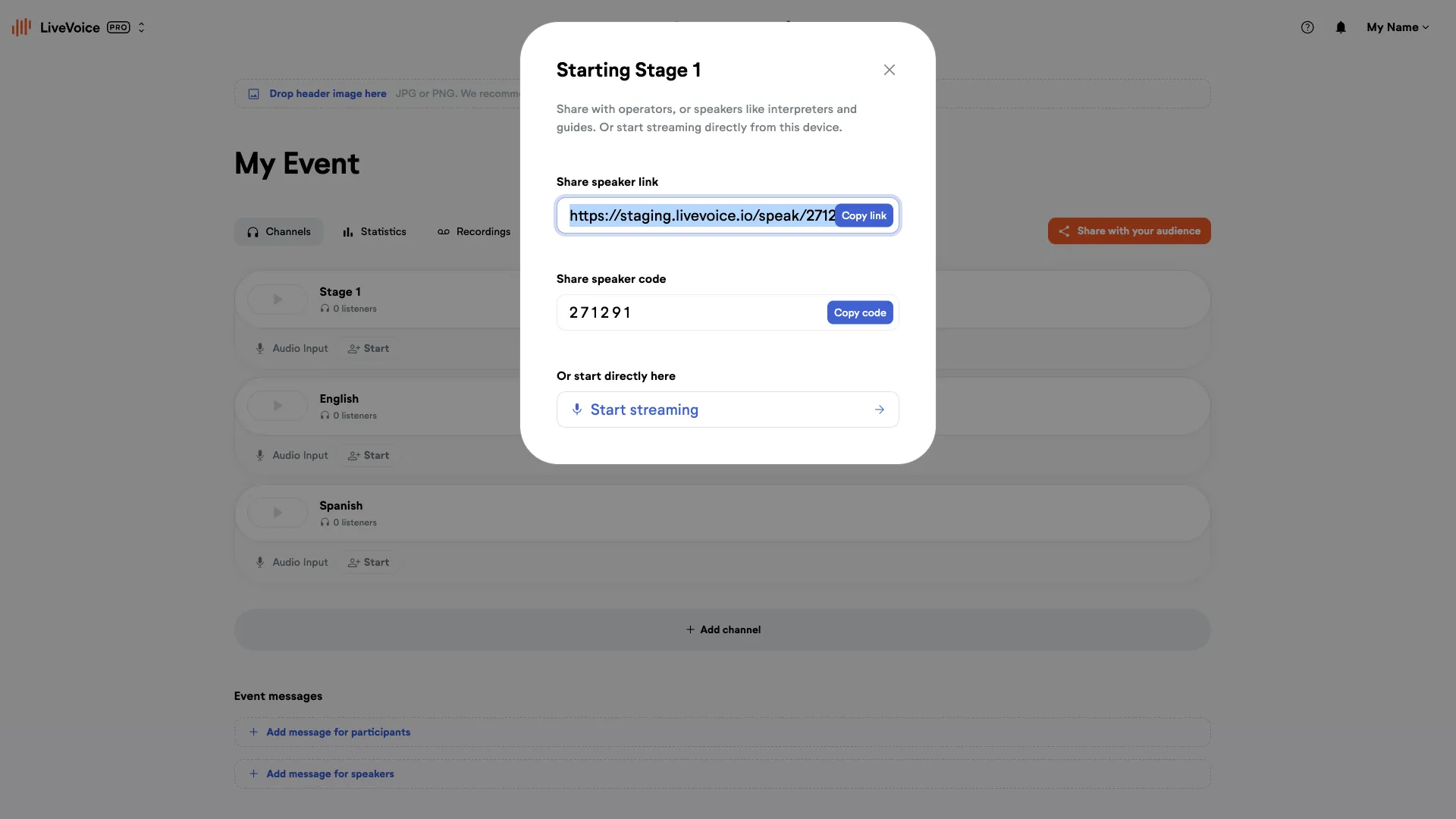
a) Click "Start" to get the invite options for the sending computer; send them to your AV technician.
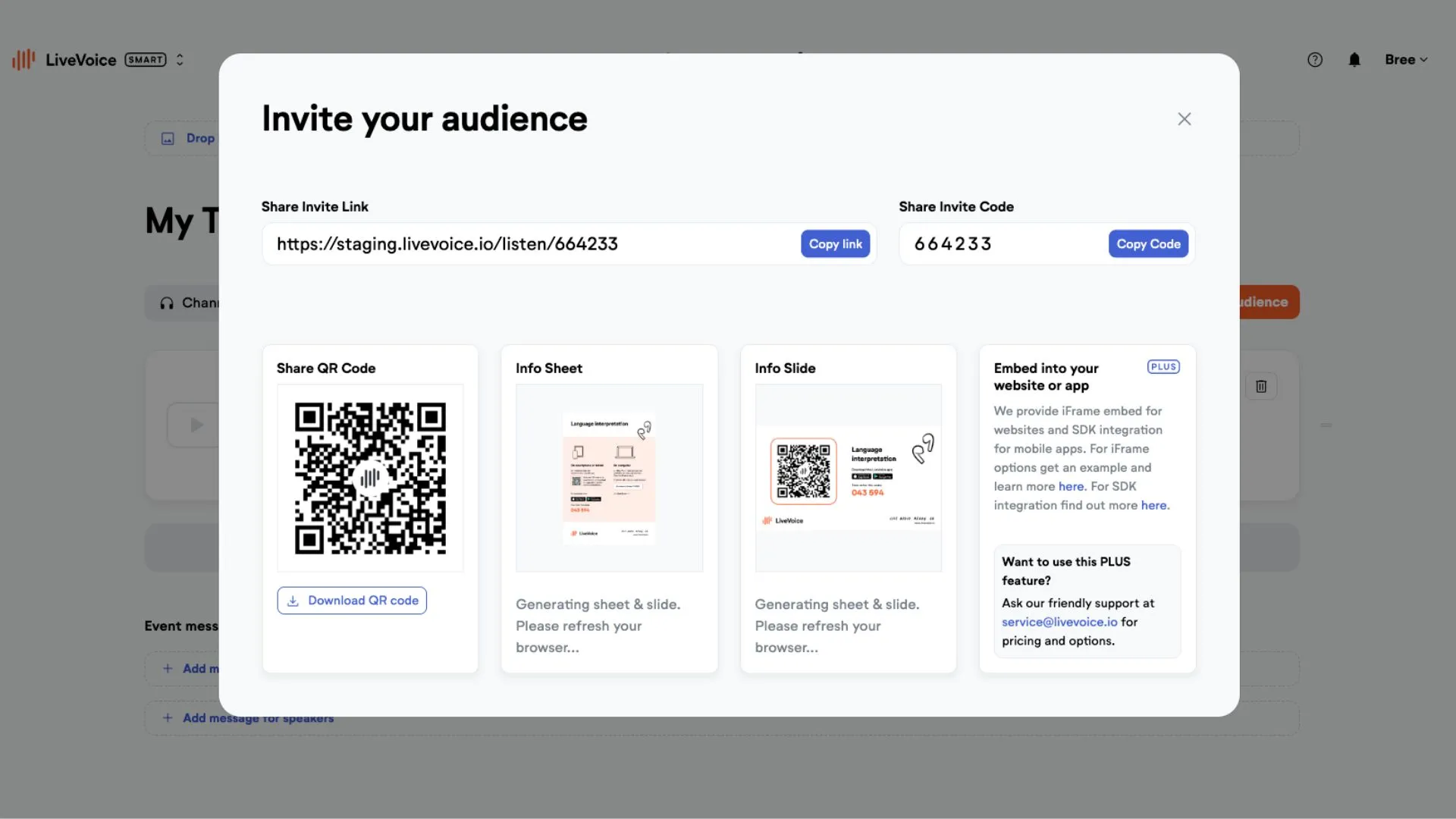
b) Click "Share with your audience" to get the invite options for the audience.
Step 5: Start streaming
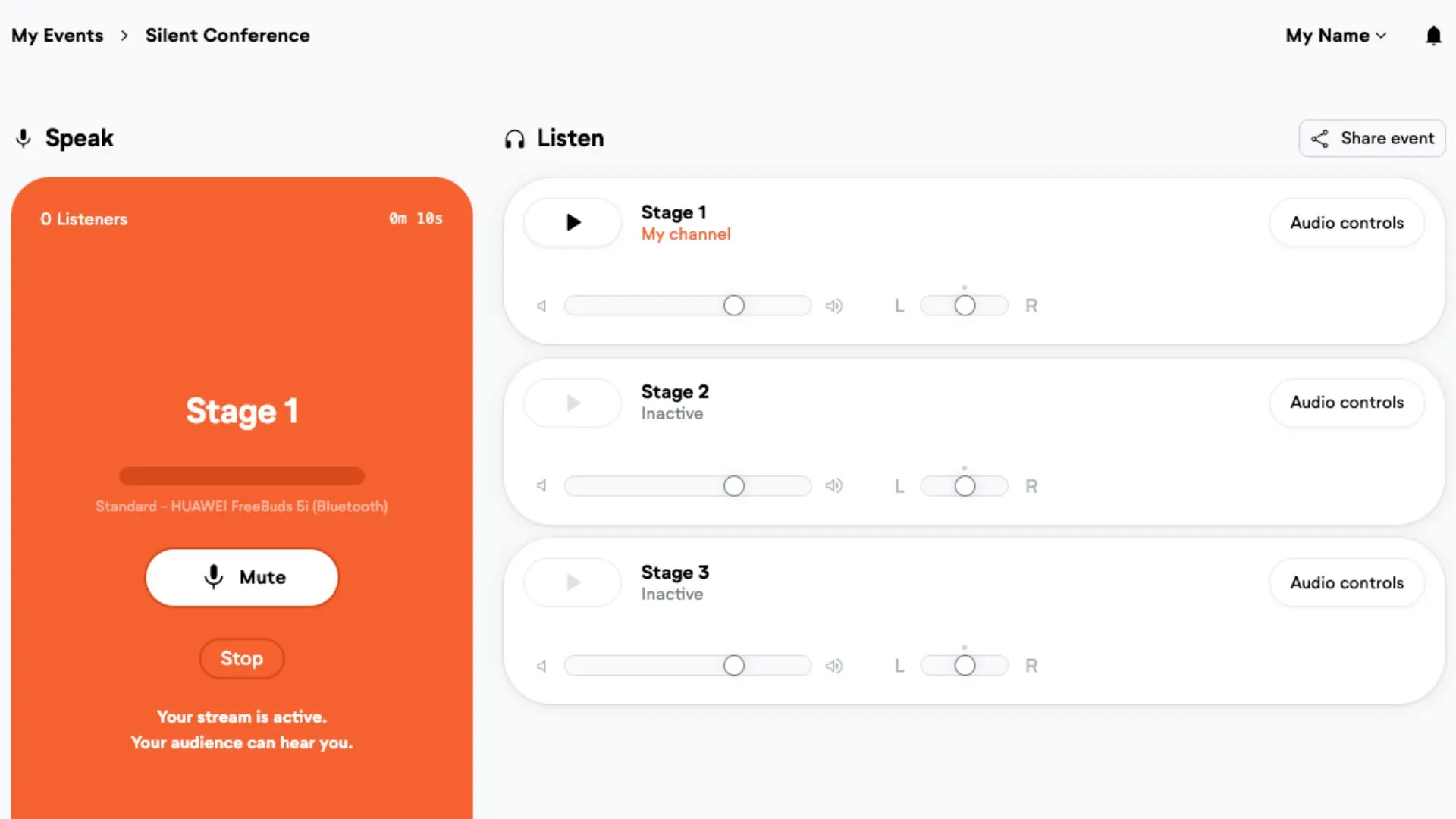
On your device, open the speaker link, select the correct audio input, and start streaming. Make sure the audio input settings are configured correctly.