Start as speaker on the app
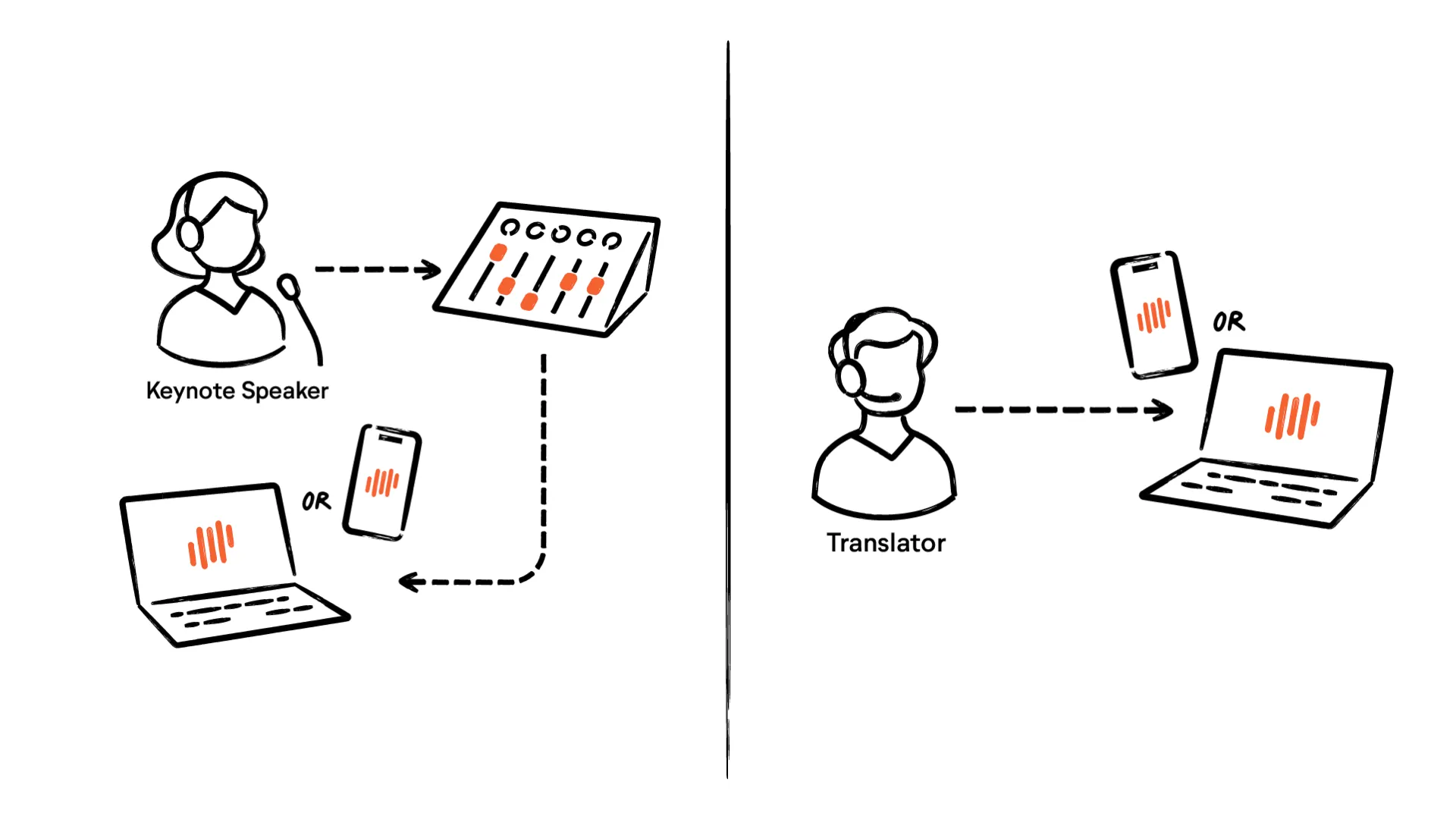
Once you have set up your events and channels and shared the invite information, you are ready to start streaming.
Step 1: Plug in a headset or microphone
You can use any headset but we recommend to use one that has the microphone close to the mouth.
If you are using a microphone without headphones, make sure it has 4 poles as only then your smartphone can recognize it as audio input.
Step 2: Join event
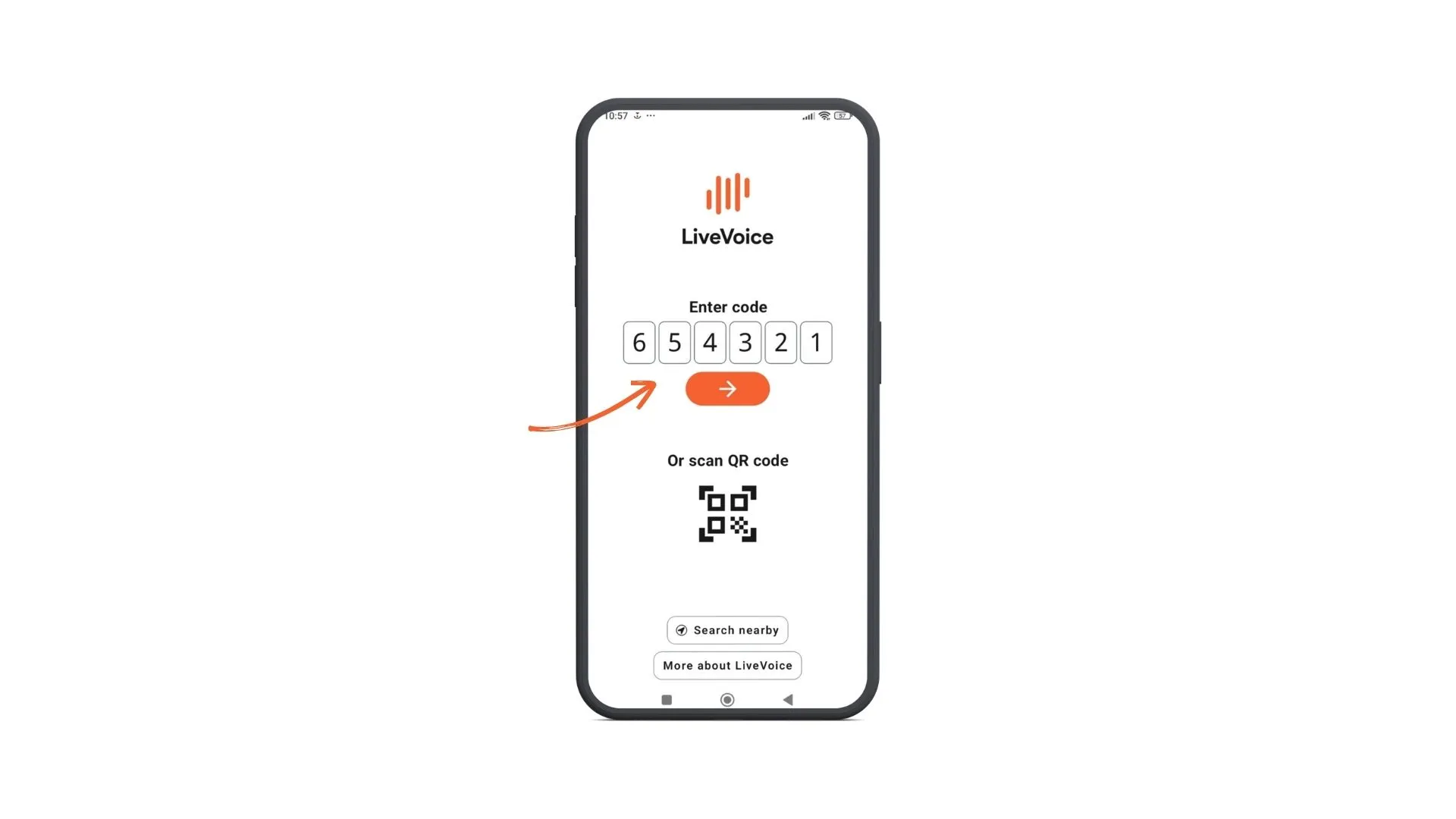
Open the app on your mobile device.
Enter the speaker code or follow the smart link that you received from the event organizer who has set up the event and channels. Now you can join.
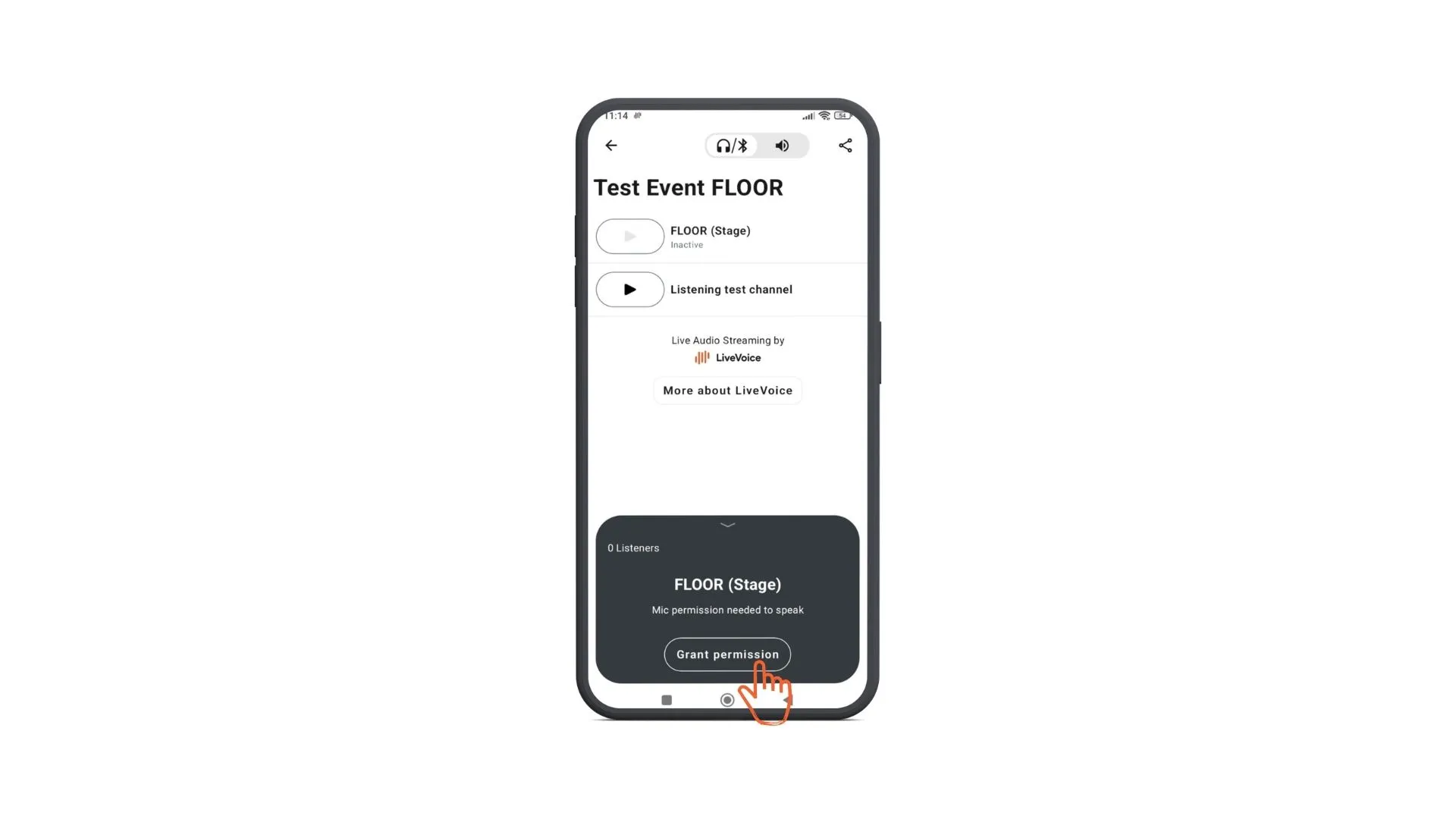
Allow microphone access.
The first time you start streaming your device might ask you to allow microphone permission. Allow it in your device settings.
Step 3: Start
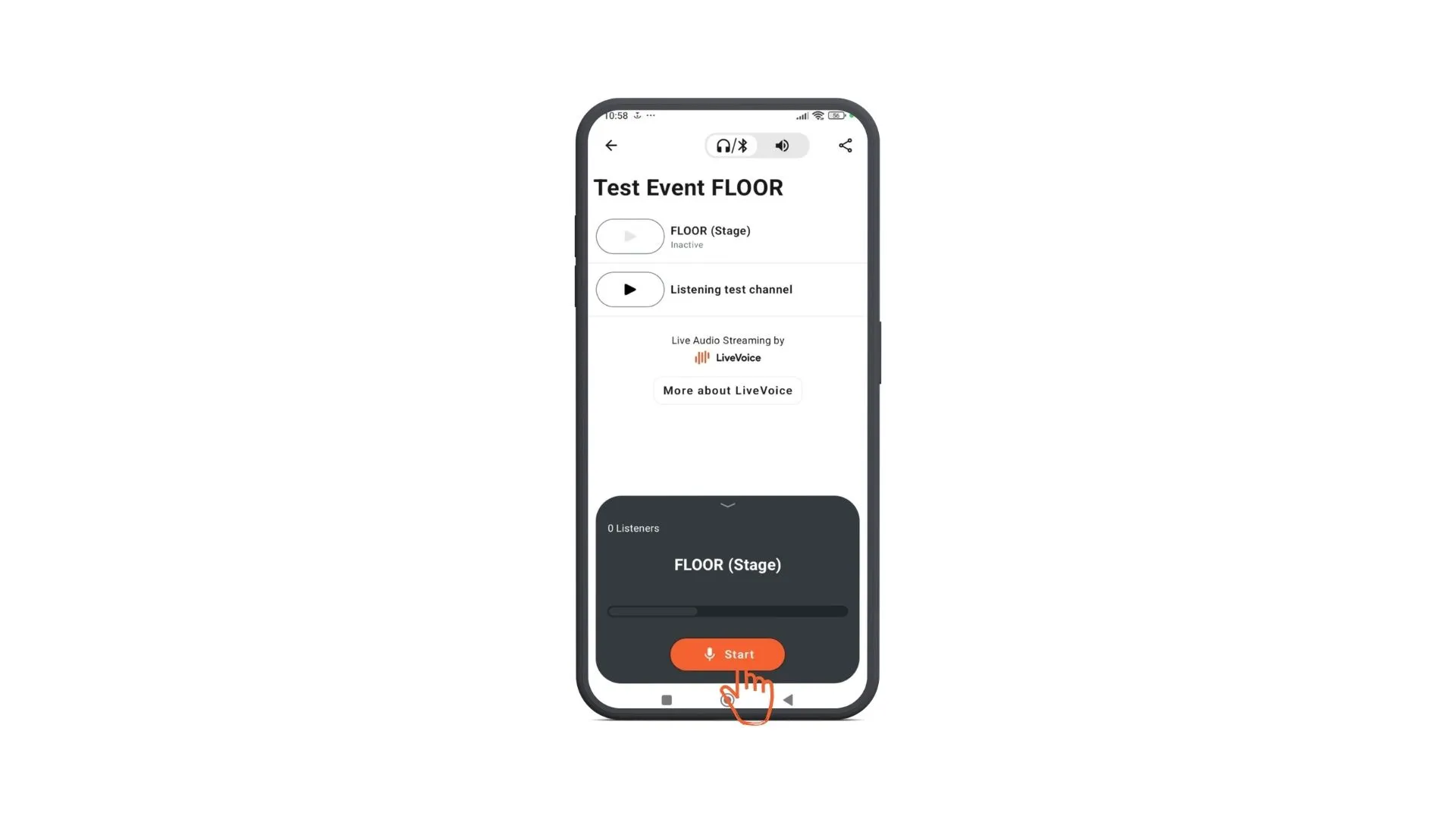
Once you have entered the code, you are in the "Speaker Lobby". You can already check your mic level that moves when you speak.
When you are ready to go live, push the "Start" button.
That's it. You are live!
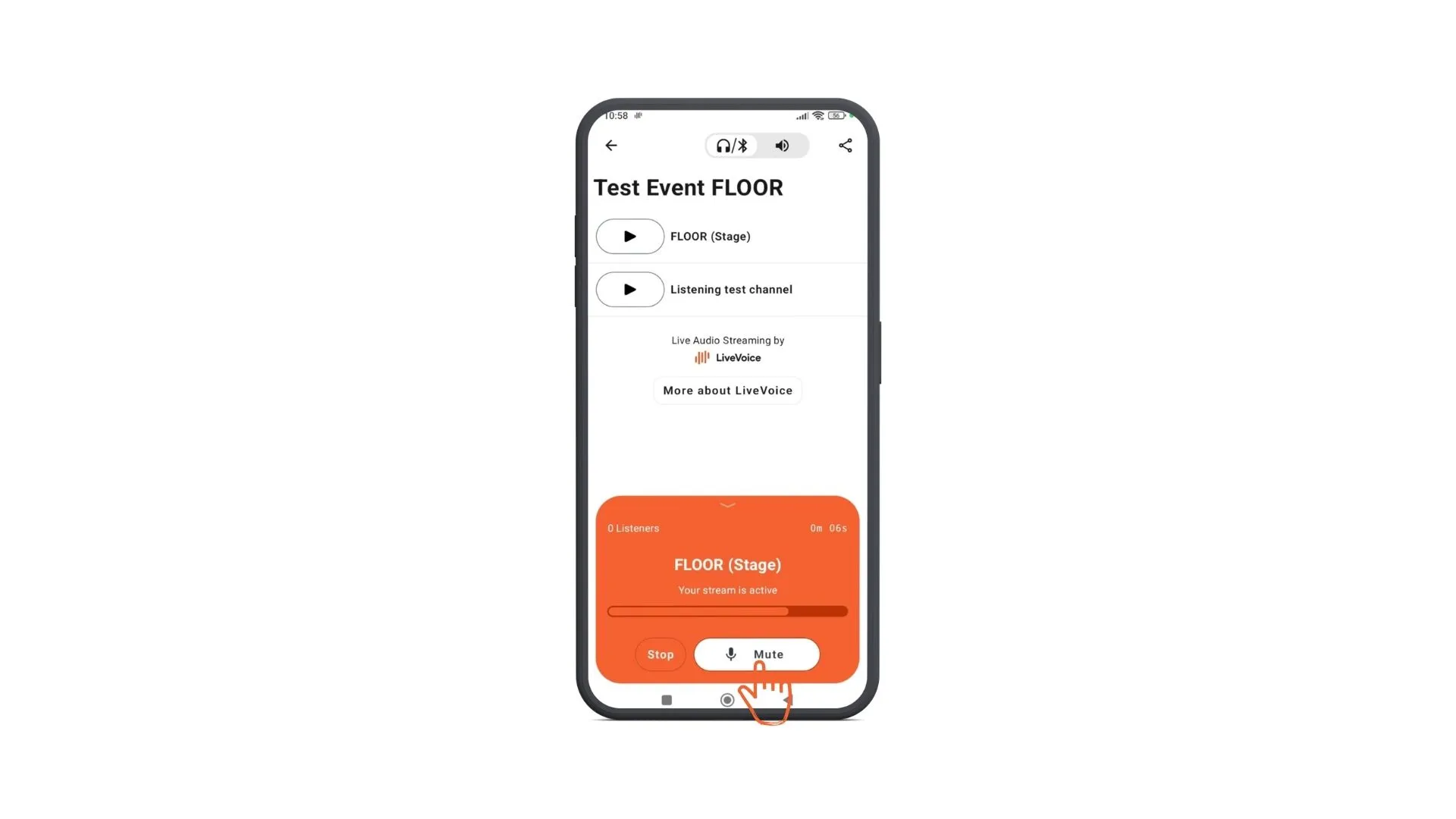
If you want to mute yourself, simply click on the "Mute" microphone button.
When the speaker interface turns blue, you are muted.
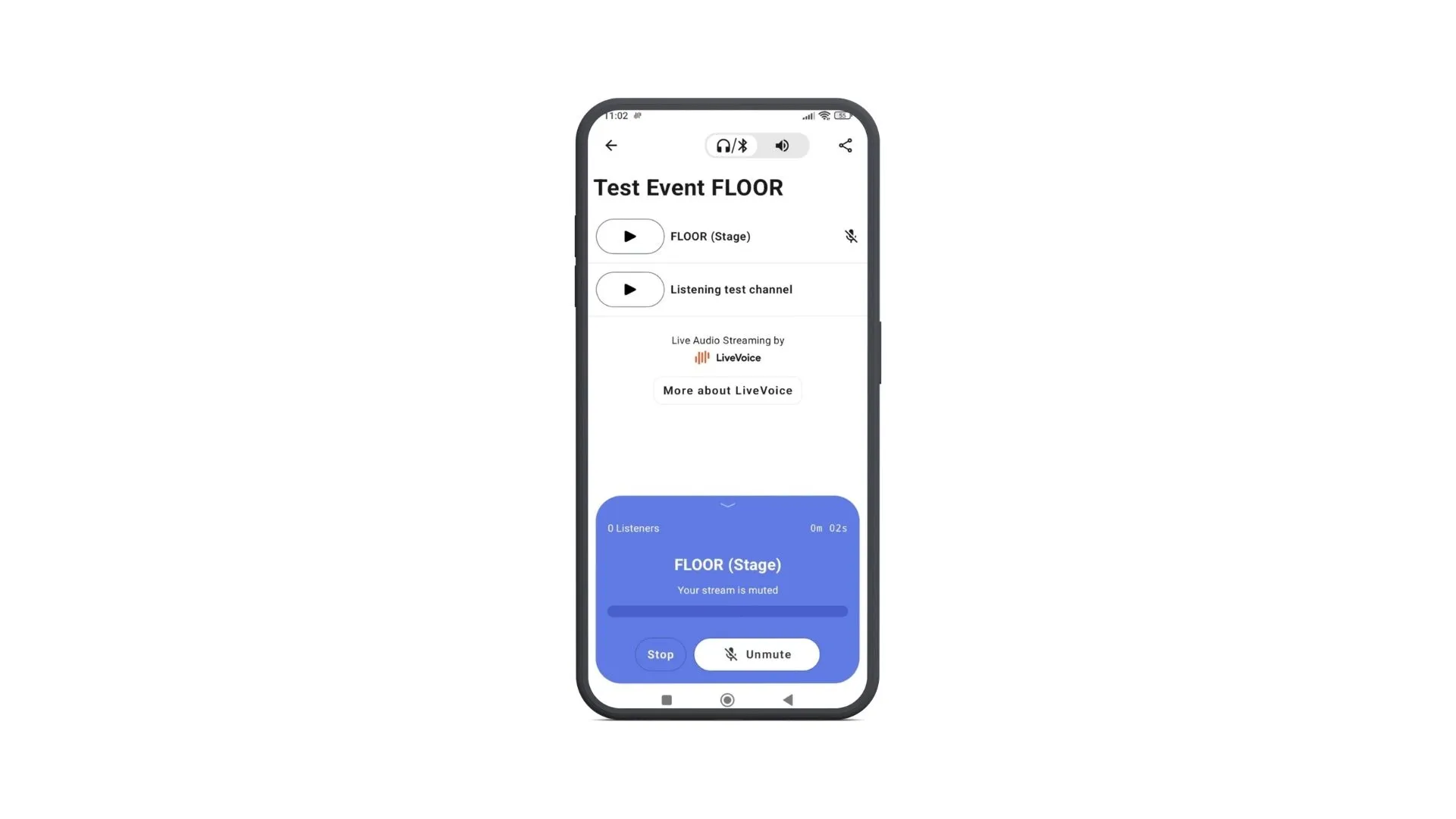
You can listen to other channels if they are active by clicking play next to their name. Don't click in play on your own channel as you would only hear yourself. 😊