AI Translation A/B language switching
If you want to use AI translation and there is more than one language spoken on stage, you can take advantage of our MLD (Multi Language Detection) function. However, sometimes it will be the better option to manually control the switching process as the delay for translation will be smaller, since MLD adds a slight delay to translation because it needs time to analyze the current language.
In such cases you can use the A/B Language Switching feature that is also used for human interpreters. Here is how to set this up.
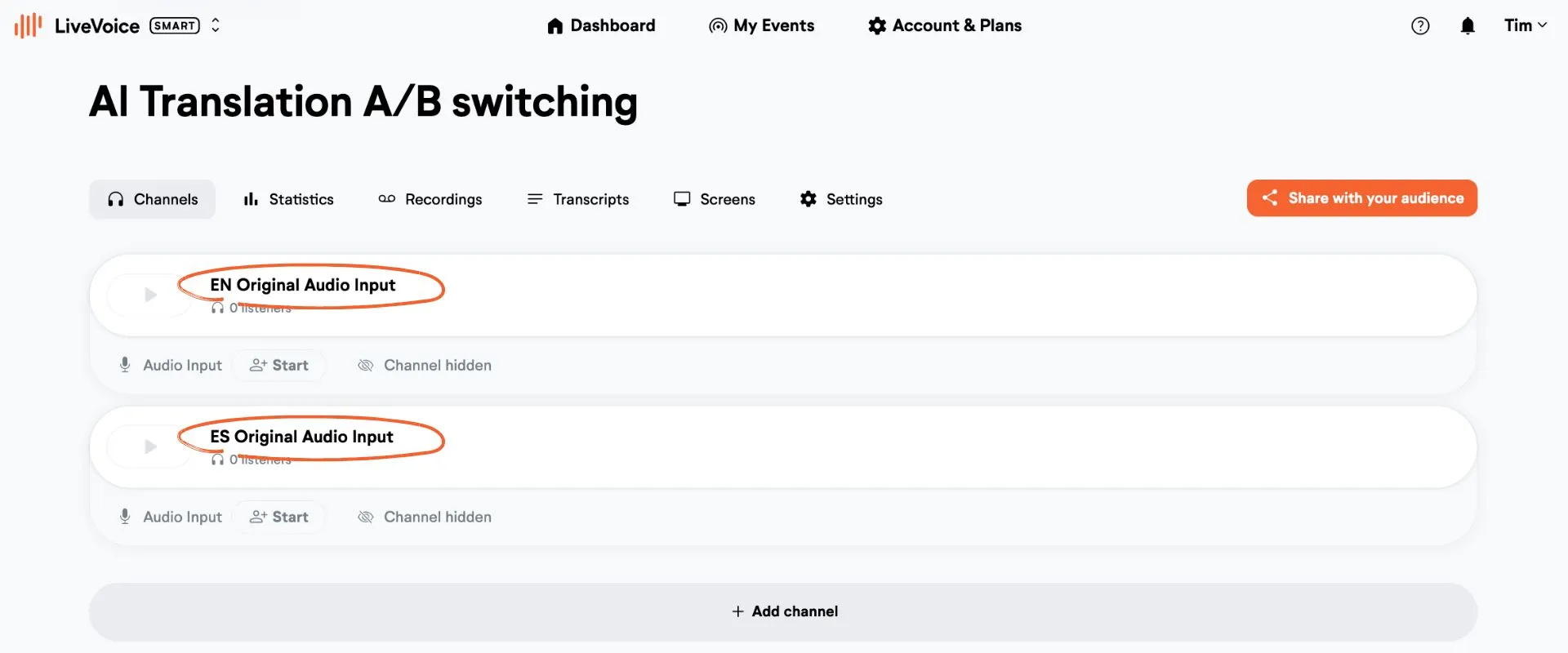
1. Create Two Original Audio Channels
- Channel A: The primary spoken language (e.g., EN Original AudioInput)
- Channel B: The alternate spoken language (e.g., ES Original Audio Input)
- Hide both channels from the audience (They're for internal AI processing only.)
2. Create Two AI Translation Channels
- 1.AI Translated A→B: Converts audio from Original A into Language B
- 2.AI Translated B→A: Converts audio from Original B into Language A
In our example:
- For the first channel you choose as source "EN Original Audio Input" and set the source language to "English",
- You set translate to "Spanish"
- As start mode you select "Automatically with source channel"
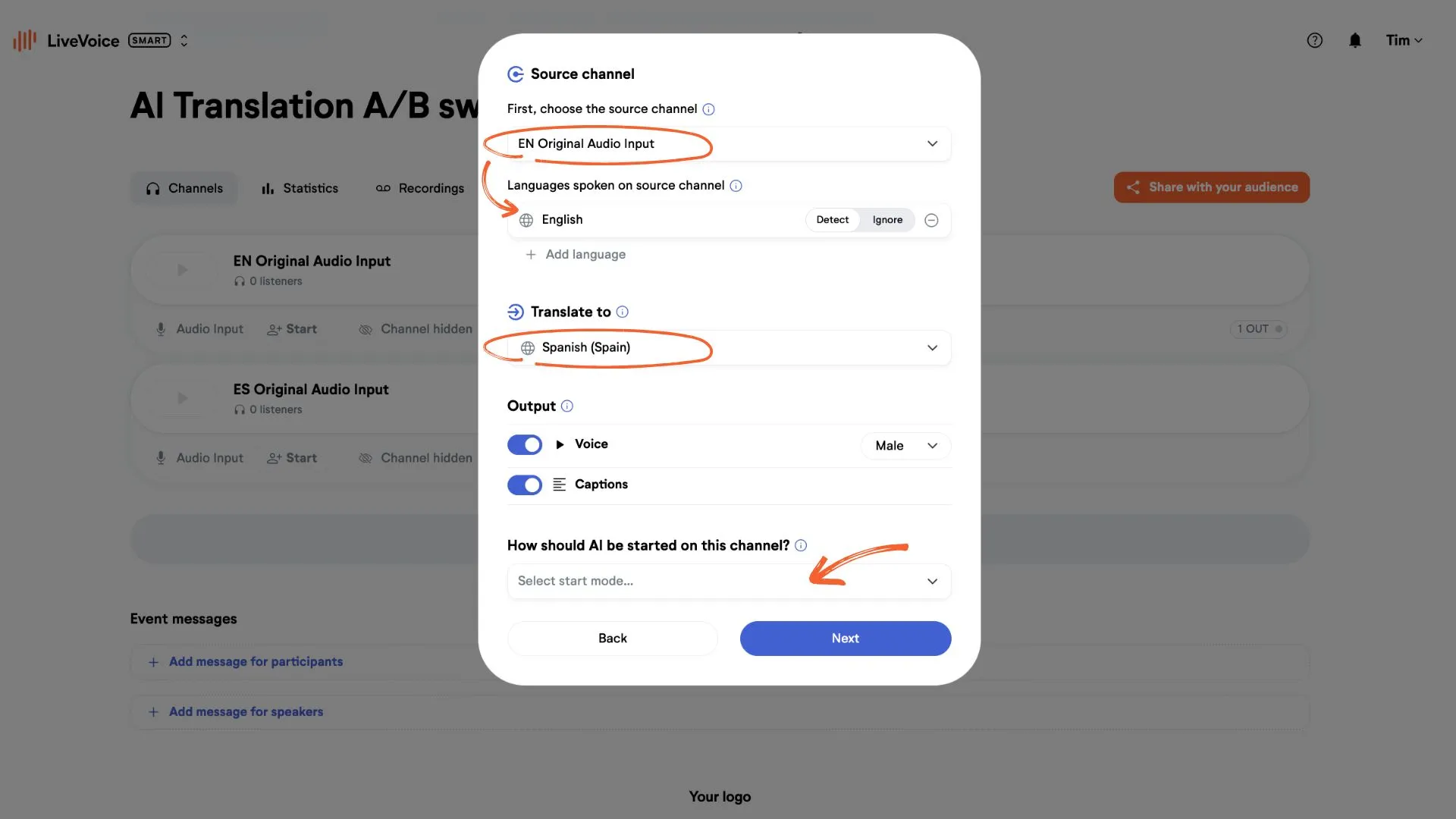
You do the same with the second AI translation channel, just the other way round (translating "ES Original Audio Input" to English).
This ensures each AI channel listens to the correct source channel and the right language selected for translation.
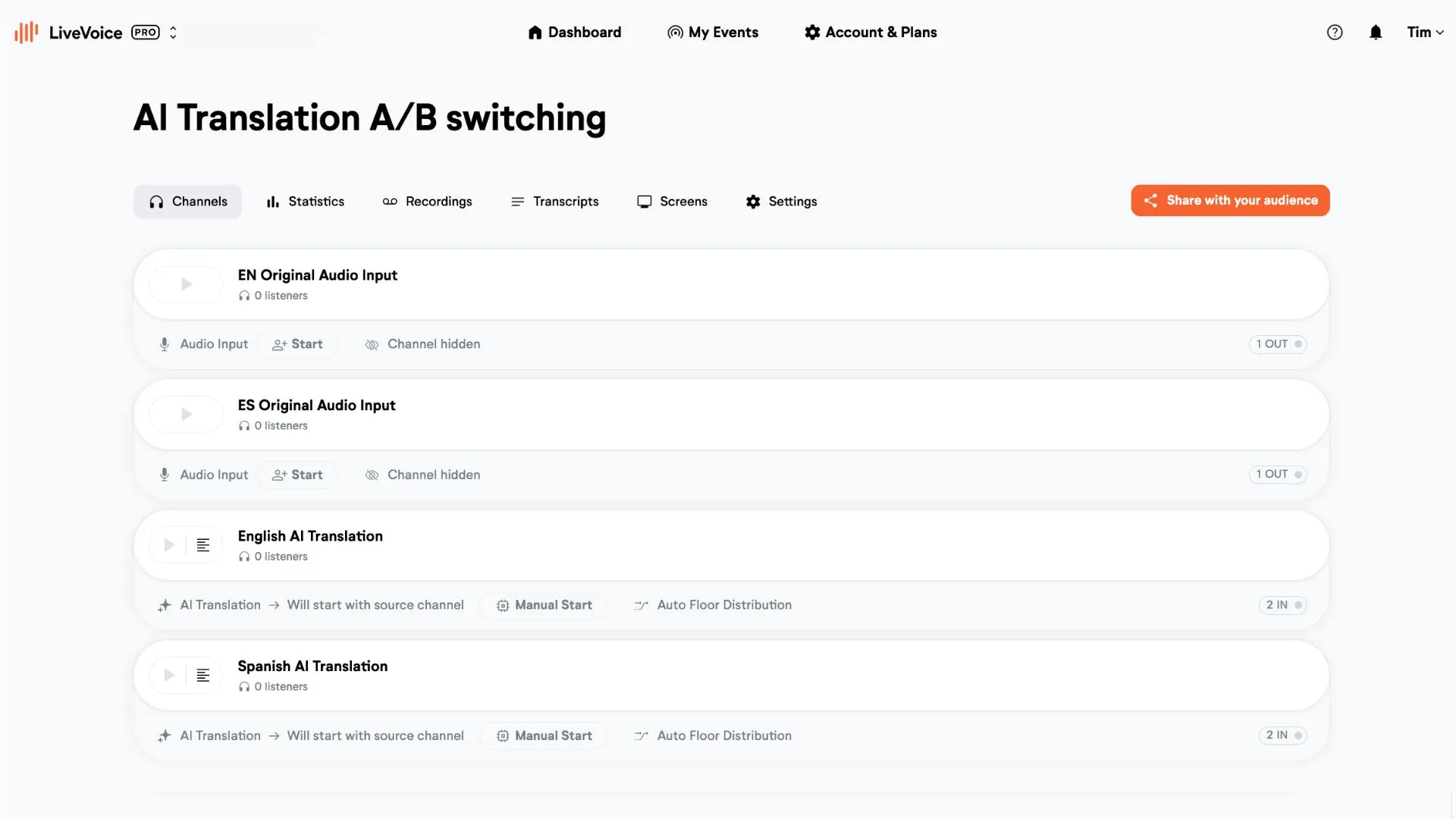
You now have four channels:
- 1.Original A
- 2.Original B
- 3.AI Translated A→B
- 4.AI Translated B→A
3. Configure A/B Language Switching in Event Settings
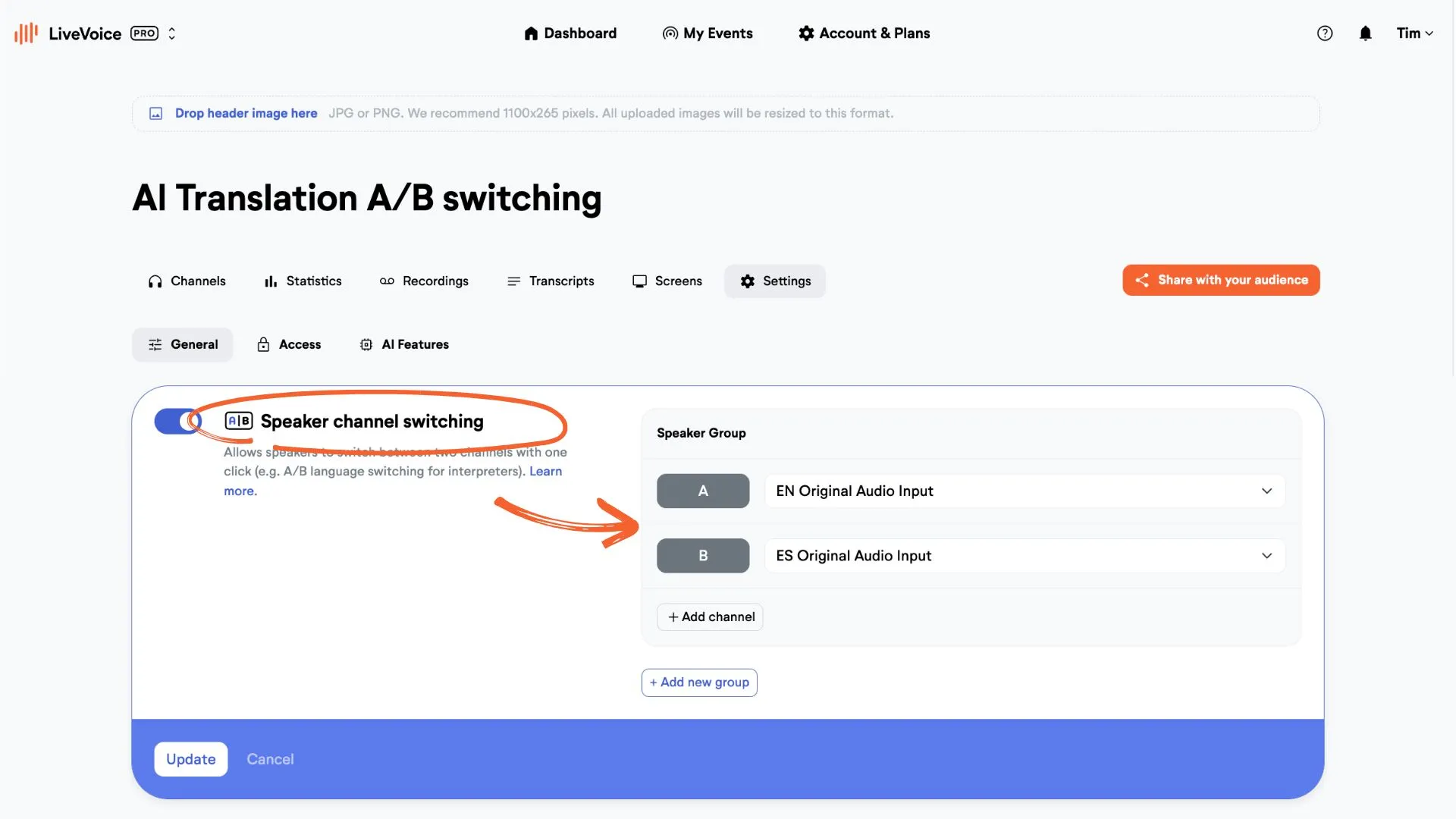
Within your event’s A/B Language Switching settings:
- Define Original A and Original B as the two source channels.
- This binds them to A/B buttons in the speaker interface.
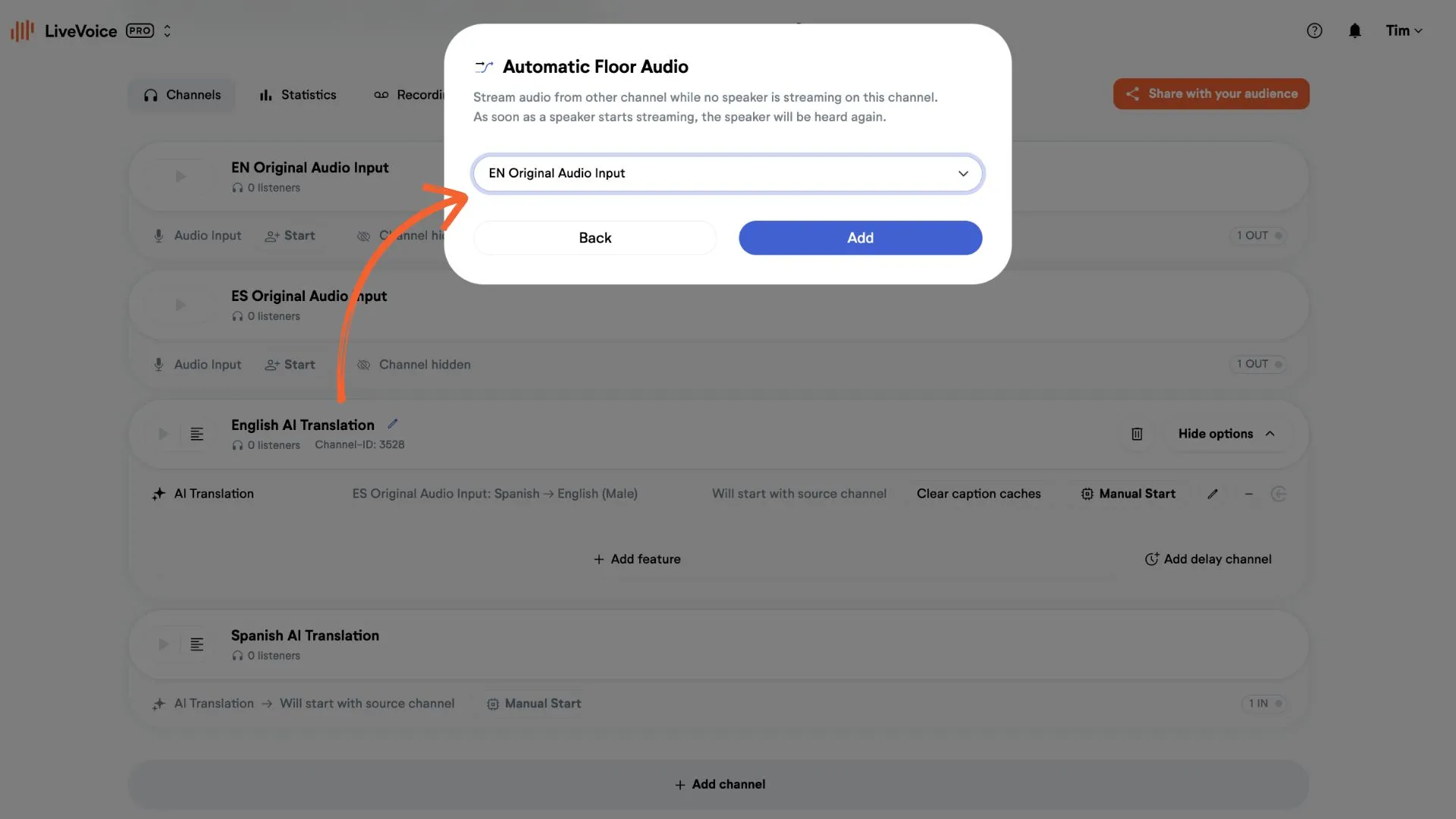
4. Optional: Enable Automatic Floor Audio
In each AI translation channel add Automatic Floor Audio. At the channel go to "Show options" and click + Add Features. Go to the "More" tab and add the feature. Set it to the same original audio channel. For example for English AI Translation channel choose "EN Original Audio Input".
In this way in the AI A→B channel, when the same language is spoken, it automatically distributes the Original B audio, so listeners hear continuous speech. This can be handy in some situations, but is only an option.
5. Speaker Workflow During Live Session
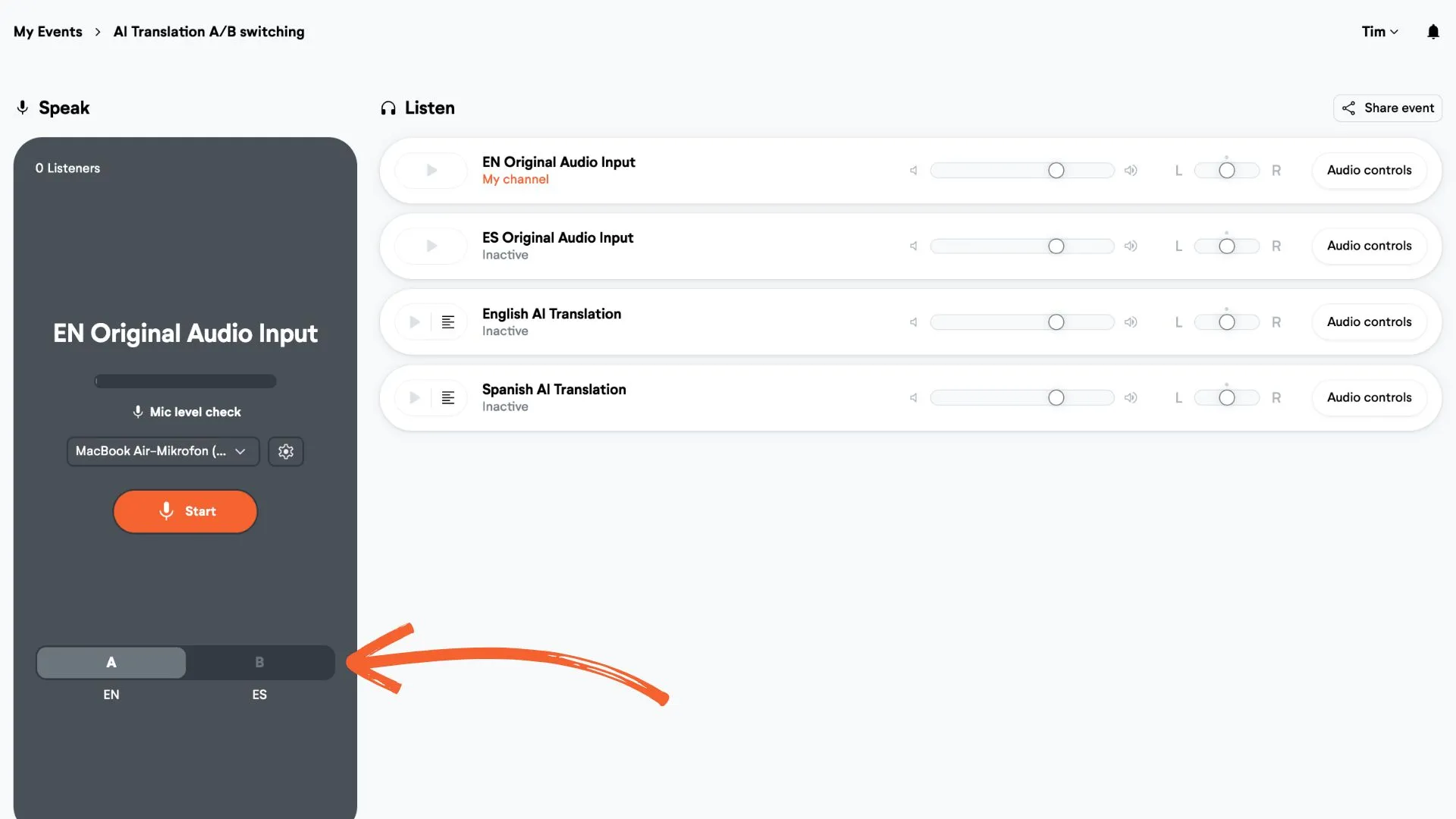
- 1.Click “Invite Speaker” on one of the two original source channels. It makes no difference which channel you use to invite the speaker, as you can switch between the channels.
- 2.In the Speaker Interface, use the A/B buttons to switch channels when the spoken input language changes. Toggling to A triggers AI Translated A→BToggling to B triggers AI Translated B→A
The AI translation channel starts automatically, and listeners receive continuous translated audio. The original audio is available when the language selected for listening is the same as the language spoken.
Checklist
- Set up Original A and Original B channels (hidden)
- Create AI Translated A→B and AI Translated B→A channels
- Assign proper source audio in AI channel settings
- Set the correct AI translation output language
- Enable Autostart on all AI translation channels
- Configure A/B Language Switching in event settings linking Original A & B
- Enable Automatic Floor Audio from the original channels (optional)
- Speaker (operator/technician) toggles via A/B to activate correct AI translation stream
With this setup, you can manually select the AI translation language depending on the spoken language to achieve better translation quality compared to auto language detection.